 Asal Ku Training
Start here › Lesson 3
Your list of trees
Find, search, pin and create trees, and understand every symbol on a tree card.
In this lesson you will learn
- What the Mine, Shared and Pinned tabs hold
- How to read a tree card and its symbols
- How to search for a tree, or for a person across every tree
- How to create, rename, pin, delete and remove trees
The three tabs
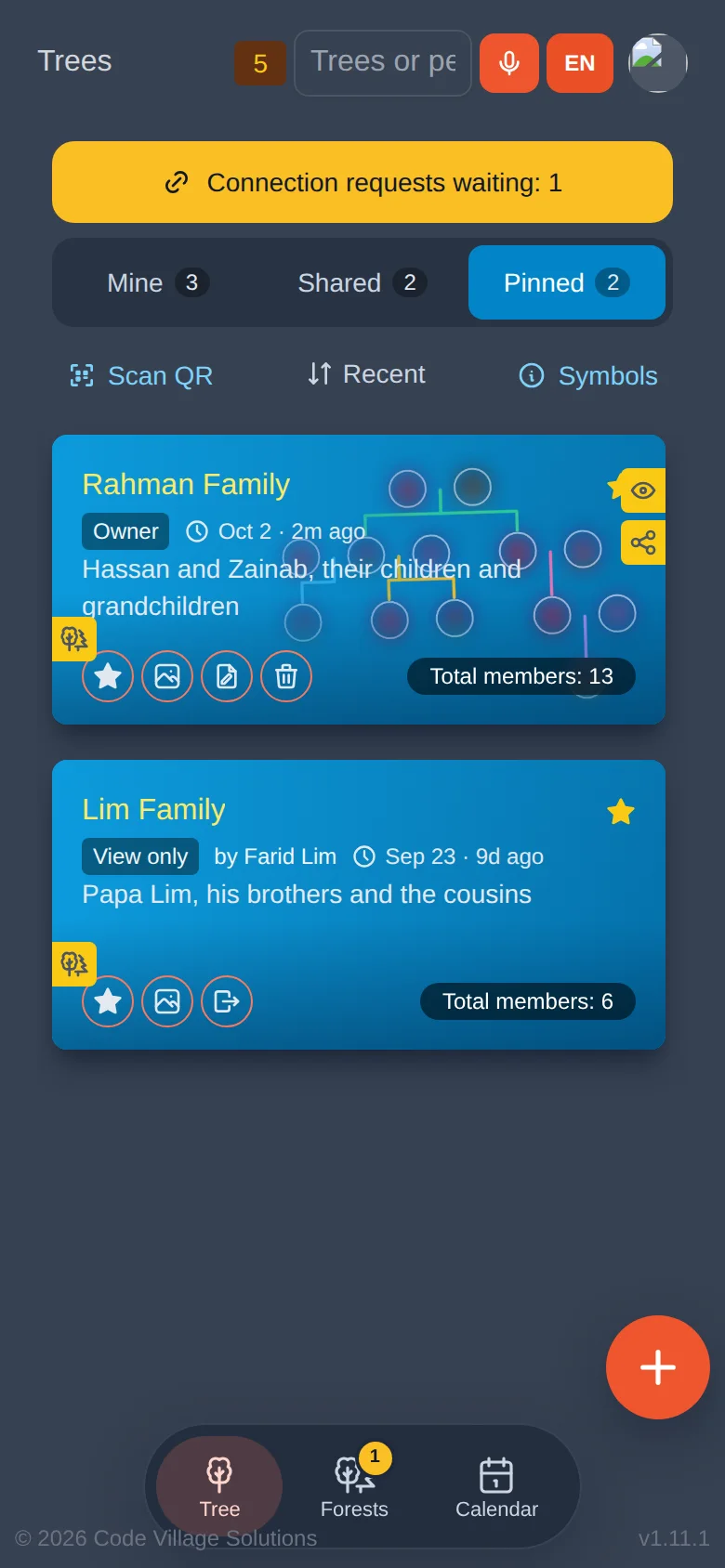
Under the top bar you see three tabs. The number beside each tab is how many trees it holds.
| Tab | What is in it |
|---|---|
| Mine | Trees you made or that you were given to manage. |
| Shared | Trees that relatives shared with you. You may be able to look only, or to help edit. |
| Pinned | Trees you starred, so they stay at the top. |
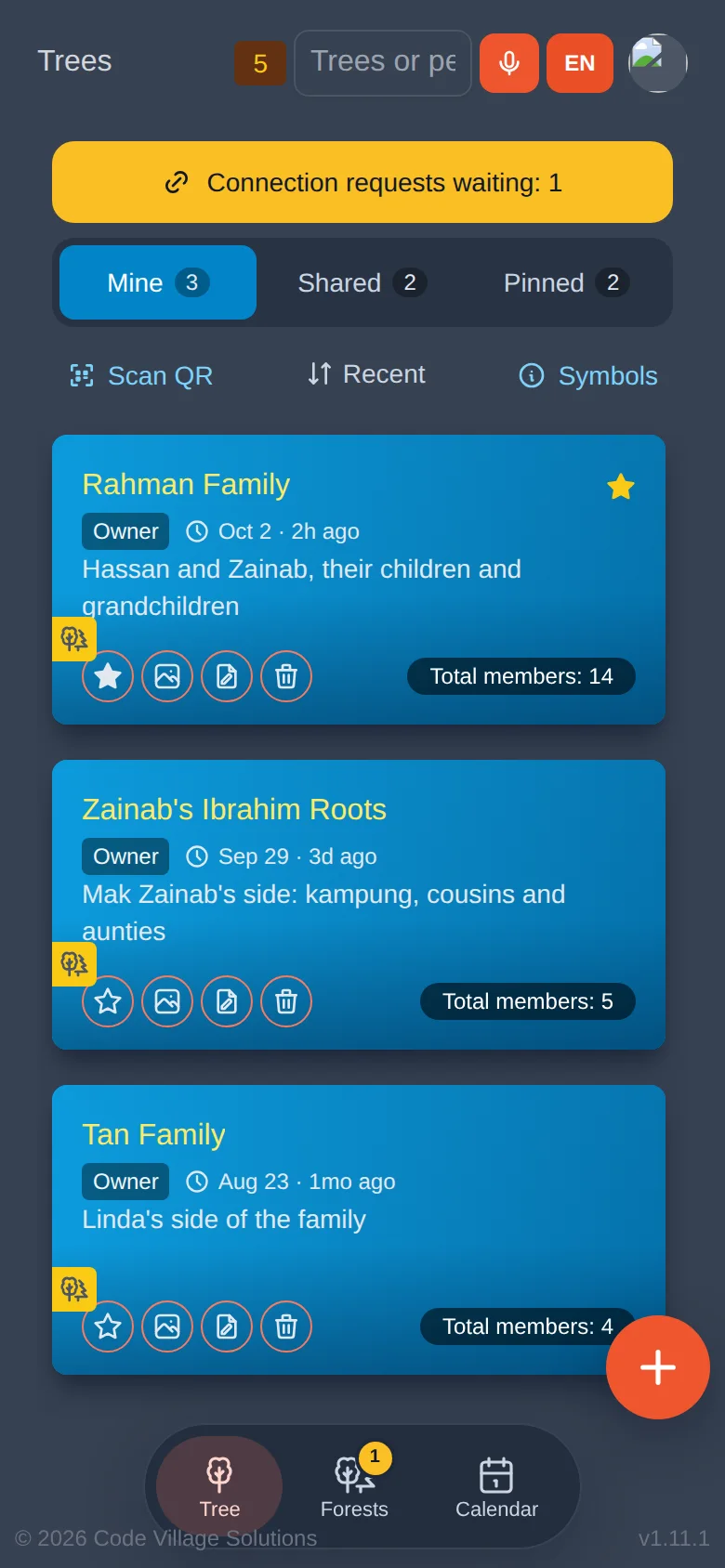
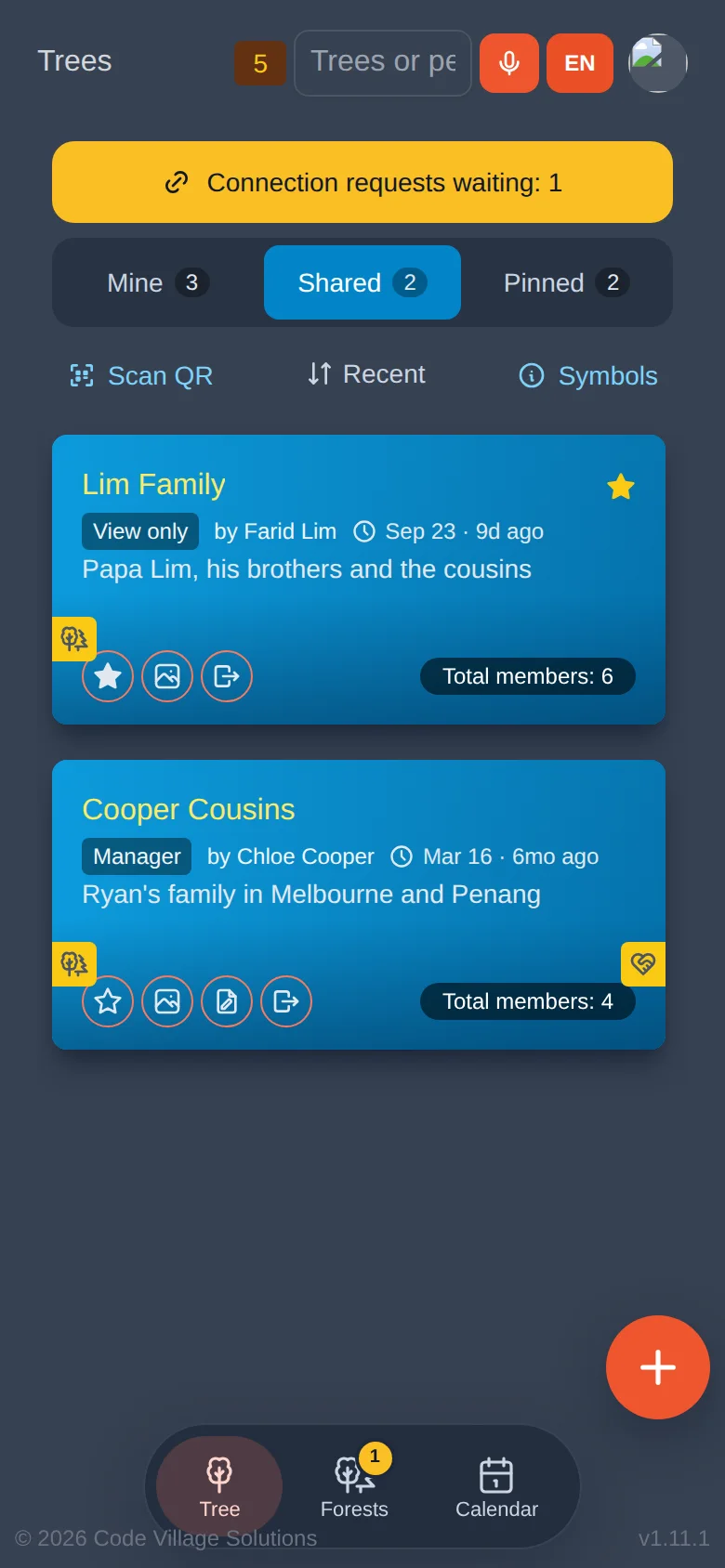
Reading a tree card
Each tree is a coloured card. From top to bottom:
- The tree name in yellow, and a yellow star if it is pinned.
- Your role (Owner, Manager or View only) and when the tree last changed, such as "2h ago".
- The description in a line or two.
- Total members: how many people are in the tree.
- Round buttons along the bottom (see below).
Round buttons on a card
| Button | What it does |
|---|---|
| ☆ Star | Pins the tree, or unpins it if it was pinned. |
| 🖼 Picture | Opens the tree's Memories: all pictures, audio and video of its people (lesson 8). |
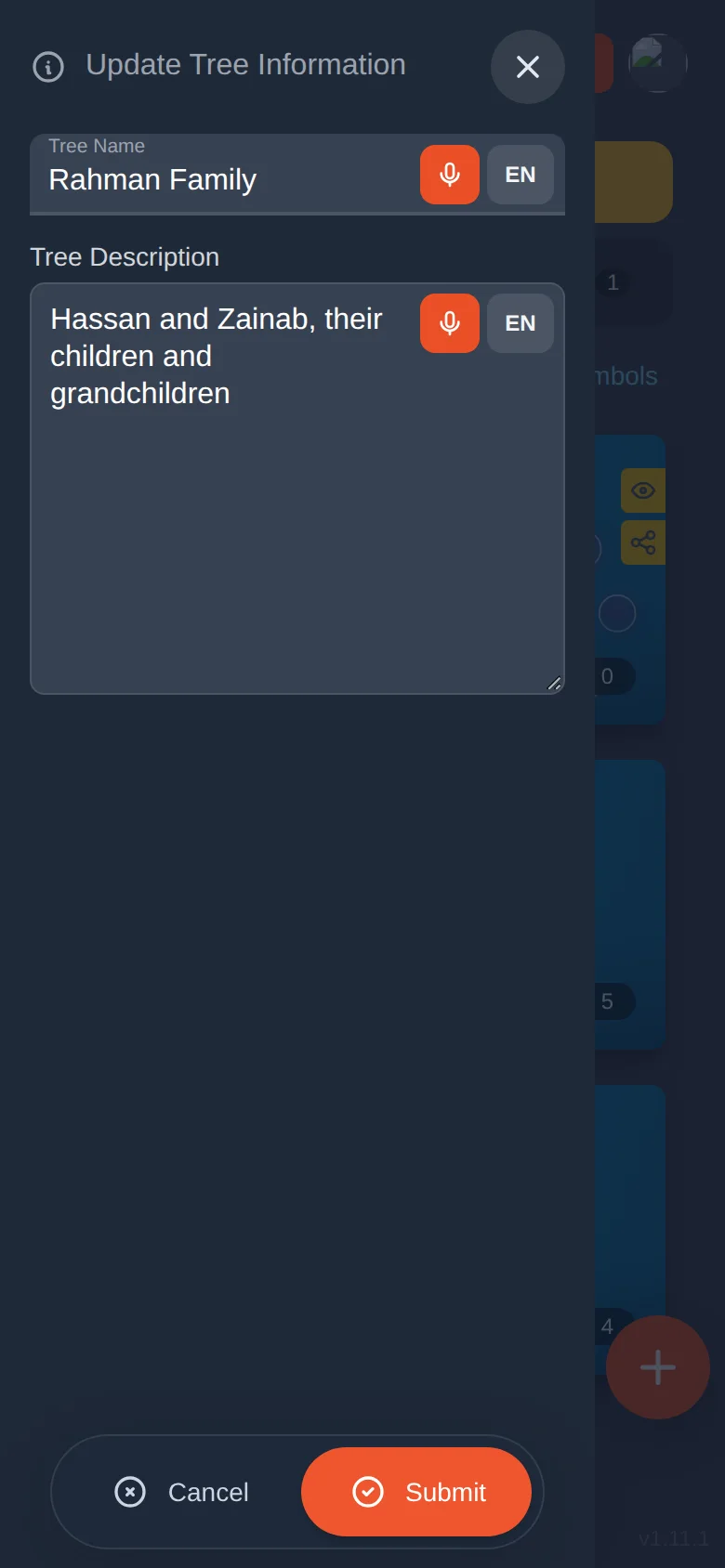
| ✎ Pencil | Changes the tree's name and description. Owners and managers only. |
| 🗑 Bin | Deletes the tree for good. Owners only. |
| ↪ Leave | On a shared tree: removes it from your list. The tree itself is not touched. |
The small symbols
Tiny yellow badges sit on the edge of a card. If you forget what one means, tap Symbols under the tabs and Asal Ku explains only the symbols currently on your cards.
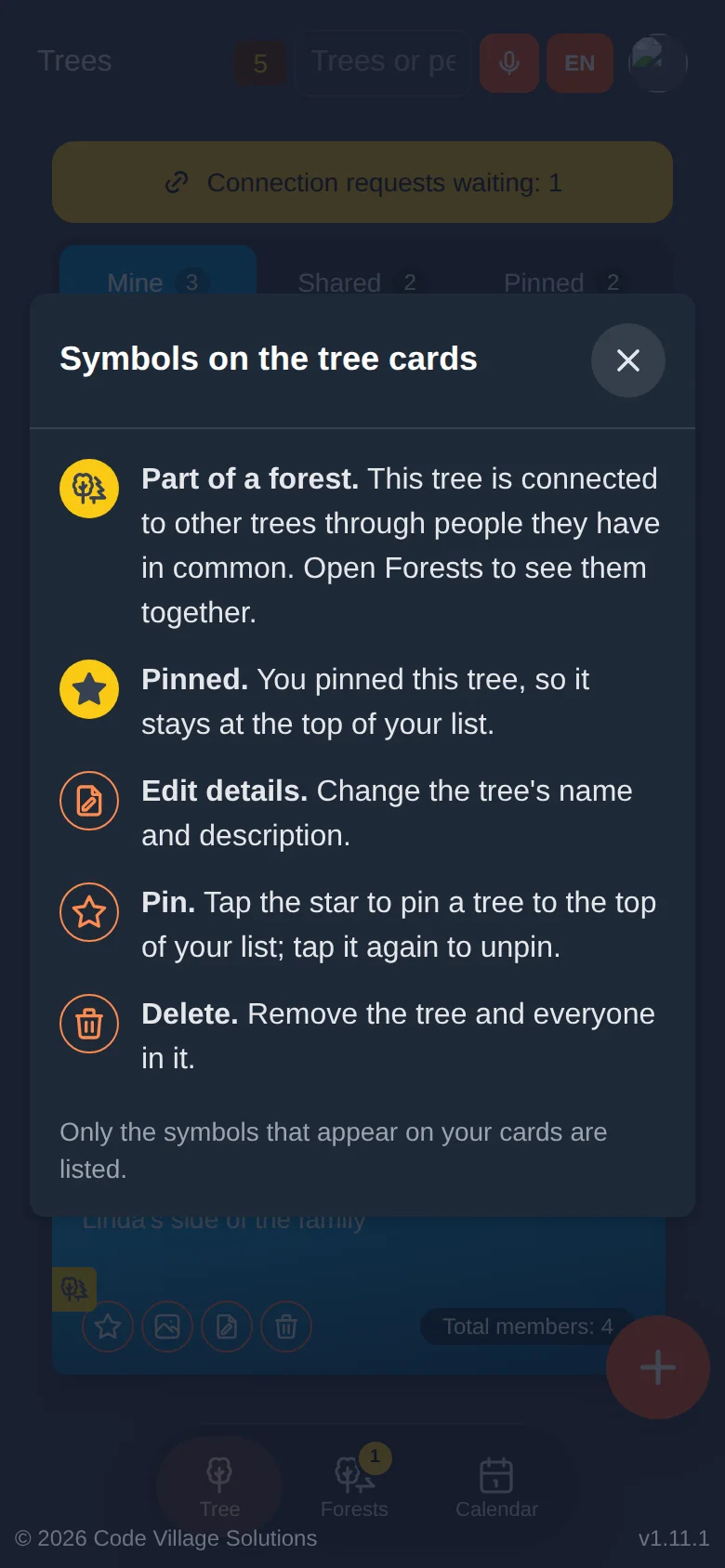
| Badge | Meaning |
|---|---|
| ✱ Asterisk | New. You have not opened this tree yet. |
| ↻ Reload arrows | Updated. Someone changed this tree since you last opened it. |
| 👁 Eye | You shared this tree for viewing: people you invited can look but not change. |
| Share symbol | You share this tree, or it was shared with you to manage. |
| Forest symbol (two trees) | This tree is part of a forest: it shares a person with another tree (lesson 10). |
The yellow number on the Tree button at the bottom counts new or updated trees. It goes down by one each time you open such a tree.
Sorting
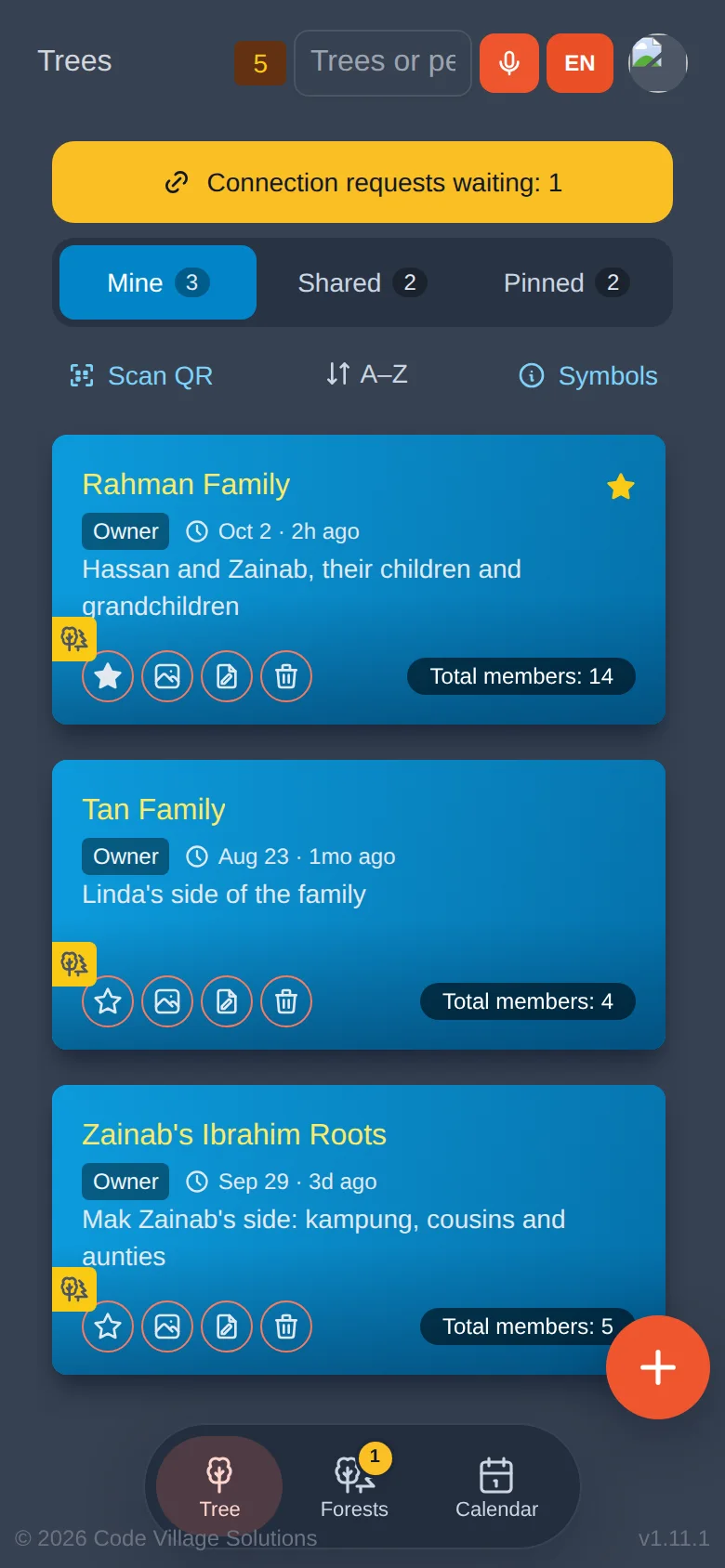
Under the tabs, the middle button changes the order. Recent puts the tree you opened last first. A–Z sorts by name. Pinned trees always stay at the top.
Searching
Type in the search box at the top. Asal Ku looks at tree names, descriptions and every person in every tree you can open.
- It forgives spelling. Typing aysha finds Aisha. Names that sound alike are found too, and the card says "(sounds like)" next to them.
- Cards that do not match disappear. The numbers on the tabs show how many matches each tab has.
- Under a matching card you see which people matched, so you know why it was shown.
- Prefer to speak? Tap the orange microphone and say the name.
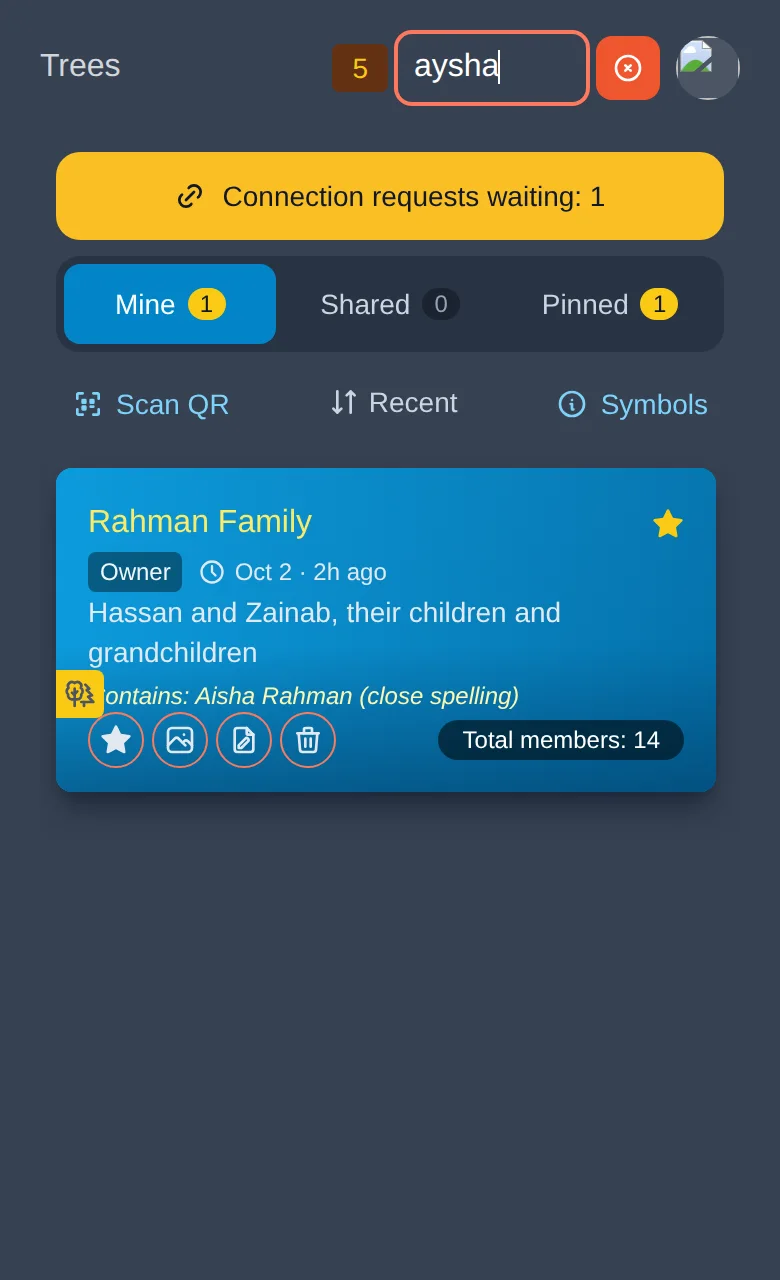
Delete the text in the box and every tree returns.
Pinned trees
Tap the star on a tree card. It turns yellow.
The tree now stays at the top of its list, and also appears on the Pinned tab.
Tap the star again to unpin.
Creating a tree
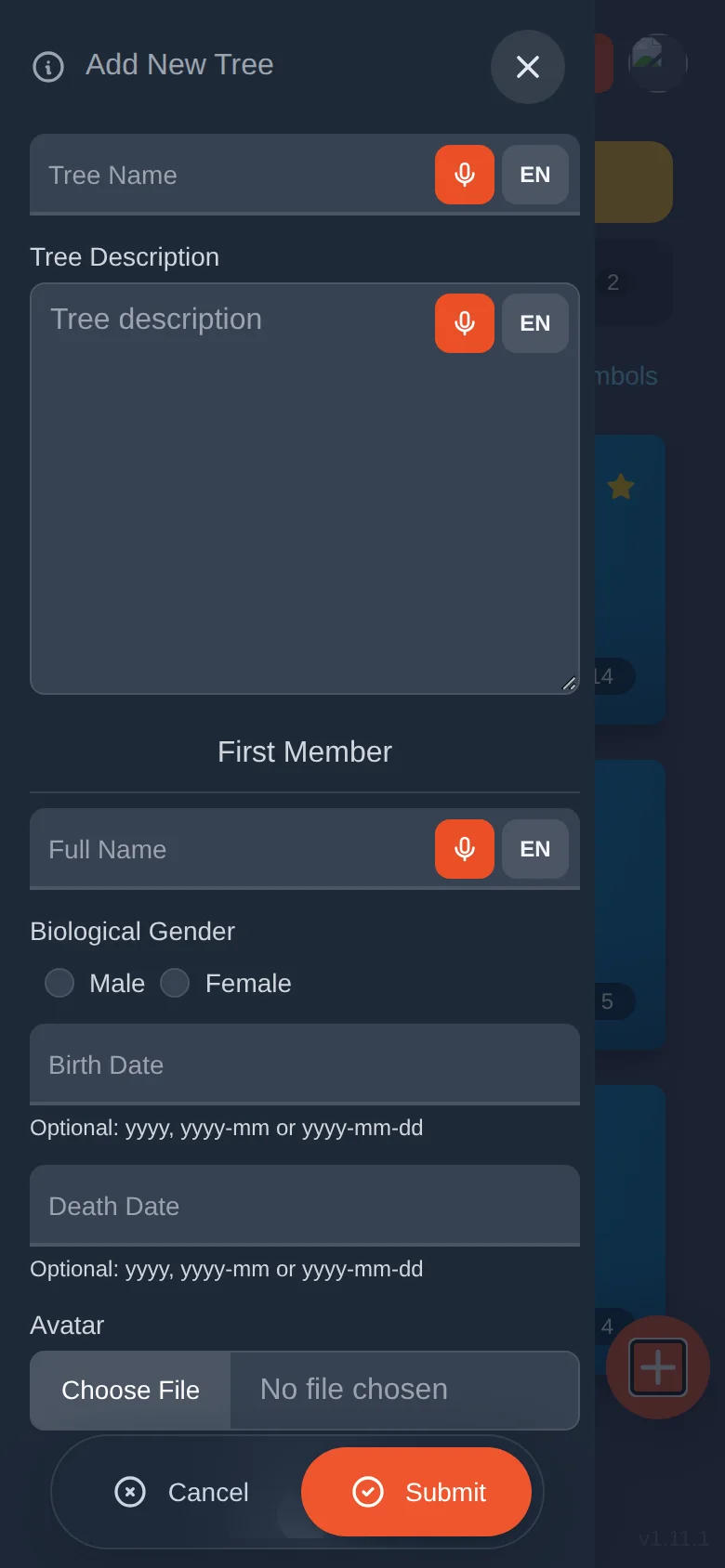
Tap the round orange + button at the bottom right of the list.
The Add New Tree form opens. Fill in the tree name (for example "Our Family") and, if you like, a short description.
Under First Member, type the name of the first person. This is usually you, or the oldest ancestor you know.
Choose the gender and, if you know them, the birth date and death date. Dates can be a year (1965), a year and month (1965-10) or a full date (1965-10-05).
Under Avatar, take a photo, choose a photo, or pick a picture avatar. You can change it later.
Tap Submit. Your new tree appears in the list. Tap it to open it.
Every text box has an orange microphone and a language button such as EN. Choose the language you will speak, tap the microphone, and say the name. Names come out with capital letters, and other guesses are offered if it misheard.
Changing a tree's name, deleting it, or removing it
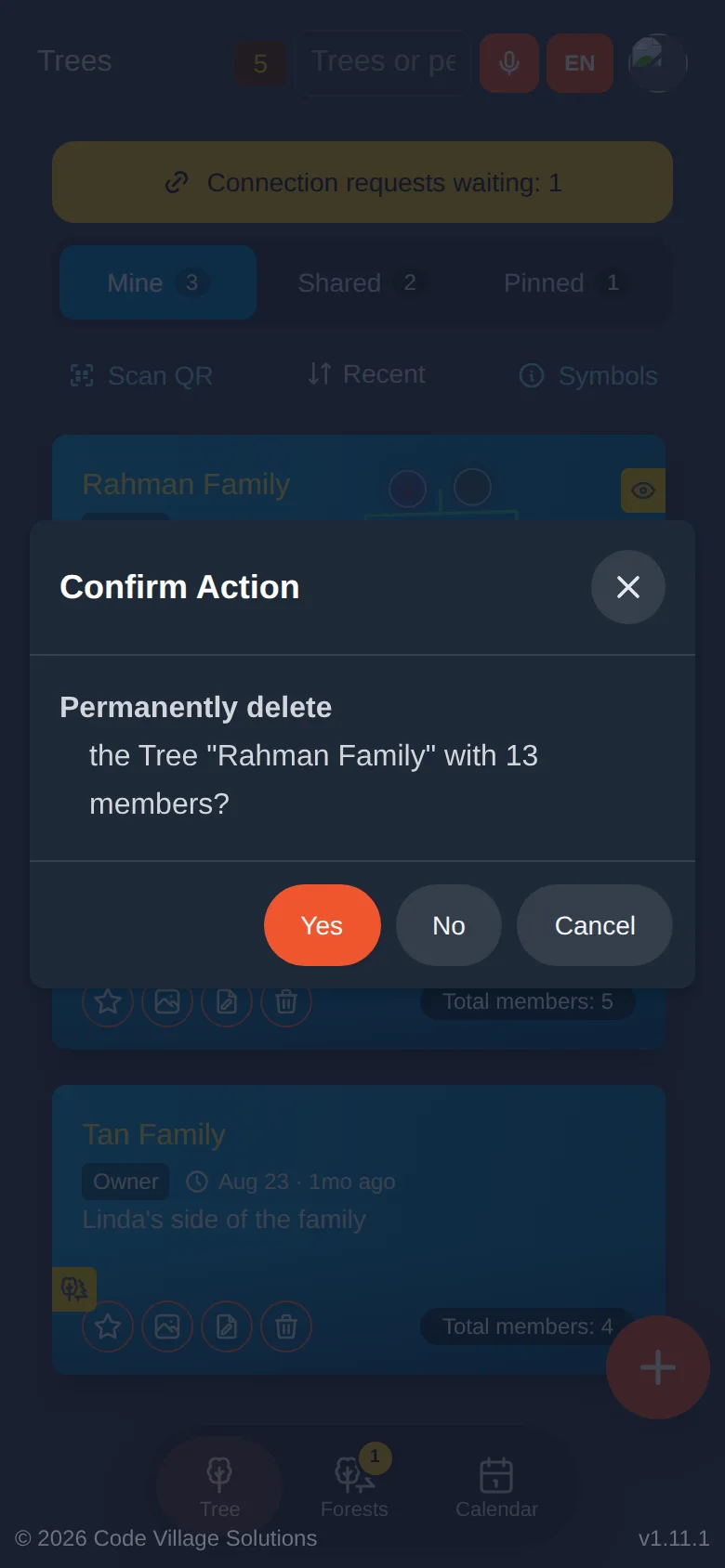
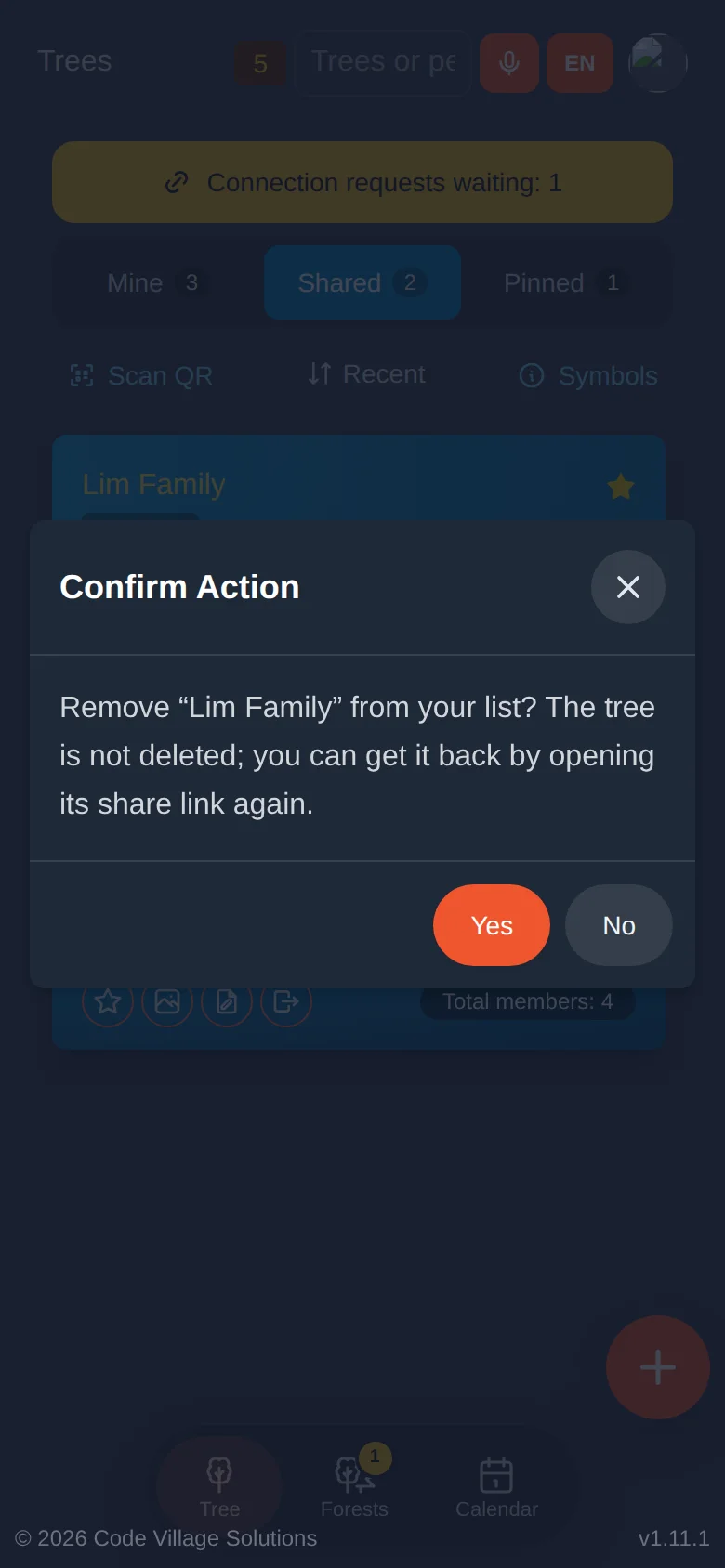
The bin removes the tree and every person, picture and recording in it. Asal Ku always asks first. Only the owner can delete a tree. If a relative shared the tree with you, use the Leave button instead, which only removes it from your list.
Opening a shared tree you were sent
When a relative gives you a link or shows you a QR code, you can tap Scan QR on the list to open the camera and scan it, or simply open the link in your browser. Lesson 9 covers sharing in full.
Try it yourself
- Create a tree called "Practice Tree" with your own name as the first member.
- Pin it with the star. Find it on the Pinned tab.
- Change its description with the pencil button.
- Type your name in the search box and see the card react. Clear the box.
Remember
- Mine, Shared and Pinned are just three views of your trees.
- Tap Symbols if a badge confuses you.
- The bin deletes for good; Leave only removes a shared tree from your list.
- The search box searches people in all your trees at once.