 Asal Ku Training
Start here › Lesson 2
Signing in and finding your way around
Sign in, add Asal Ku to your phone, and learn what every button on the main screens does.
In this lesson you will learn
- How to sign in for the first time
- How to add Asal Ku to your phone's home screen
- What the top bar and the bottom bar do
- How to use your account menu, change to dark mode and sign out
- How to turn the helpful on-screen tips on or off
Signing in
Open Asal Ku in your browser. You see the sign-in screen, with the tree logo.
Tap Sign in with Google.
Choose your Google account from the list and confirm. The first time you sign in, your Asal Ku account is created automatically.
You arrive on your list of trees (the "Trees" screen). If this is your first visit it is empty. That is normal.
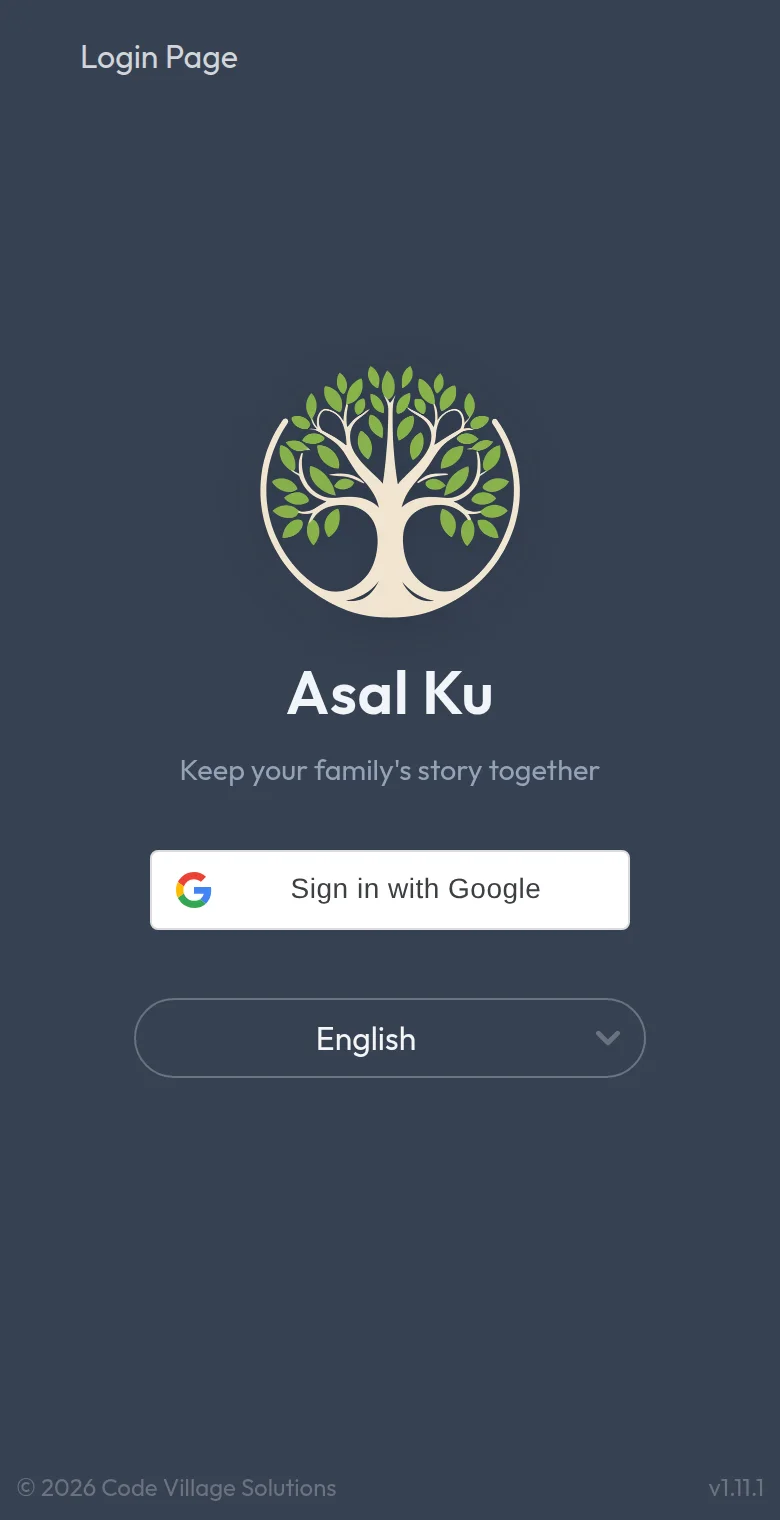
Use the language list on the sign-in screen. Asal Ku is available in English, Bahasa Melayu, Northern Malay, 简体中文, தமிழ், ไทย, Bahasa Indonesia and Tagalog. You can change it any time later (lesson 12).
Add Asal Ku to your phone's home screen
This puts an Asal Ku icon next to your other apps. It opens full screen, and there is nothing to download from a store.
| Phone | What to do |
|---|---|
| iPhone or iPad (Safari) | Tap the Share button (a square with an arrow), then Add to Home Screen, then Add. |
| Android (Chrome) | Tap the ⋮ menu at the top right, then Install app (or Add to Home screen), then confirm. |
| Computer (Chrome or Edge) | Click the small install icon at the right end of the address bar, then Install. |
Sign in faster with your fingerprint or face
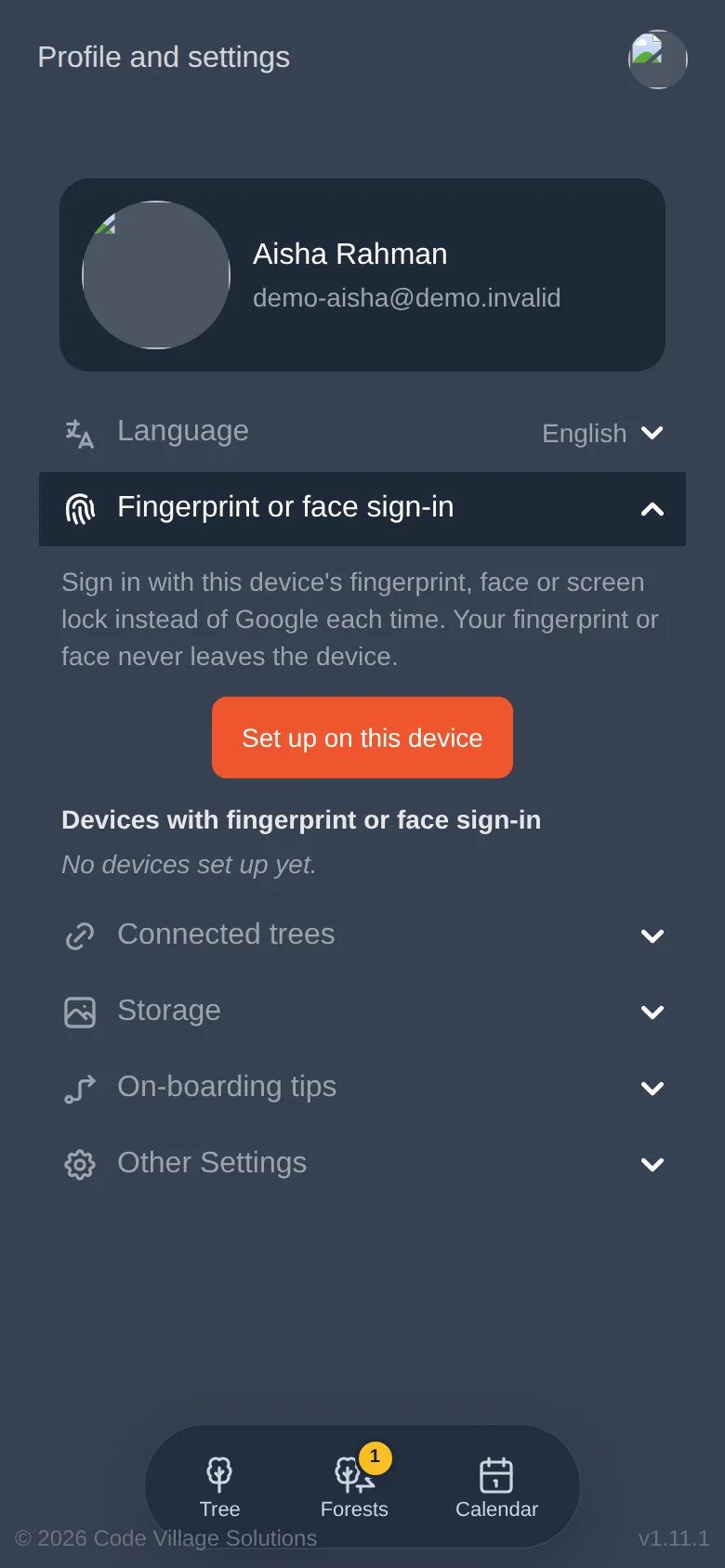
After you have signed in once on a phone, Asal Ku offers to remember you with your fingerprint, face or screen lock. Say Set up to accept. Next time you open the app, you will see Sign in with fingerprint or face instead of choosing a Google account.
You can set this up later, or remove it, in Profile and settings → Fingerprint or face sign-in.
The main screen, piece by piece
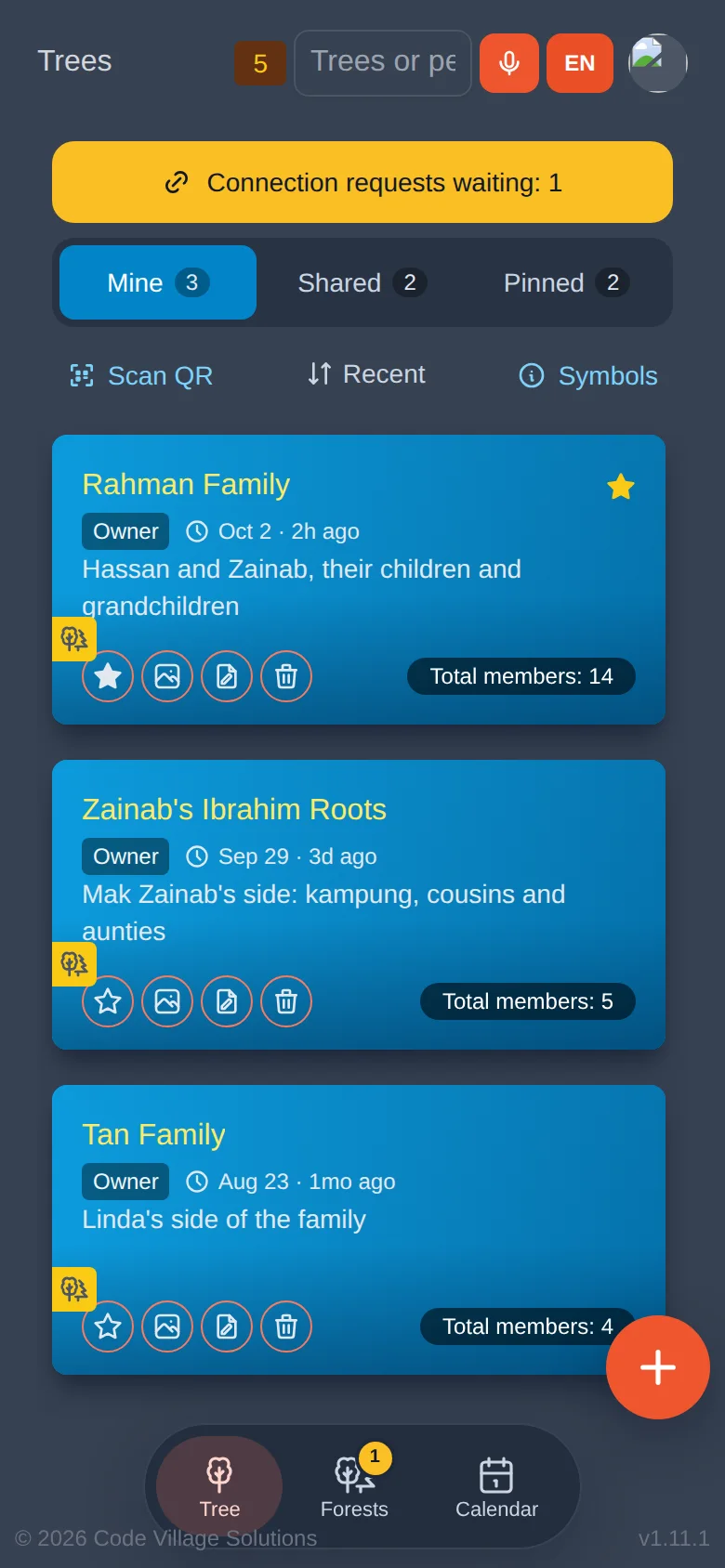
Start by looking at the Trees screen. Here is what each part is for.
The top bar
| What you see | What it does |
|---|---|
| Page name (top left, "Trees") | Tells you which page you are on. |
| Orange or brown number | How many trees were found for your account, including shared ones. |
| Search box ("Trees or people") | Type a tree name or a person's name to find them in every tree at once (lesson 3). |
| Orange microphone | Say what you want to search for instead of typing. |
| EN | Chooses the language you speak into the microphone. Next to each text box in forms you will find the same pair. |
| Your round picture (top right) | Opens your account menu (see below). |
The bottom bar
| Button | What it opens |
|---|---|
| Tree | Your list of trees. A small yellow number means that many trees are new or changed since you last opened them. |
| Forests | Groups of trees joined together (lesson 10). A yellow number means connection requests are waiting for you. |
| Calendar | Birthdays, anniversaries and remembrance days (lesson 11). |
Your account menu
Tap your round picture at the top right.
The menu shows your name and email, and three choices: Profile and settings, Switch to dark mode (or light mode) and Sign out.
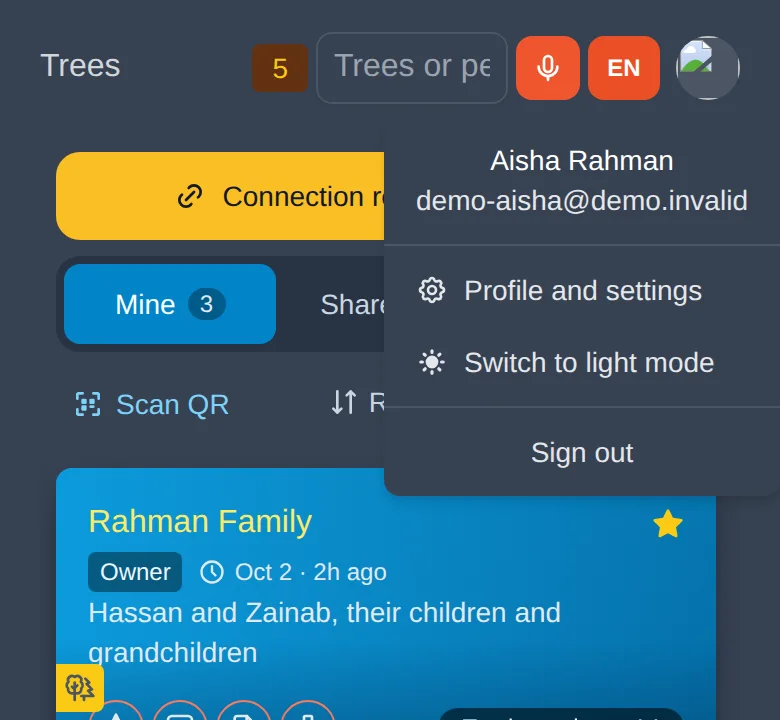
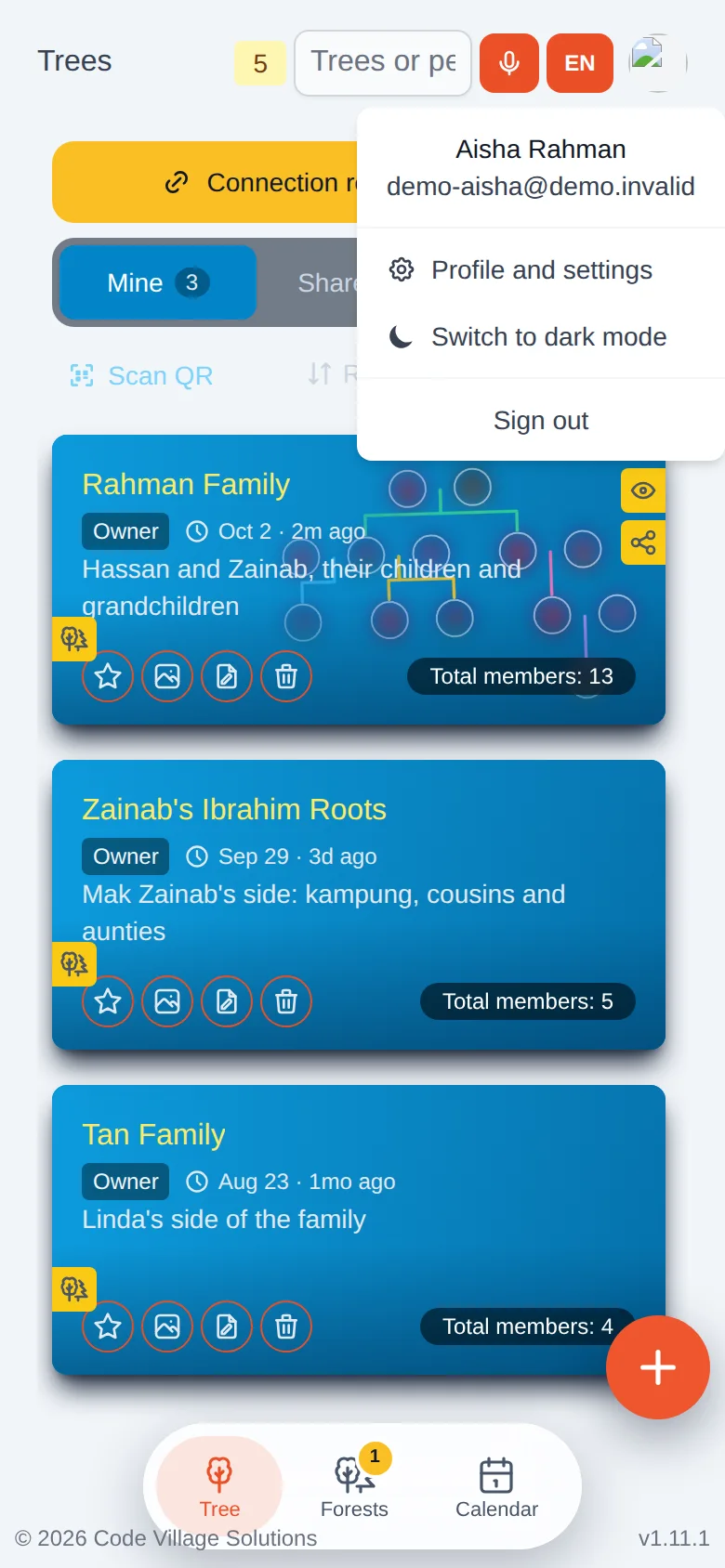
Asal Ku first follows your device. If your phone is in dark mode, so is the app. Use the menu to choose the other one whenever you like.
The helpful tips on screen
The first time you visit a page, yellow tips point at buttons and explain them. Tap the orange arrow for the next tip, or the × to close.
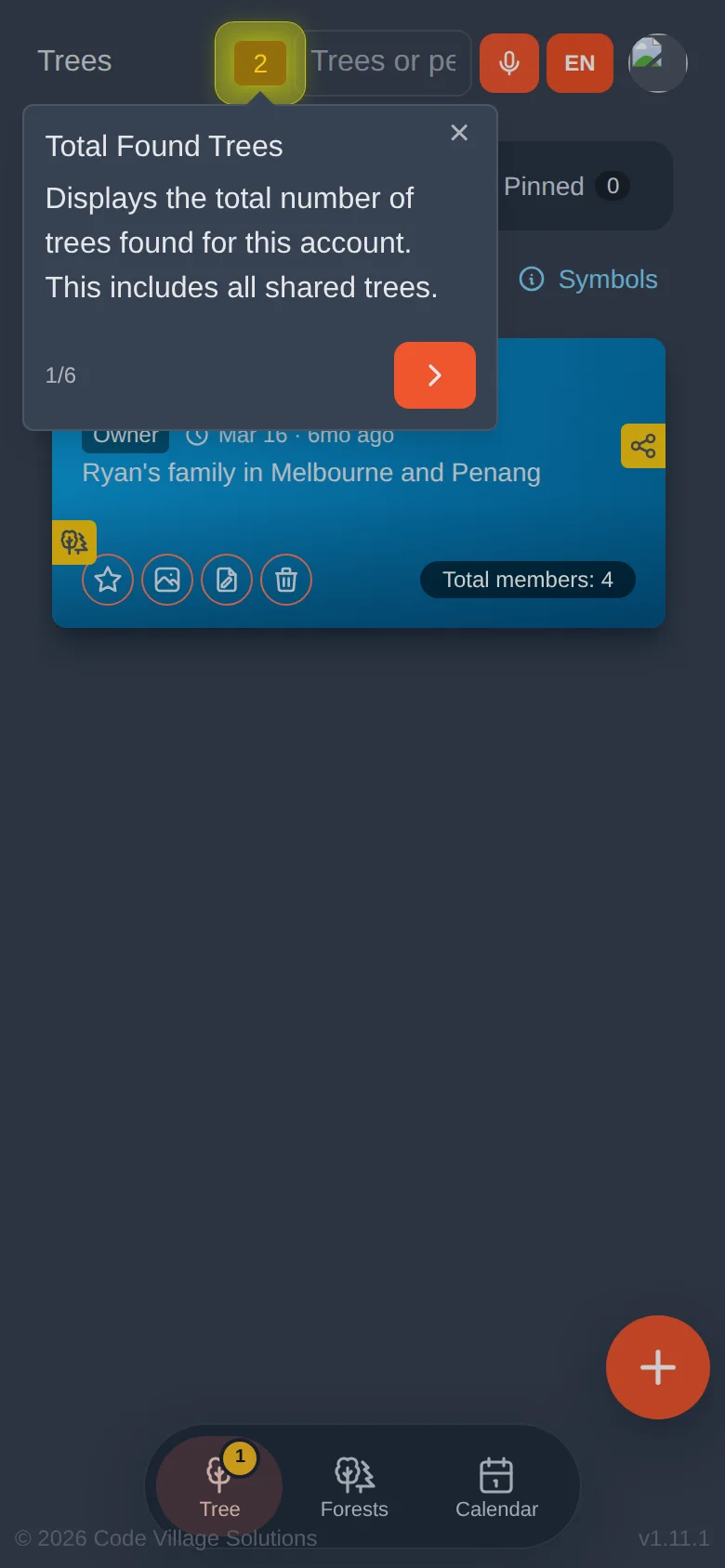
To see them again, or turn them off, open Profile and settings → On-boarding tips and switch each group on or off.
Try it yourself
- Sign in and find your three bottom-bar buttons.
- Open your account menu and switch to the other colour mode. Switch back.
- Open Profile and settings and look at the sections. You will use them in lesson 12.
Remember
- You sign in with Google; a fingerprint or face is a faster way afterwards.
- Bottom bar: Tree, Forests, Calendar.
- Your account menu is the round picture at the top right.