 Asal Ku Training
Start here › Lesson 10
Connecting trees into a forest
Join your tree to a relative's tree through a person you have in common, and choose exactly what each family can see of the other.
In this lesson you will learn
- What a forest is, and when to use one
- How to connect the same person across two trees
- How the other family accepts, and what each side chooses to show
- How to read the Forests page and a whole forest on one screen
- How to control who can find your trees, and how to disconnect
What is a forest, and why?
Your cousin keeps her own tree. So does your uncle. When the same person is in two trees, you can connect them. The connected trees become a forest, and you can see everyone together on one screen.
A connection only joins what you see. Each family keeps its own tree and its own people. Nobody can edit the other family's tree through a connection. If the two trees disagree about a person's parents, each side chooses which parents to show.
Connect a person to another tree
You need to be an owner or manager of your tree. Pick a person who is in both trees.
Open your tree and select the person: on a phone press and hold them, on a computer click them.
Choose Connections. If they are not connected yet, a message says so.
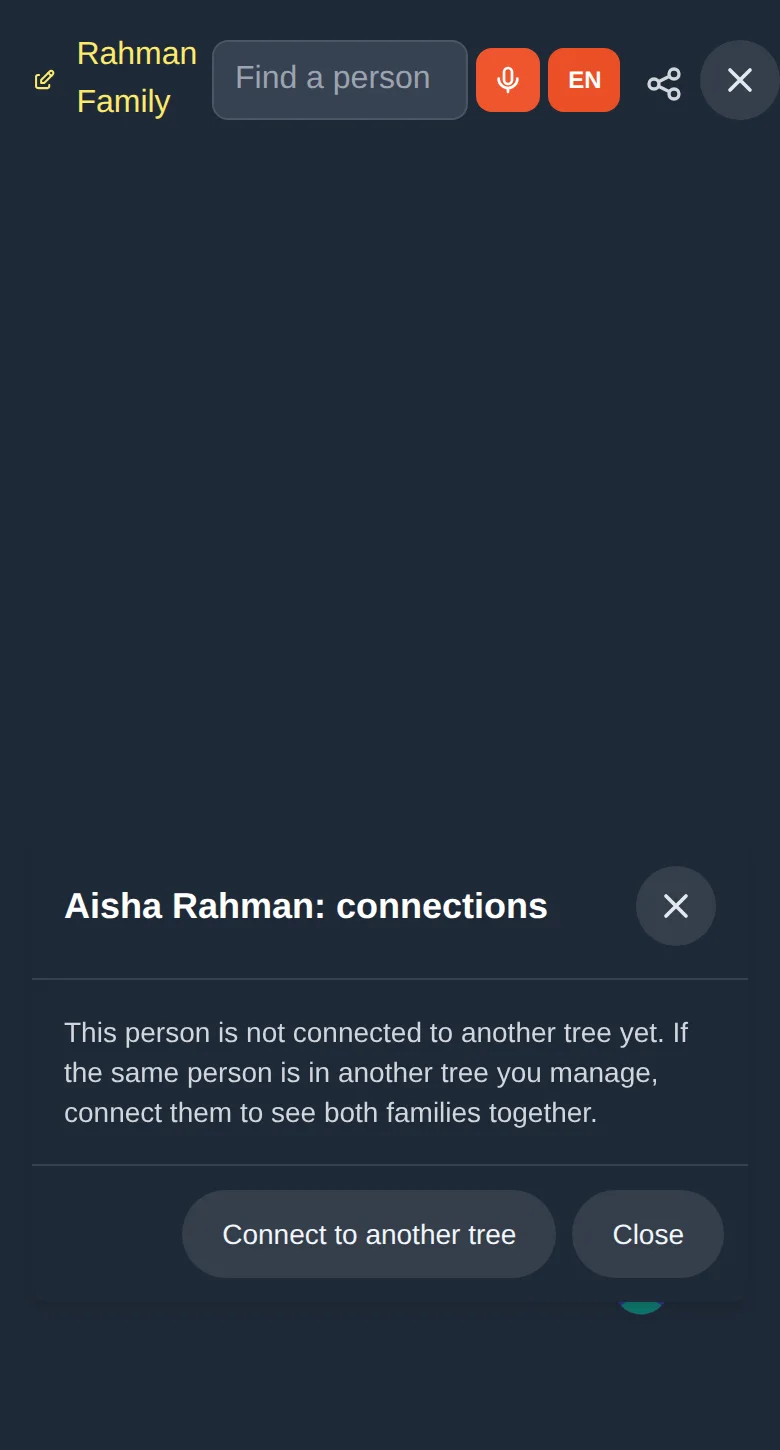
A person who is not yet connected to another tree Tap Connect to another tree.
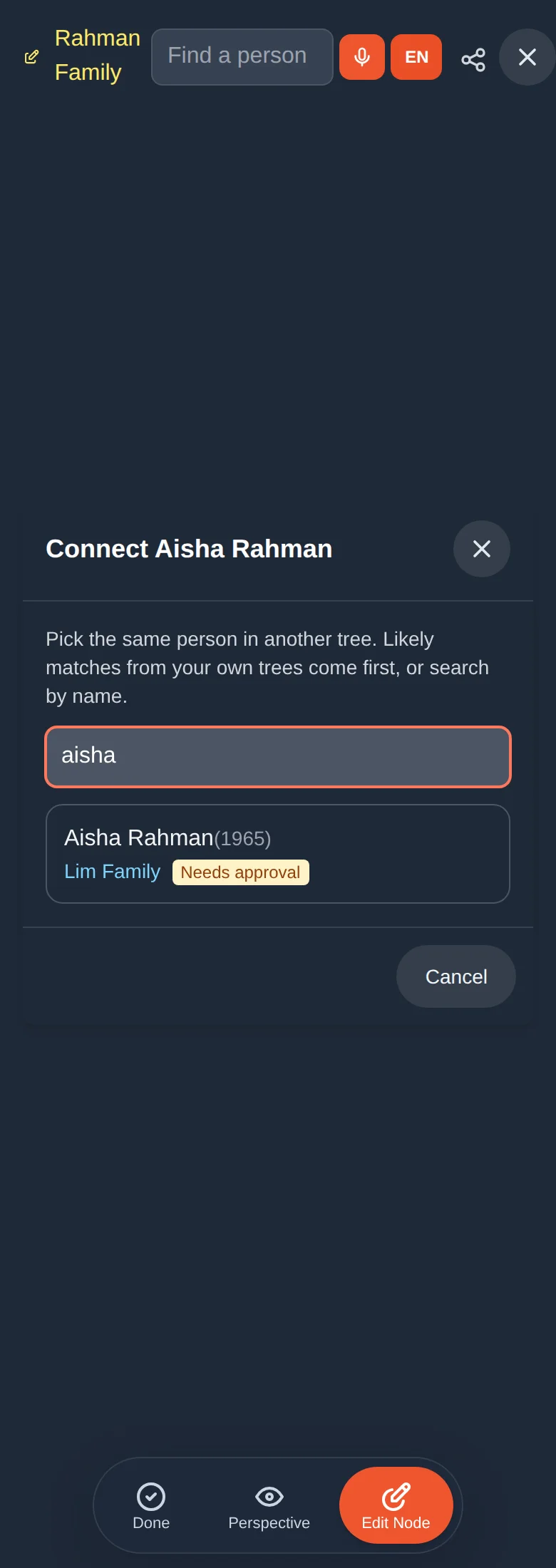
Type the person's name in the search box. Likely matches from your own trees come first. Names are matched loosely, so a slightly different spelling is found.
Tap the right person. A label tells you whether the other tree is one you can open, or Needs approval (it belongs to someone else).
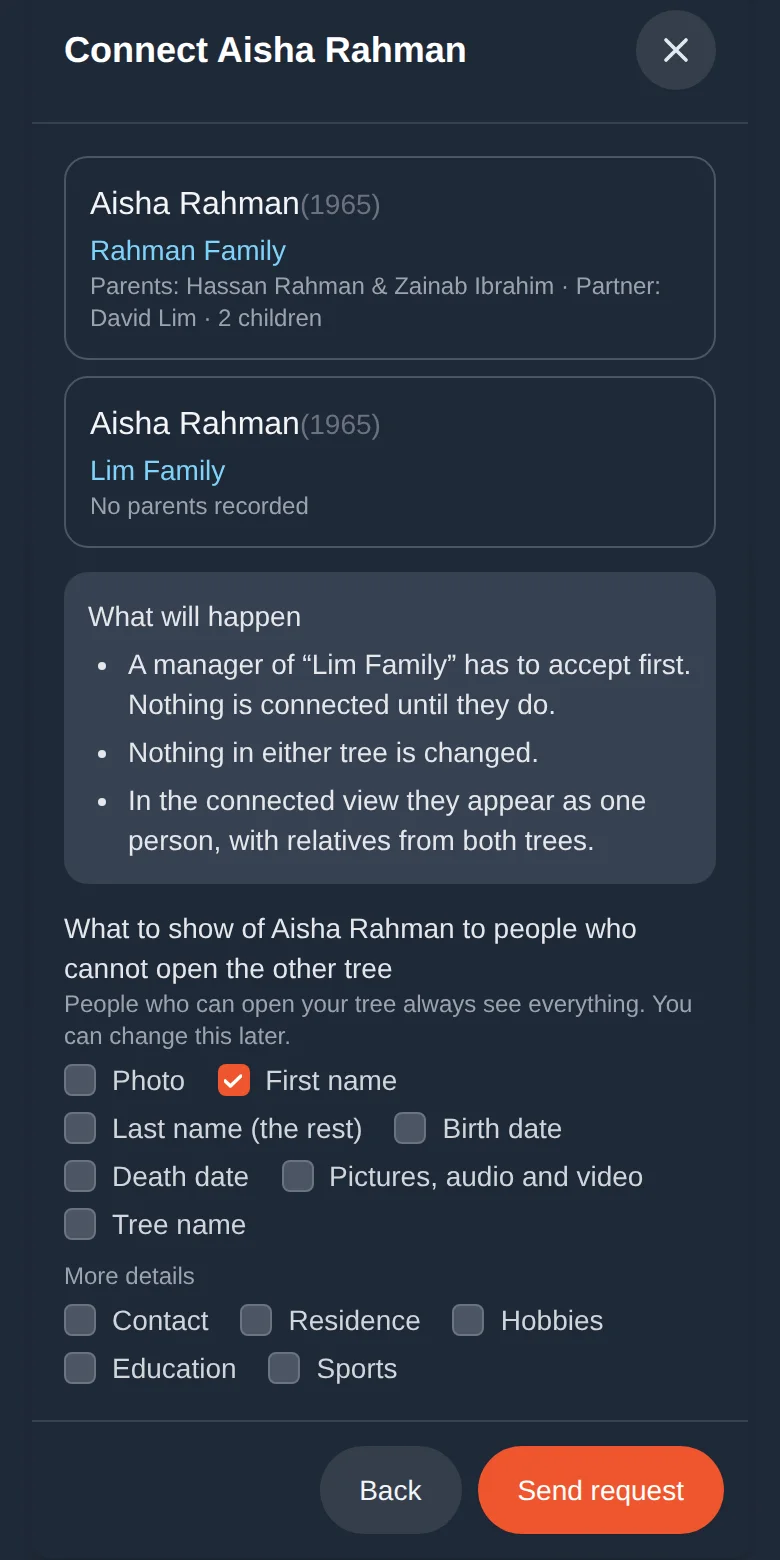
Check the confirmation screen. It shows both people side by side with their parents, and "What will happen": nothing in either tree changes, and the person appears as one in the connected view.
Under "What to show of … to people who cannot open the other tree" tick what you are happy to share (see the next section).
Tap Connect them.
Choosing what the other family can see
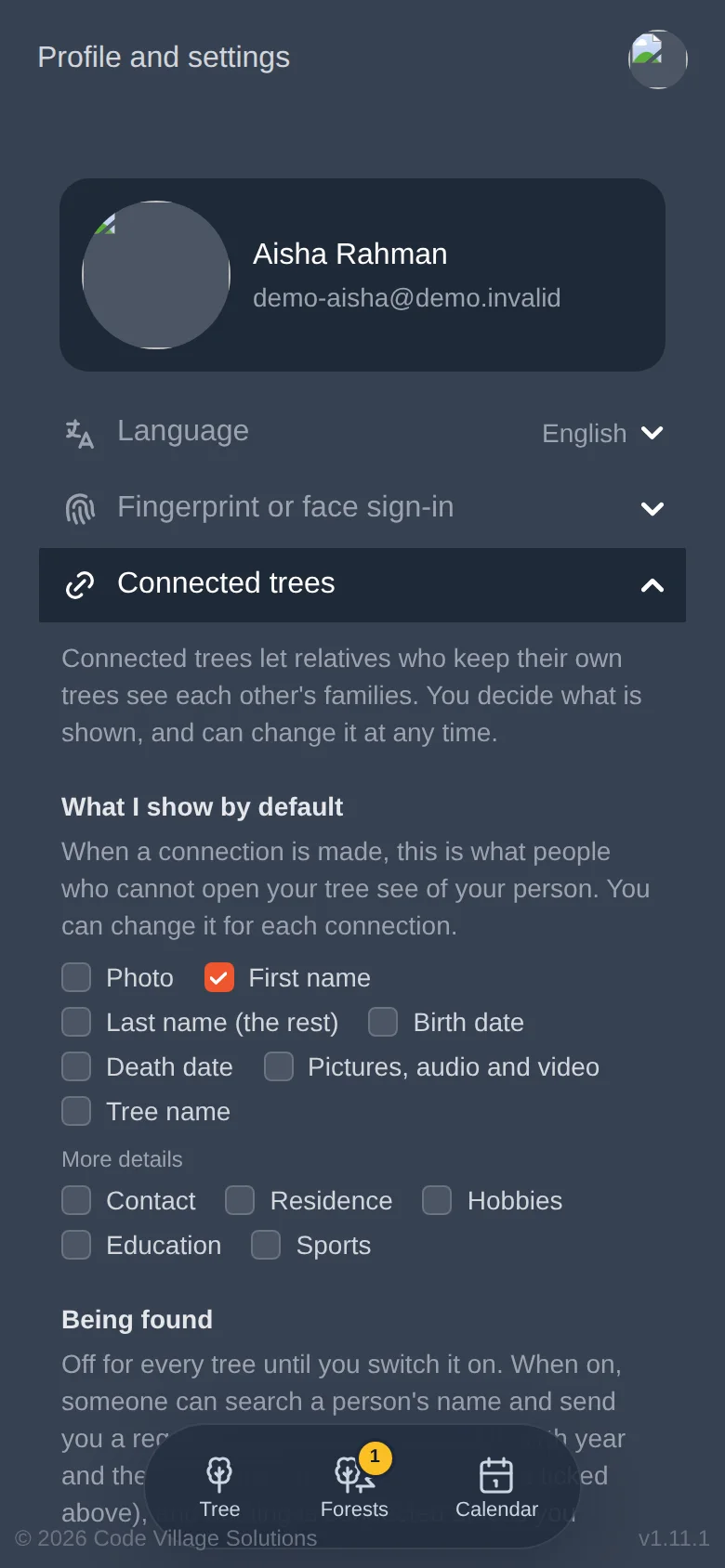
People who can already open your tree always see everything in it. This choice is only about people in the other family's tree. Each person's connection has its own list of tick boxes. Only First name is ticked at first.
| Tick box | What the other family sees |
|---|---|
| Photo | The person's portrait |
| First name | The first word of the name |
| Last name (the rest) | The rest of the name |
| Birth date, Death date | The dates |
| Pictures, audio and video | The person's gallery, read-only |
| Tree name | The name of your tree. Hidden unless you tick it. |
| Contact, Residence, Hobbies, Education, Sports | Those groups of extra details |
Open the person's Connections, and each connection has its own tick boxes. You can also set your default choices for new connections in Profile and settings → Connected trees (lesson 12).
The other family accepts
A connection to a tree owned by someone else is a request. Nothing is joined until the other family says yes.
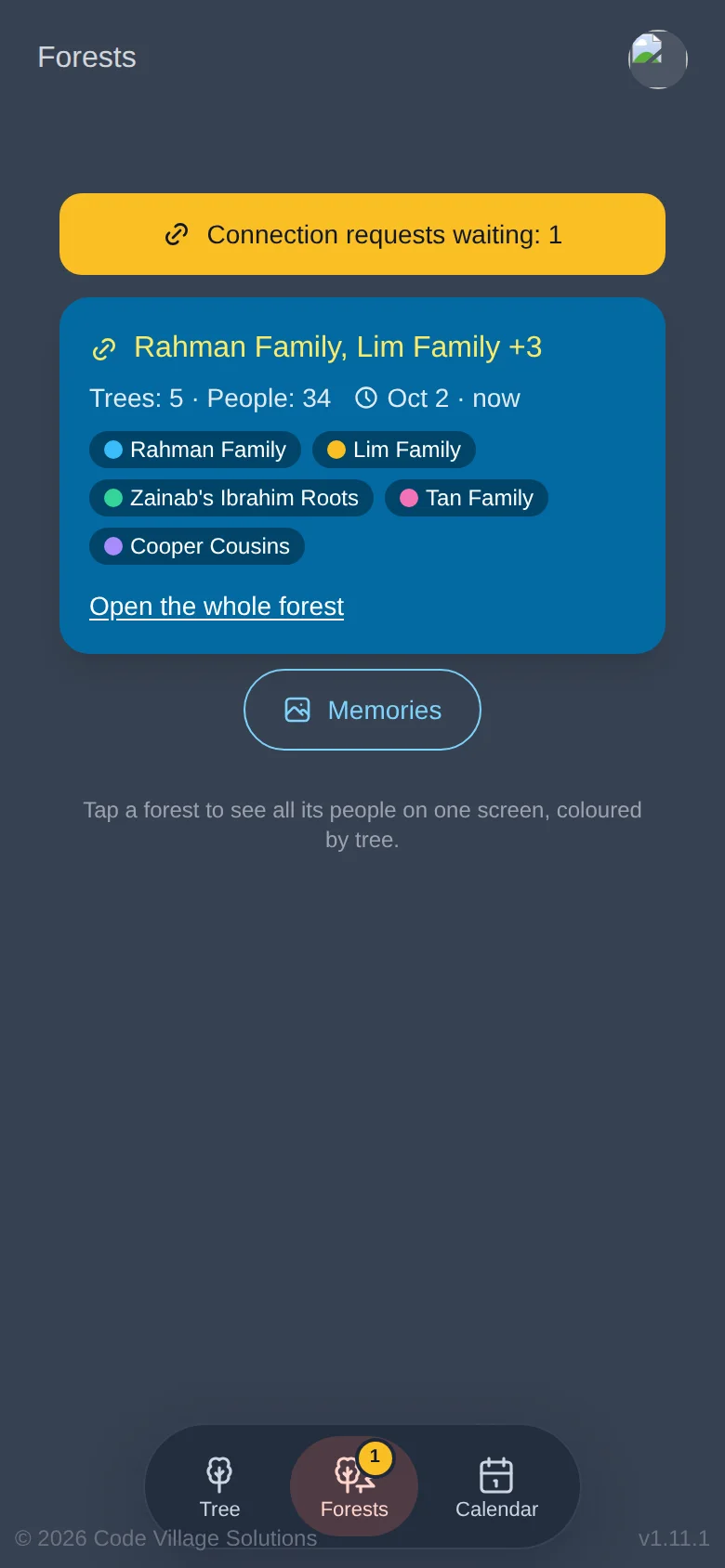
The owner (or a manager) of that tree sees a yellow bar on the Forests page: "Connection requests waiting", and a yellow number on the Forests button.
They tap the bar and see who is asking, for which person, and what the other side shows.
They choose what their side shows and tap Accept, or Decline.
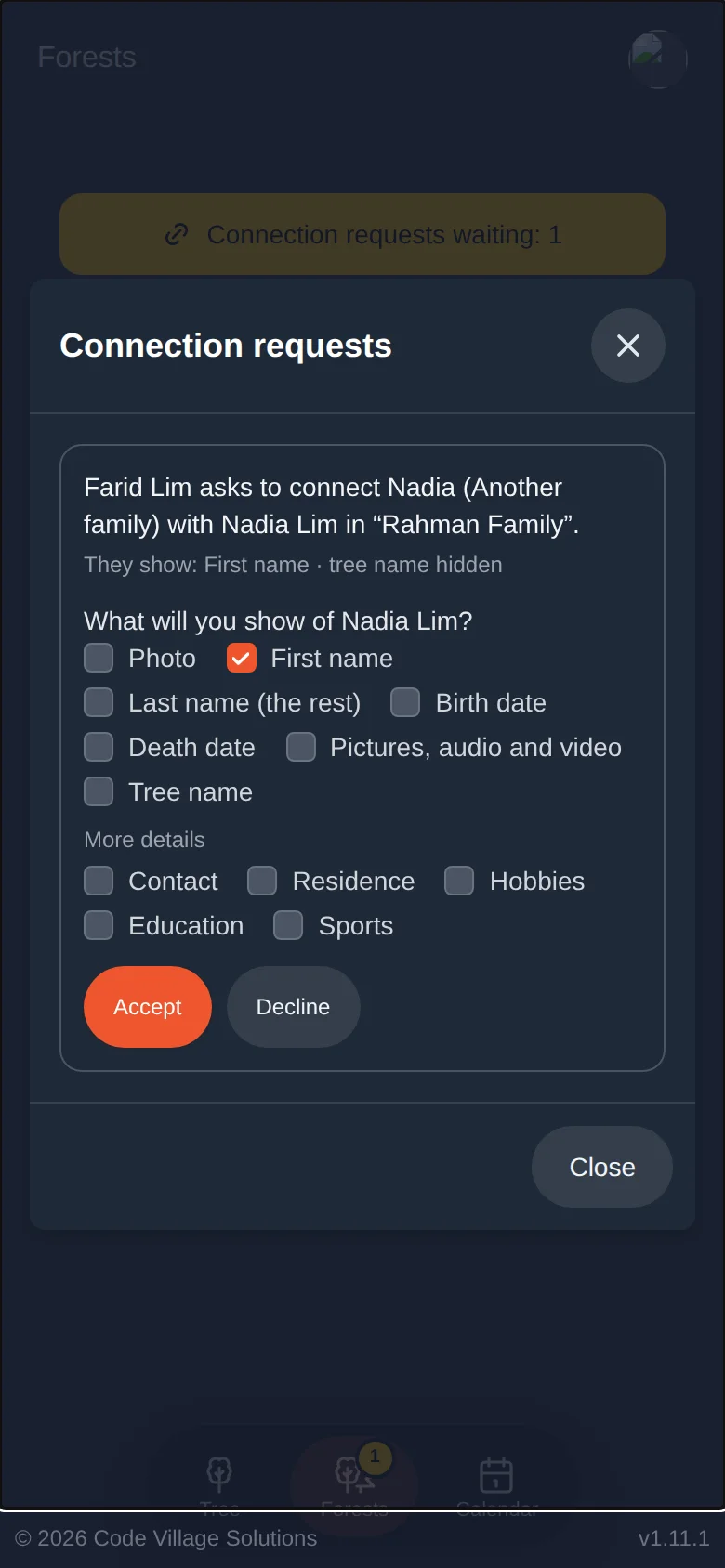
You are told straight away when your request is accepted or declined. A request you made is listed under Connection requests until it is answered.
The Forests page
Tap Forests in the bottom bar. Every group of trees that are joined together, and that you can open, is one card: the trees in it (each in its own colour), the number of people, and when it last changed.
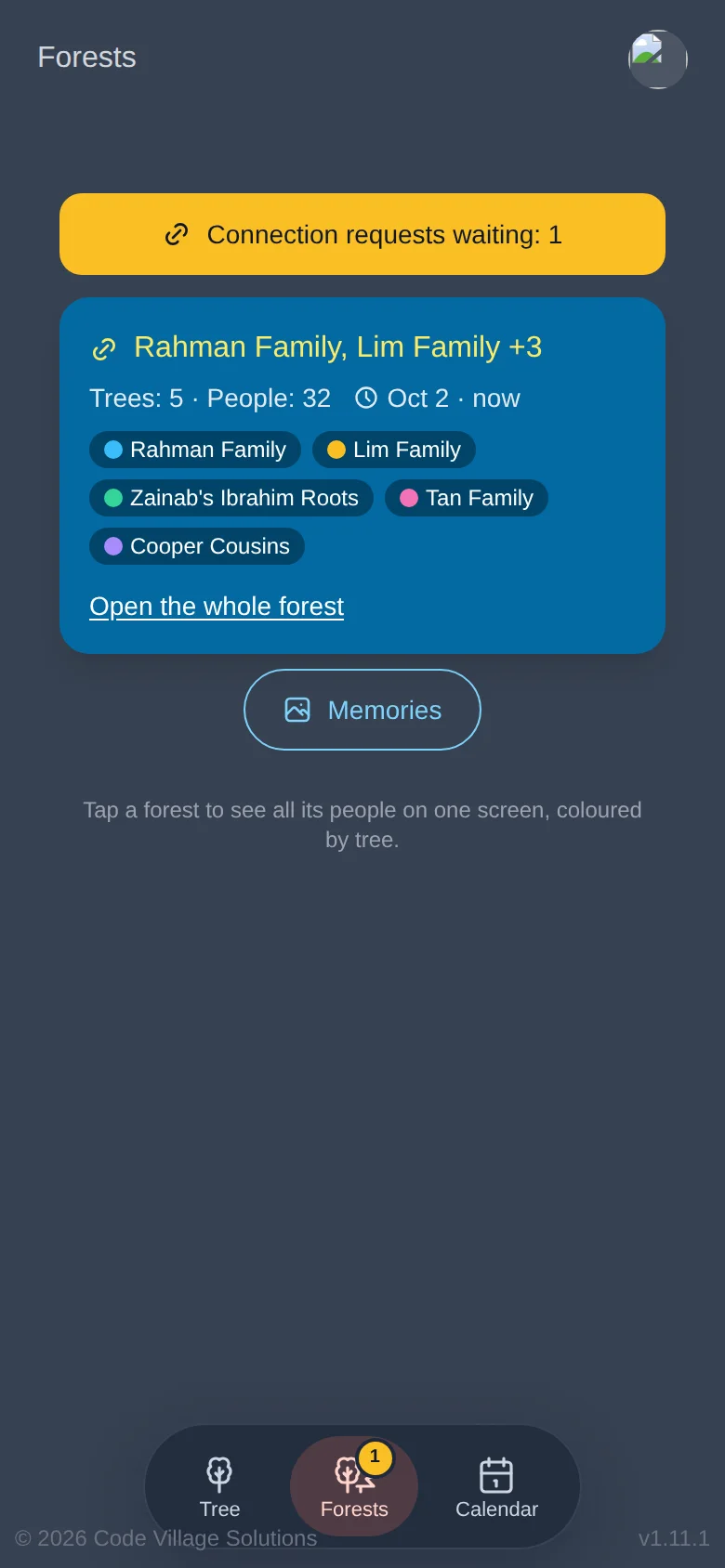
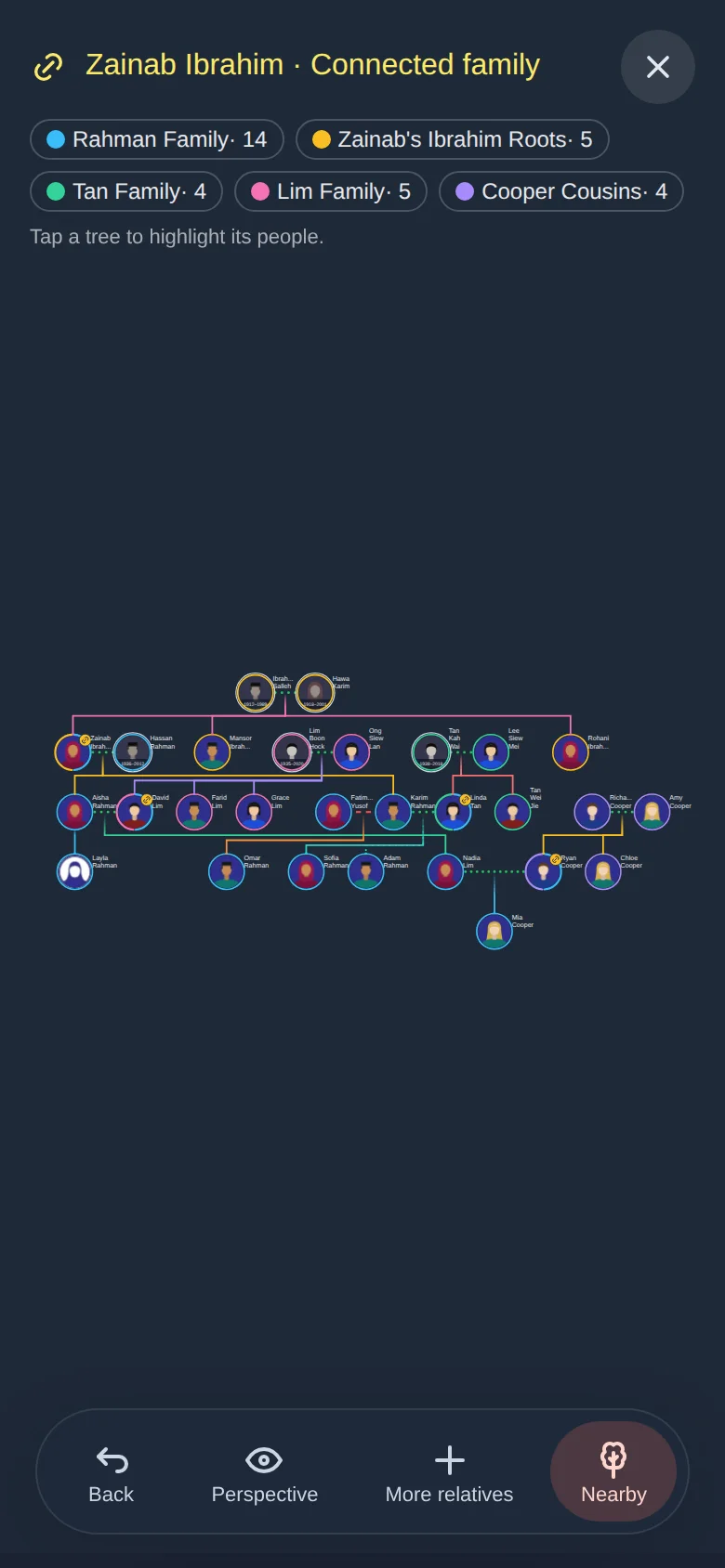
Tap a card to open the whole forest on one screen.
Reading a forest
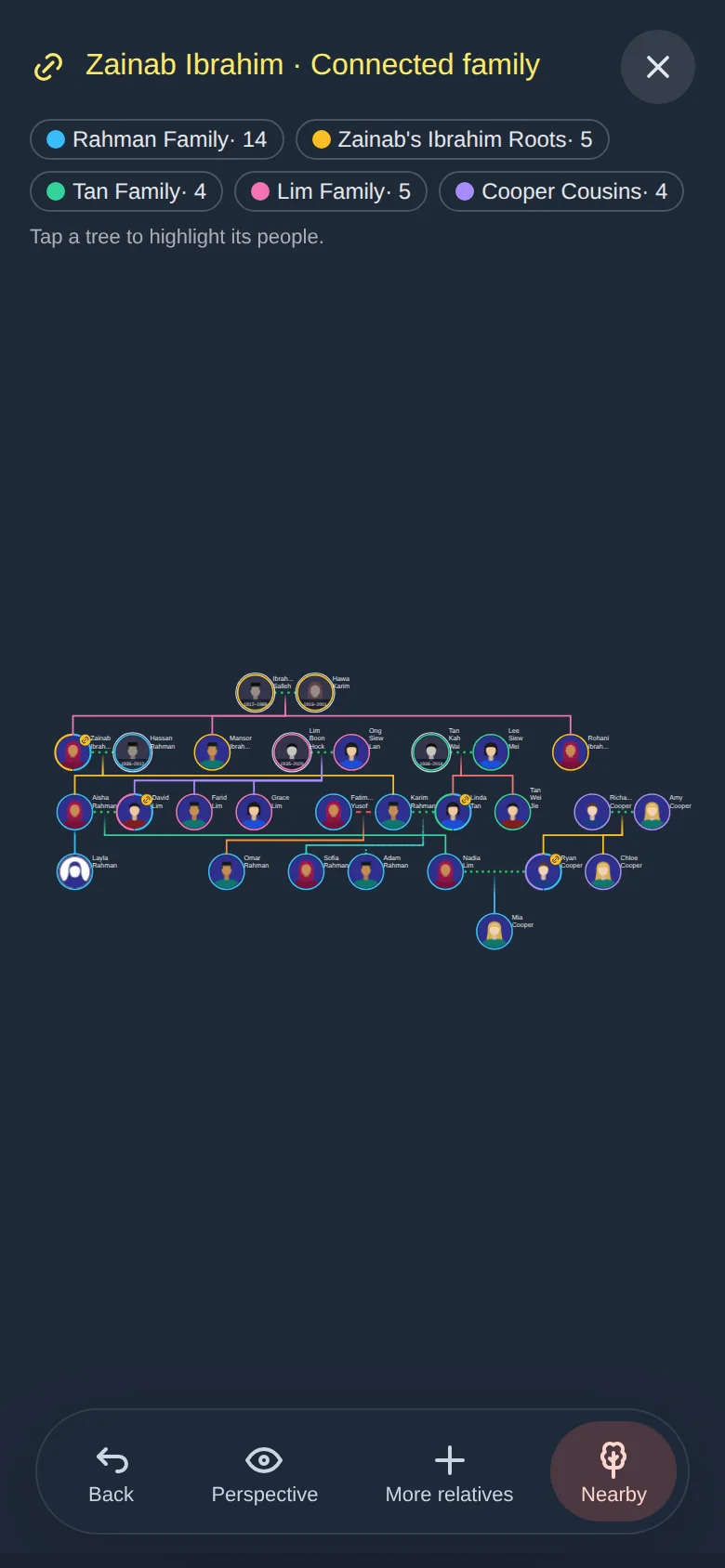
- Each person has a ring in their tree's colour. A person who is in several trees has a ring split into coloured arcs.
- The coloured chips at the top are the legend. Each chip shows the tree and how many people it has. Tap a chip to light up that tree's people; tap it again to go back.
- Dashed rings mark people from a tree you cannot open. You see only a few people near the connection, and only what they chose to share.
- The bottom bar has Back (return to the Forests page), Perspective, More relatives (reveal more people) and Nearby / Everything (switch between a small view around one person and the whole forest).
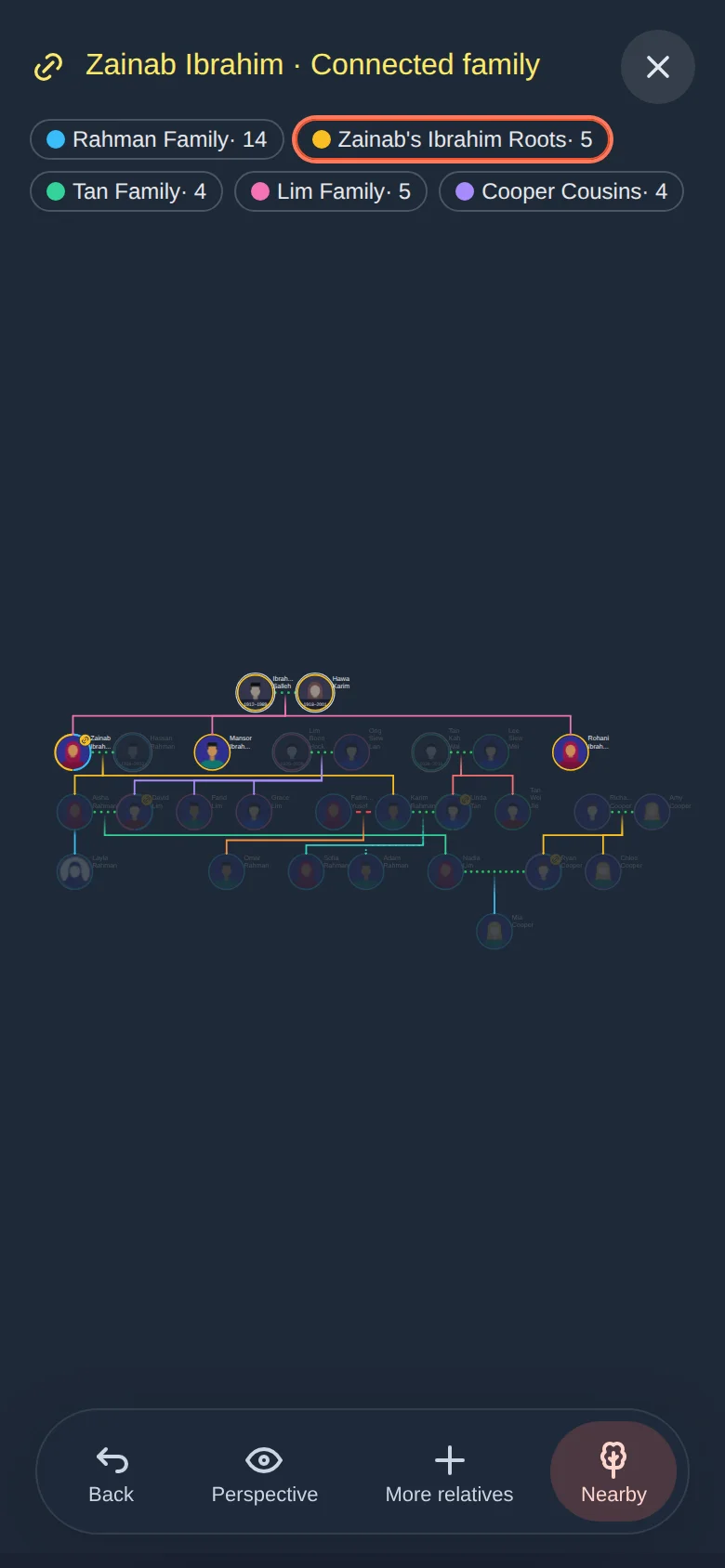
You cannot edit in a forest view. To change a person, open their own tree.
Seeing and changing a person's connections
Tap the little gold chain on a person (or press and hold a person, then Connections). A list shows each tree the person is also in, what each shows, and:
- the tick boxes for what the other tree shows of this person, and what you show;
- when the two trees disagree about the person's parents, a choice of which parents this tree shows;
- a button to Open in the other tree (when you are allowed to), and Disconnect;
- See the connected family at the top, which opens the forest.
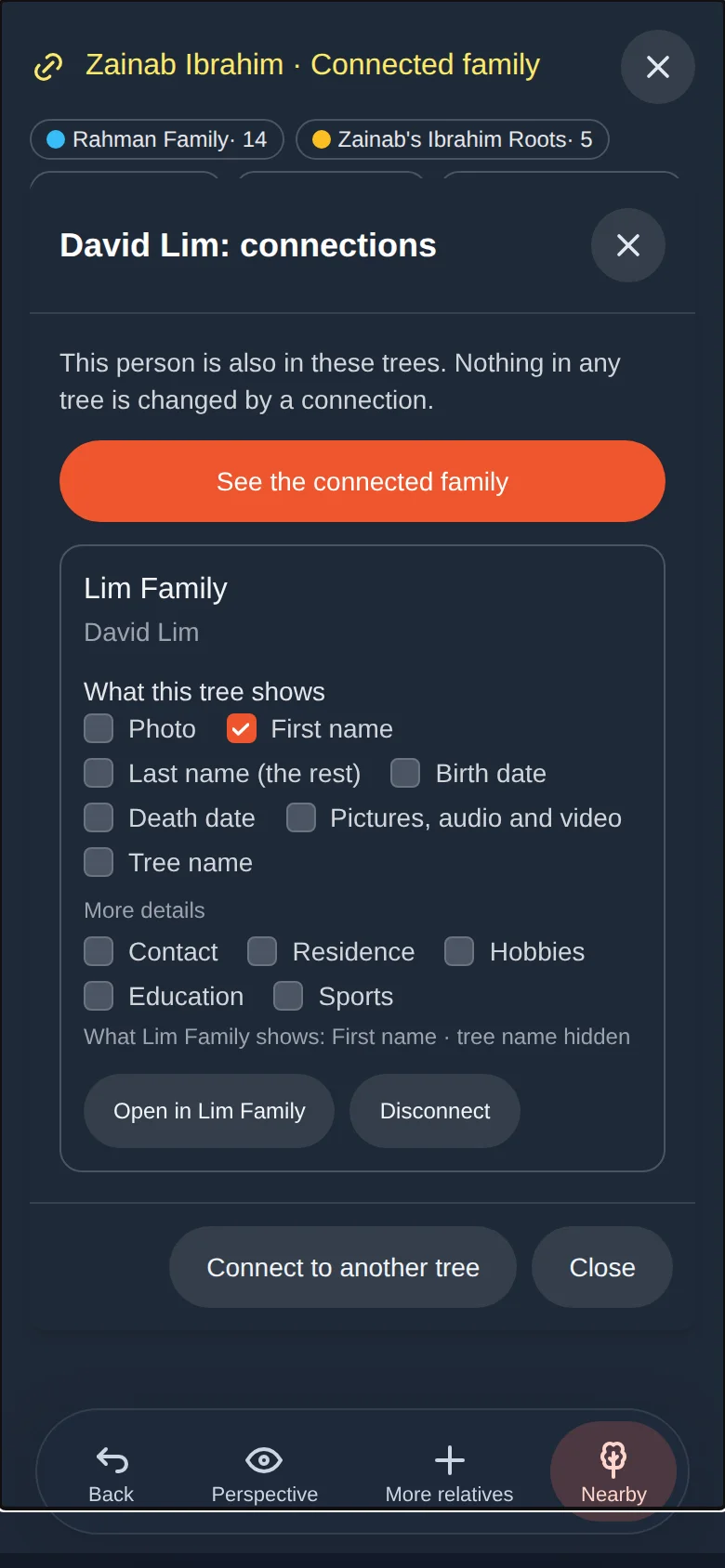
Disconnecting deletes nobody. It only stops the two trees being shown together.
Who can find my trees?
By default, nobody can find your trees by searching. If you want relatives to ask to connect, switch on discovery tree by tree in Profile and settings → Connected trees → Being found. A person who searches then sees only a name, a birth year and, if you ticked it, the tree name. Nothing is connected unless you accept their request.
Live updates
You do not need to refresh. When someone asks to connect, answers your request, or changes a tree connected to yours, a notice appears at the bottom and the forest on your screen updates.
Private things stay private: the notice names a tree only if you can open that tree.
Try it yourself
- If you have two trees that share a person, connect them. Tick only First name and Photo.
- Open the Forests page and open the forest. Tap a legend chip to light up one tree.
- Open the person's Connections and untick Photo.
Remember
- A connection joins what you see. Nothing is merged and nobody can edit the other tree.
- Another family's tree needs their approval.
- By default only a first name is shown, and your tree's name is hidden.
- You can disconnect at any time.