 Asal Ku Training
Start here › Lesson 4
Looking at a tree
Open a tree, understand how people and lines are drawn, move around, and see the tree from anyone's point of view.
In this lesson you will learn
- How to open and close a tree
- How to read people, couples, children and the different kinds of line
- How to zoom, move around, and find a person
- How to see more about someone, and view the tree from their point of view
Opening a tree
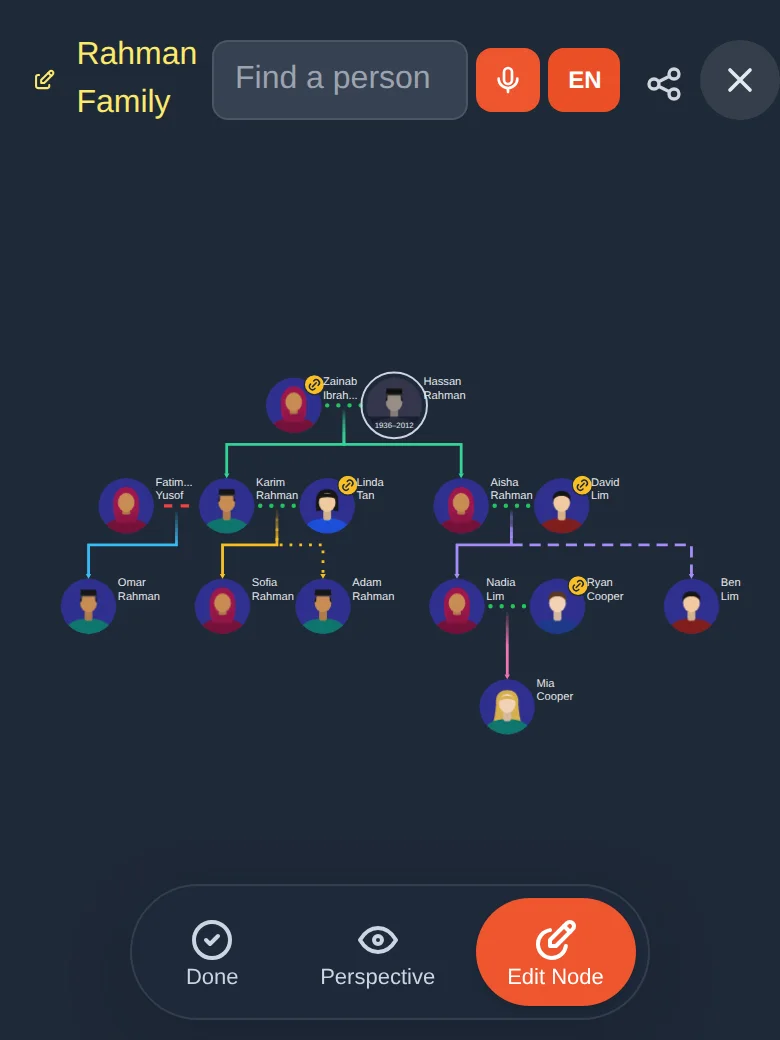
On the Trees screen, tap a card. The tree opens full screen. To go back to your list, tap the × at the top right or the Done button at the bottom.
| Where | What it is |
|---|---|
| Top left (pencil and name) | The tree's name. |
| Search box ("Find a person") | Searches this tree only. Type a few letters and tap a result to jump to that person. |
| Share icon (three dots joined) | Gets a link or QR code to share the tree (lesson 9). |
| × (top right) | Closes the tree and returns to your list. |
| Bottom bar | Done (leave), Perspective (view from a person) and Edit Node (start editing, lesson 5). |
How a tree is drawn
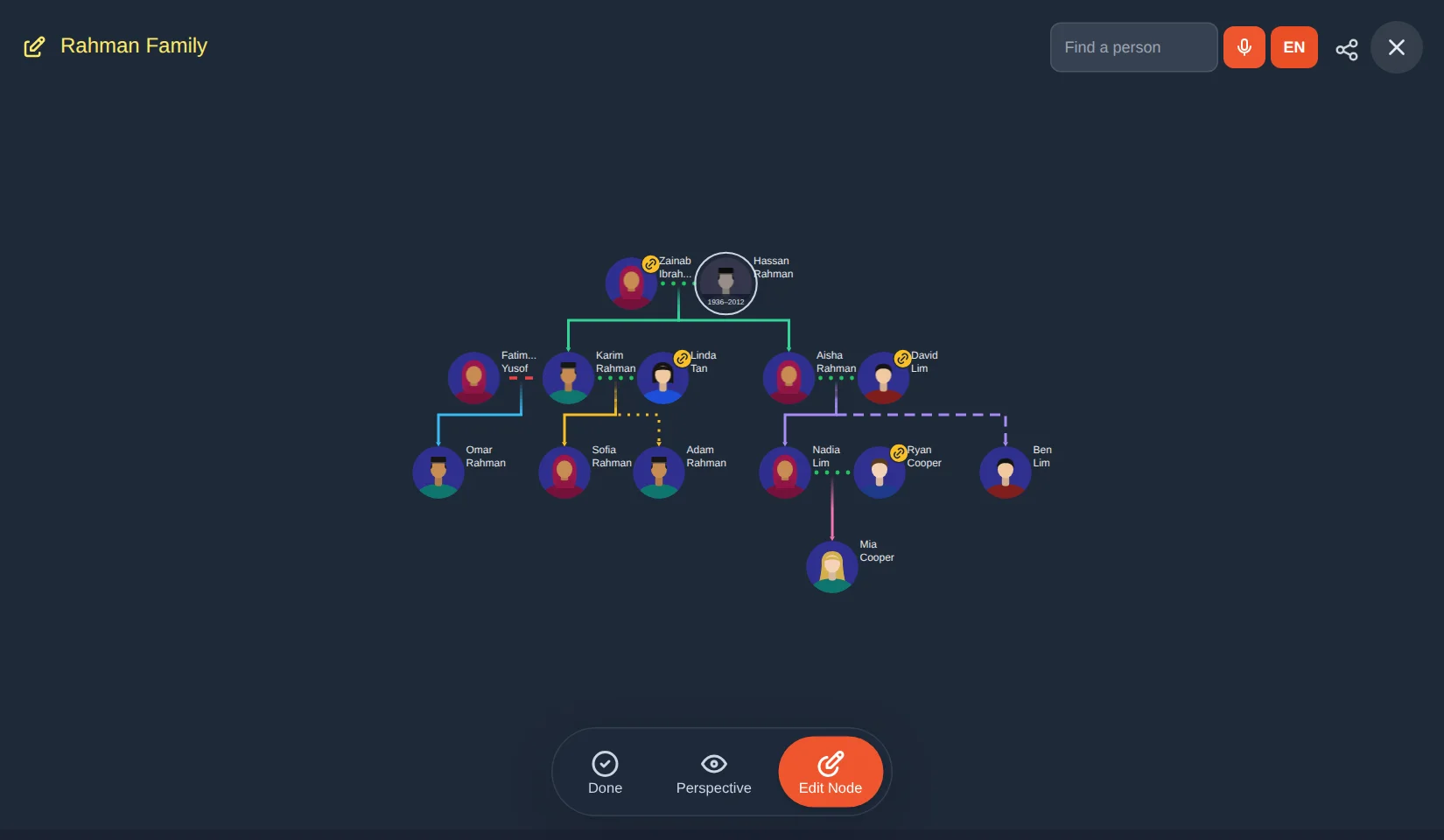
- Each circle is a person with a portrait and a name beside it.
- Couples sit side by side, joined by a short line. Dots mean married (green). Red dashes mean divorced.
- Children hang below their parents. A line leaves the couple and ends in an arrow at each child.
- Each family branch has its own colour. That is only to help your eyes follow a line.
- A person who has passed away has their years in their portrait, such as 1936–2012.
- A gold chain badge on a person means they also appear in another tree (lesson 10).
The line style tells you how a child belongs
| Line | Meaning |
|---|---|
| Solid line | Birth child |
| Long dashes | Foster child |
| Dots | Adopted child |
| Dash and dot | Step child |
Moving around
| On a phone | On a computer |
|---|---|
| Drag with one finger to move the tree | Click and drag to move |
| Pinch two fingers to zoom in or out | Use the mouse wheel to zoom |
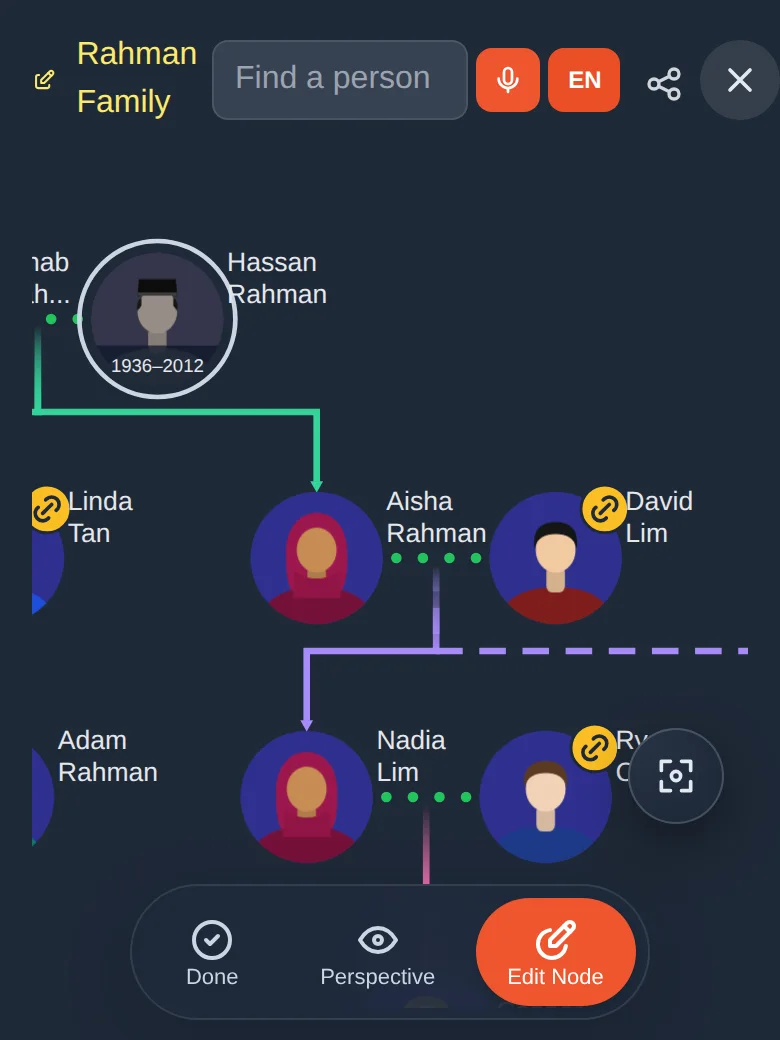
| Tap the small focus button (square with a dot) at the bottom right to centre the whole tree again | Click the same focus button |
If you ever zoom or drag too far, tap the focus button. The whole tree comes back, centred.
Finding a person in a big tree
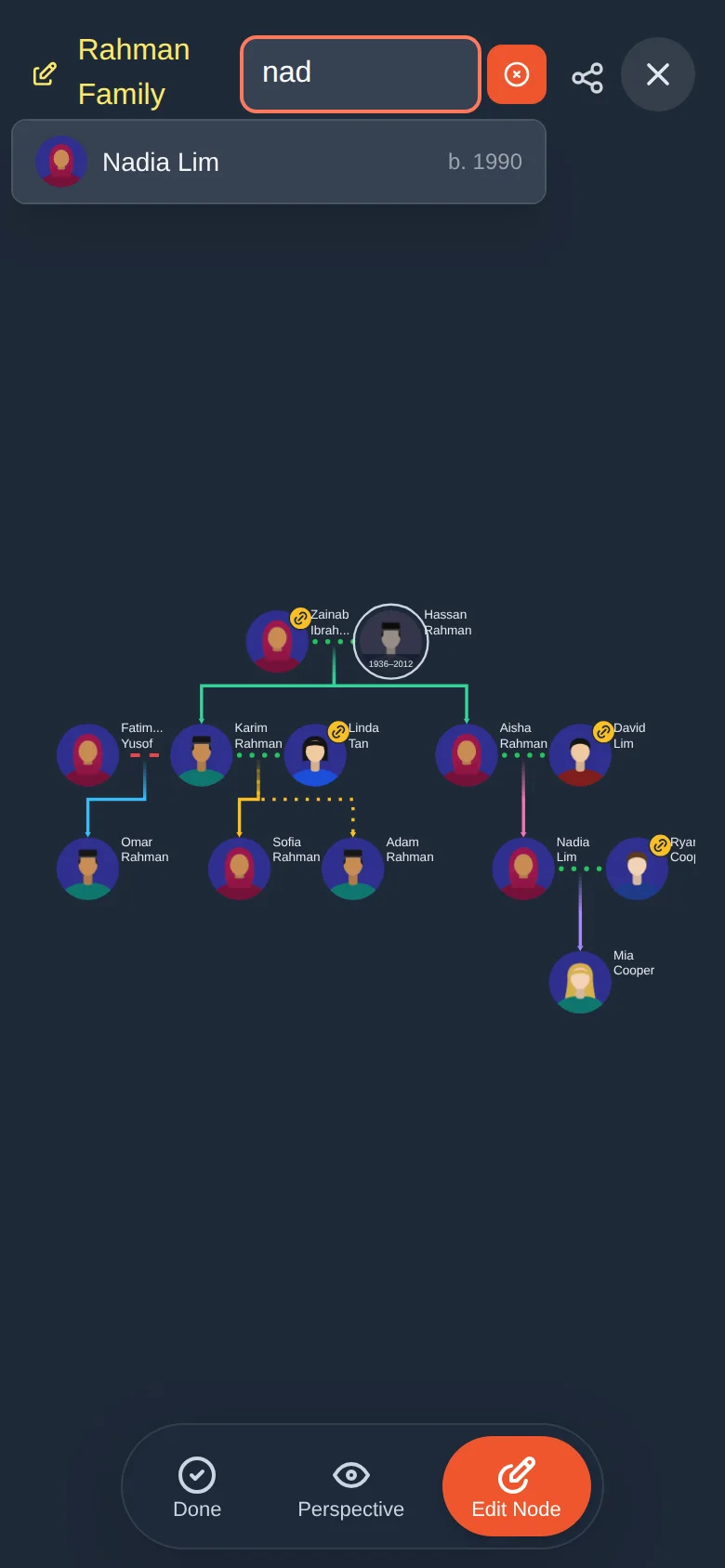
Tap the Find a person box at the top.
Type a few letters of the name. Matching people are listed with their birth year.
Tap the person you want. The tree jumps to them and highlights them.
Seeing more about a person
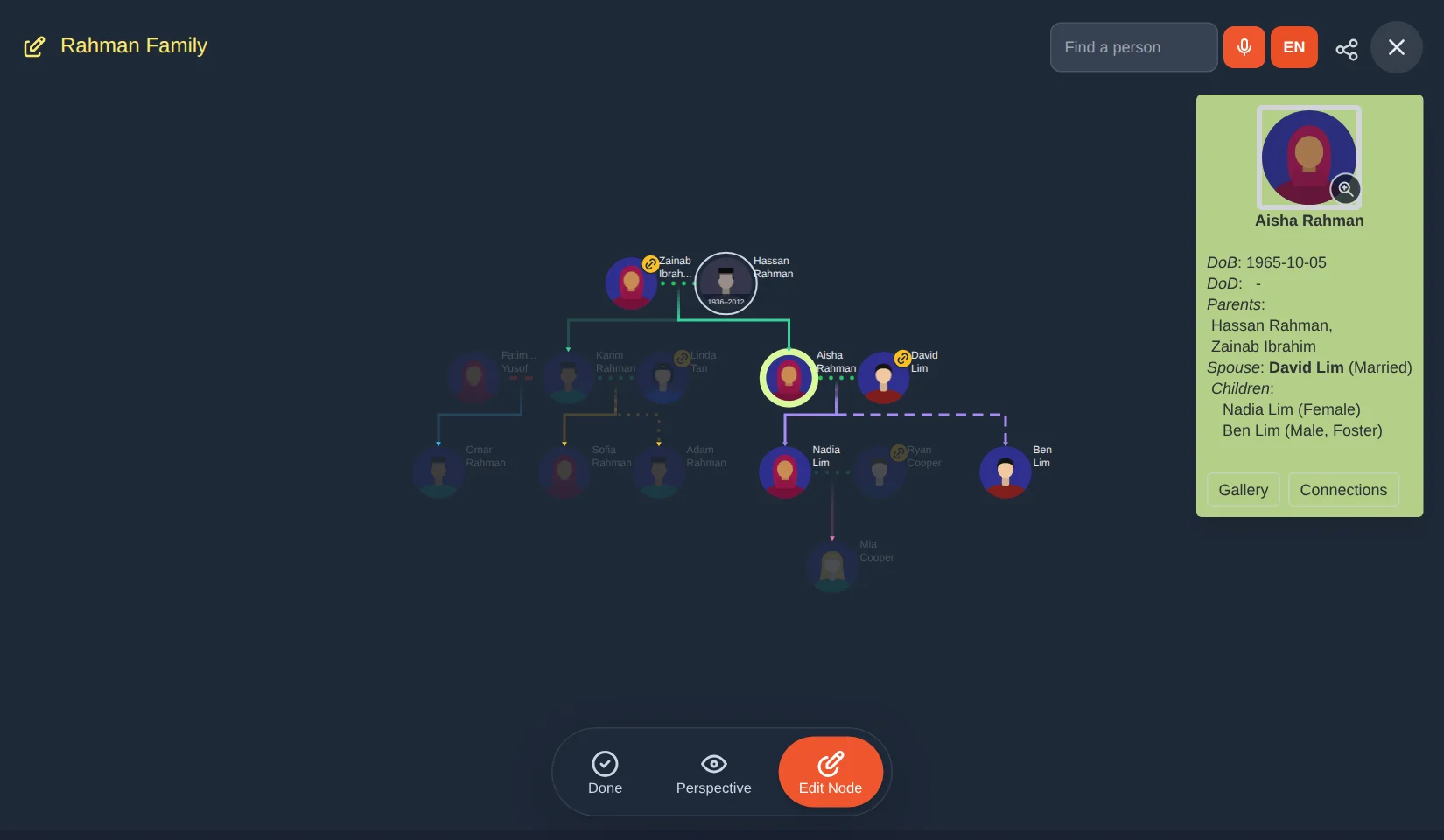
On a computer, click a person. A green information card opens: birth and death dates, parents, spouse, children and any extra details. It also has two buttons, Gallery and Connections. Click an empty space to close it.
On a phone, press and hold a person for about half a second. A menu rises from the bottom with everything you can do from there.
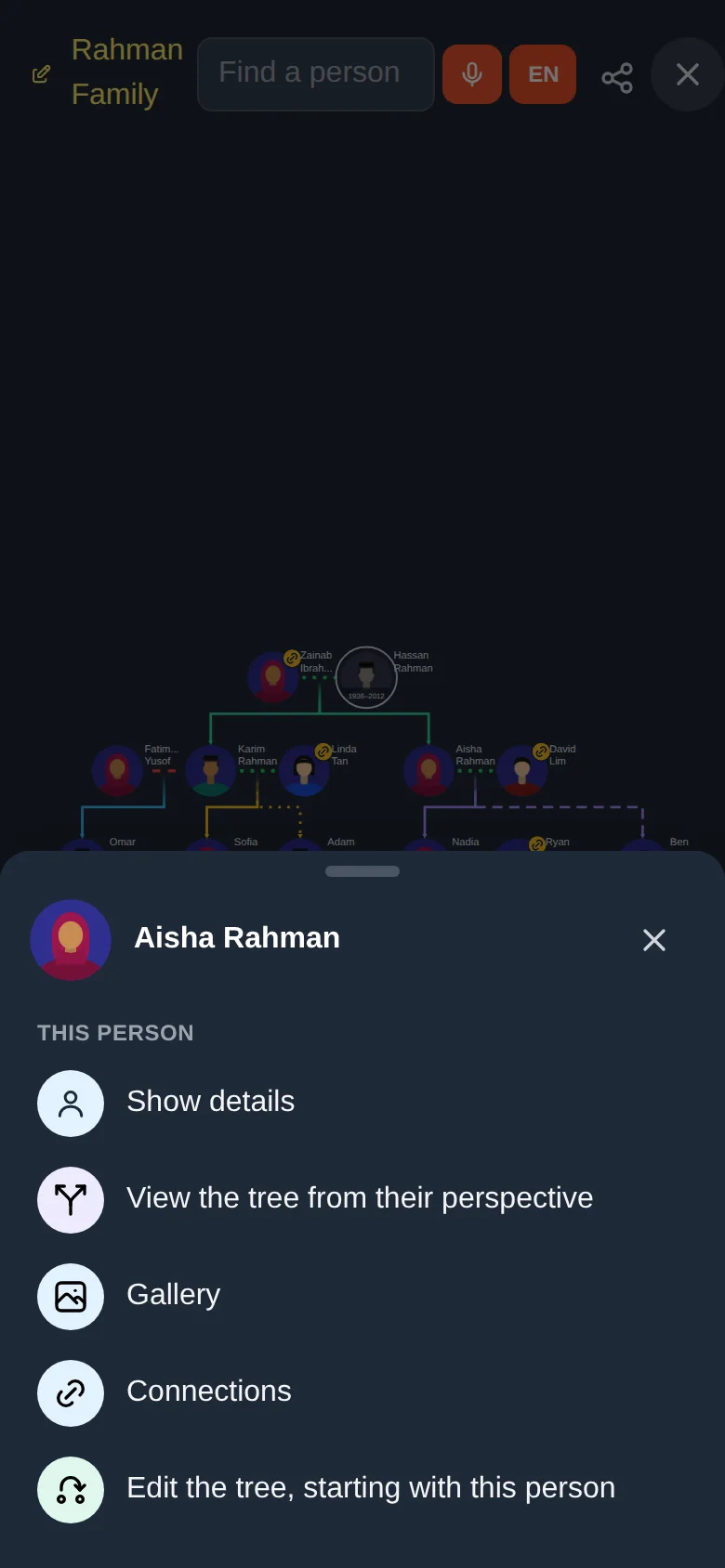
| Menu item | What it does |
|---|---|
| Show details | Opens the same information card as on a computer. |
| View the tree from their perspective | See the next section. |
| Gallery | Their pictures, audio and video (lesson 8). |
| Connections | Other trees this person is also in (lesson 10). |
| Edit the tree, starting with this person | Starts editing (lesson 5). |
In the information card, tap the small portrait to see the original photo full size, if one was uploaded.
Seeing the tree from someone's point of view
A family tree reads differently depending on who you are. Perspective redraws the tree so that one person is the centre.
Tap Perspective in the bottom bar. A message says "Tap a person to view the tree from their perspective".
Tap the person you want as the centre. The tree is redrawn around them, and a message confirms "Now viewing from … perspective".
Tap the same person again to go back to the normal view.
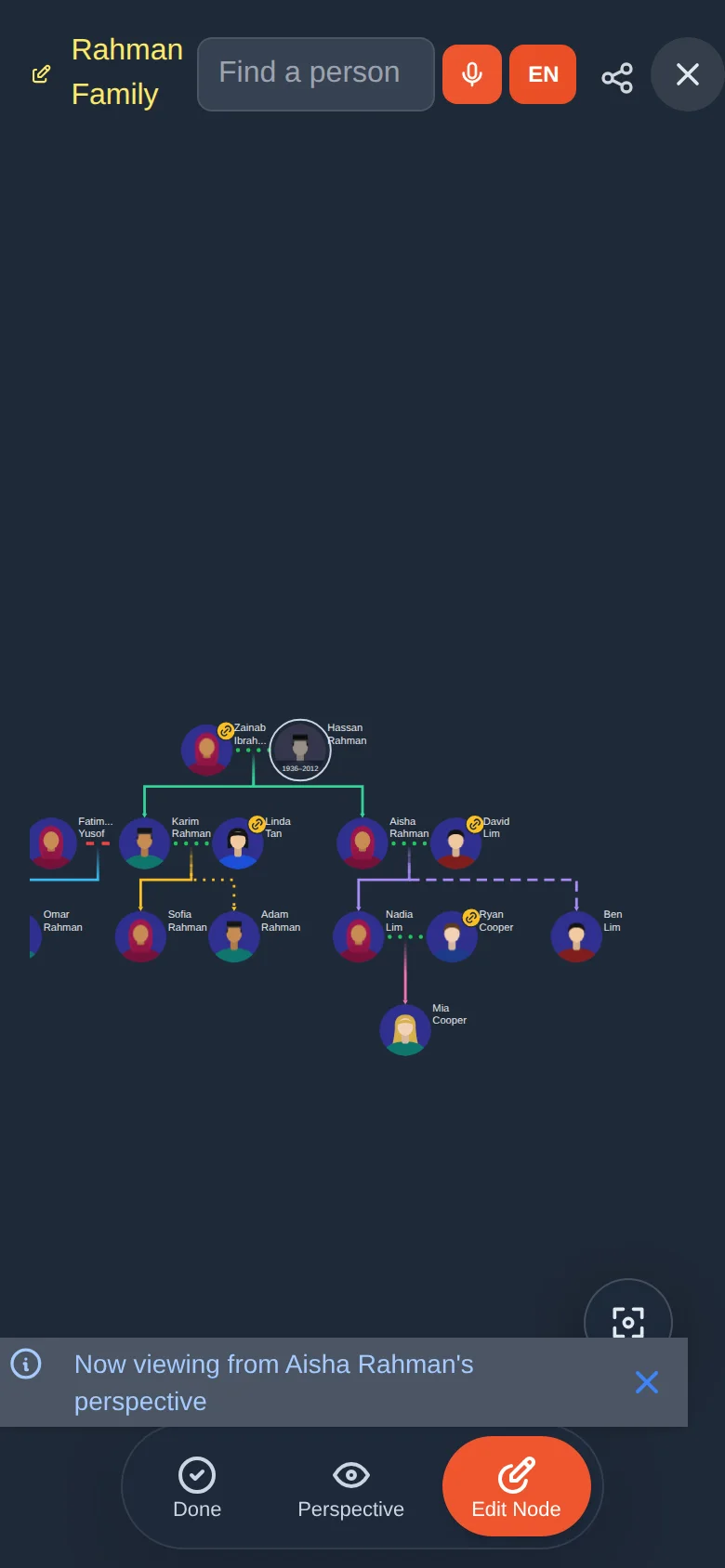
On a phone you can also choose View the tree from their perspective in the press-and-hold menu.
Try it yourself
- Open a tree and zoom in and out. Use the focus button to bring it back.
- Find a person with the search box.
- Open someone's information card (click on a computer, press and hold on a phone).
- Try Perspective on a person, then tap them again to return.
Remember
- Dots between a couple mean married; red dashes mean divorced.
- The style of the line to a child shows birth, foster, adopted or step.
- Press and hold (phone) or click (computer) a person for details.
- Looking is safe. Nothing changes until you press Edit Node.