 Asal Ku Training
Start here › Lesson 8
Pictures, audio and video
Give every person a gallery of photos, voice recordings and videos, browse them all together as Memories, and keep an eye on your storage.
In this lesson you will learn
- How to open a person's gallery on a phone and on a computer
- Four ways to add pictures, audio and video
- How to write captions and dates, and how to delete an item
- How to browse a whole tree's pictures on the Memories page
- How to see and manage how much space you are using
Owners and managers can add, change and delete. Viewers can look at pictures and play recordings, but not change them.
Open a person's gallery
| Where you are | How |
|---|---|
| Phone, viewing a tree | Press and hold the person, then tap Gallery. |
| Phone, editing a tree | Tap the person, then tap Gallery in the menu. |
| Computer, viewing a tree | Click the person, then click the Gallery button in the information card. |
| Computer, editing a tree | Click the person, then the light-blue gallery button on the left. |
| Memories page | Open any picture and tap the link Open … gallery. |
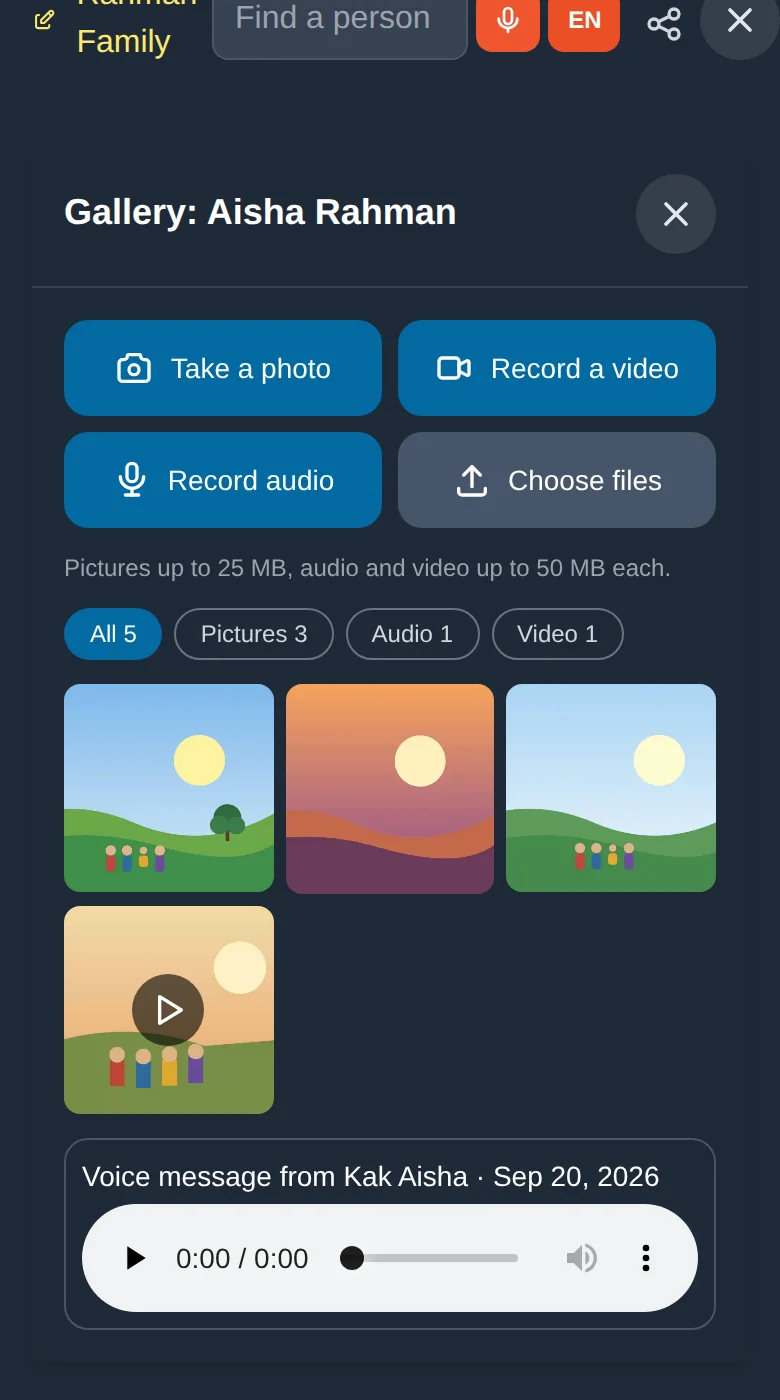
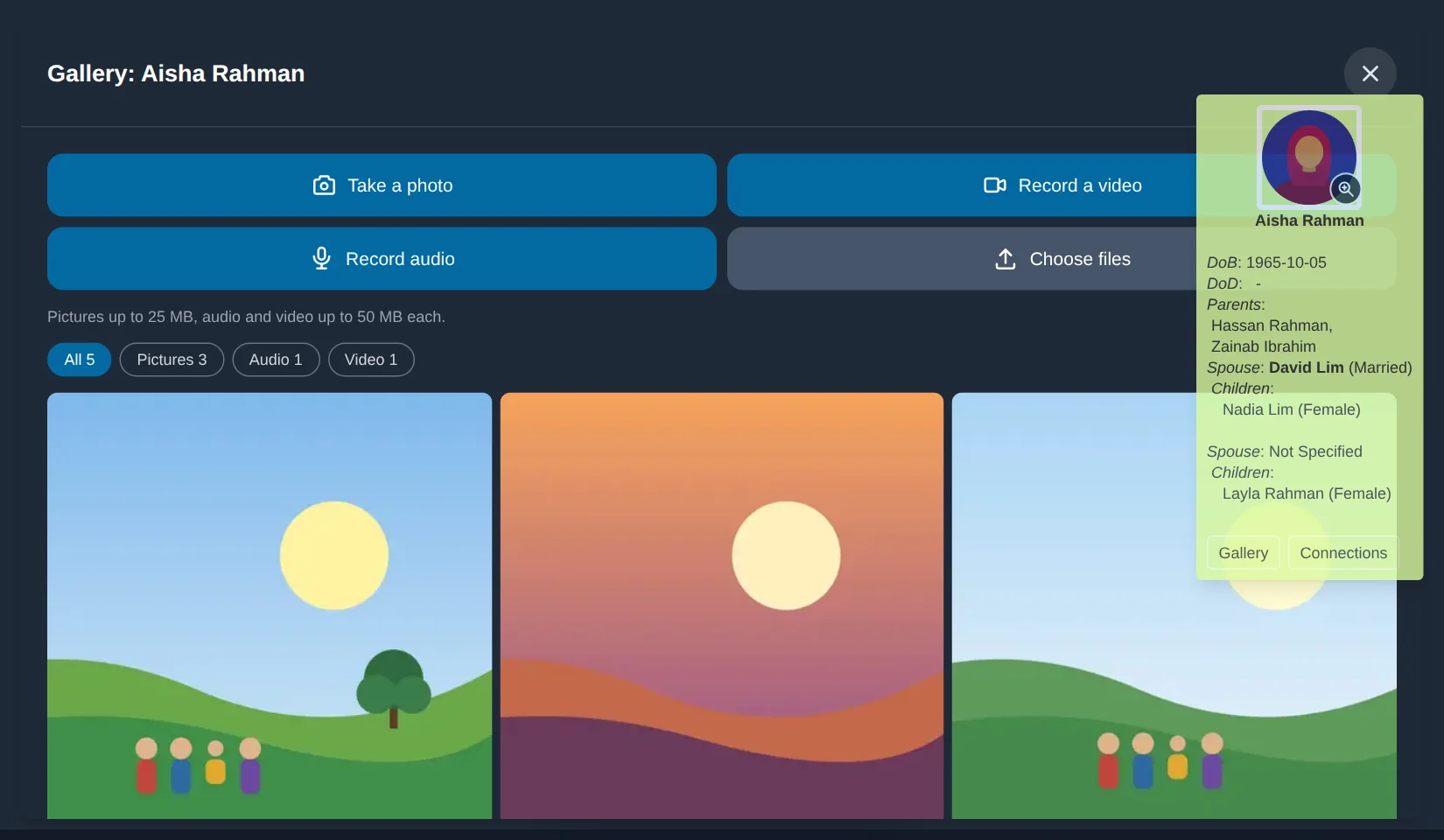
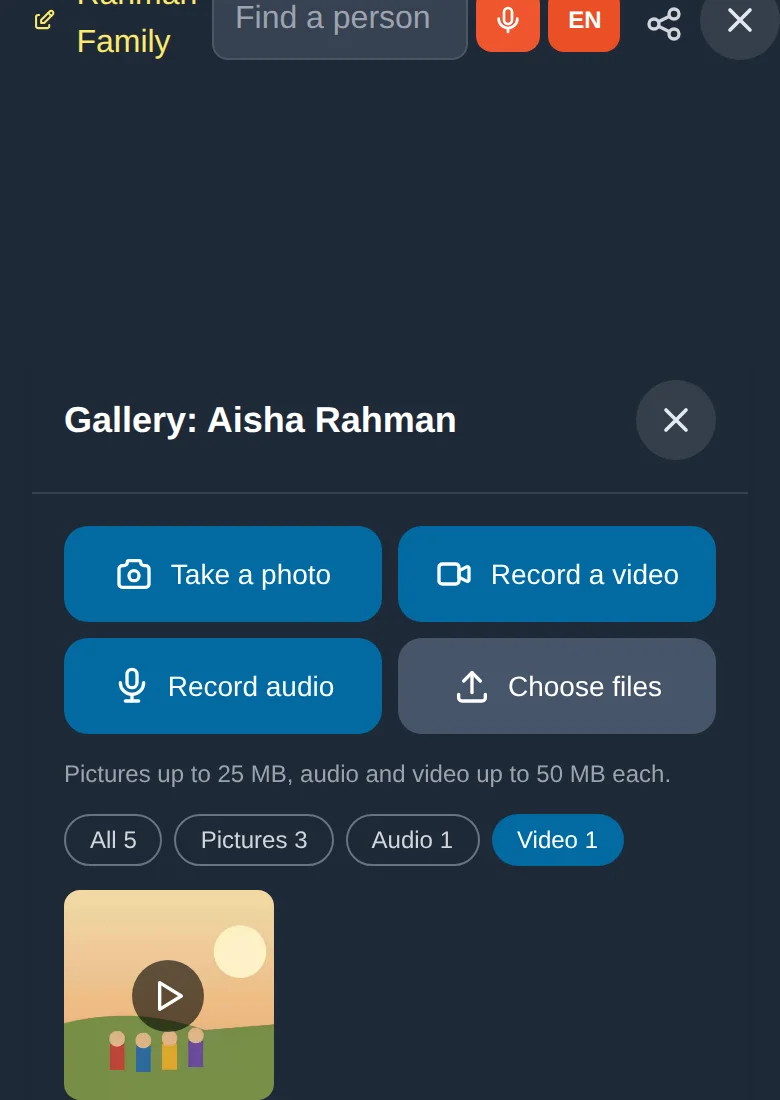
At the top are four buttons. Under them the pictures and videos appear as small squares, and audio recordings as playable rows. The filter buttons (All, Pictures, Audio, Video) show only one kind.
Add pictures, audio and video
Take a photo. Tap Take a photo. On a phone the camera opens. Take the picture and confirm it. On a computer this opens the file chooser instead.
Record a video. Tap Record a video. The camera opens in video mode. Record, then confirm.
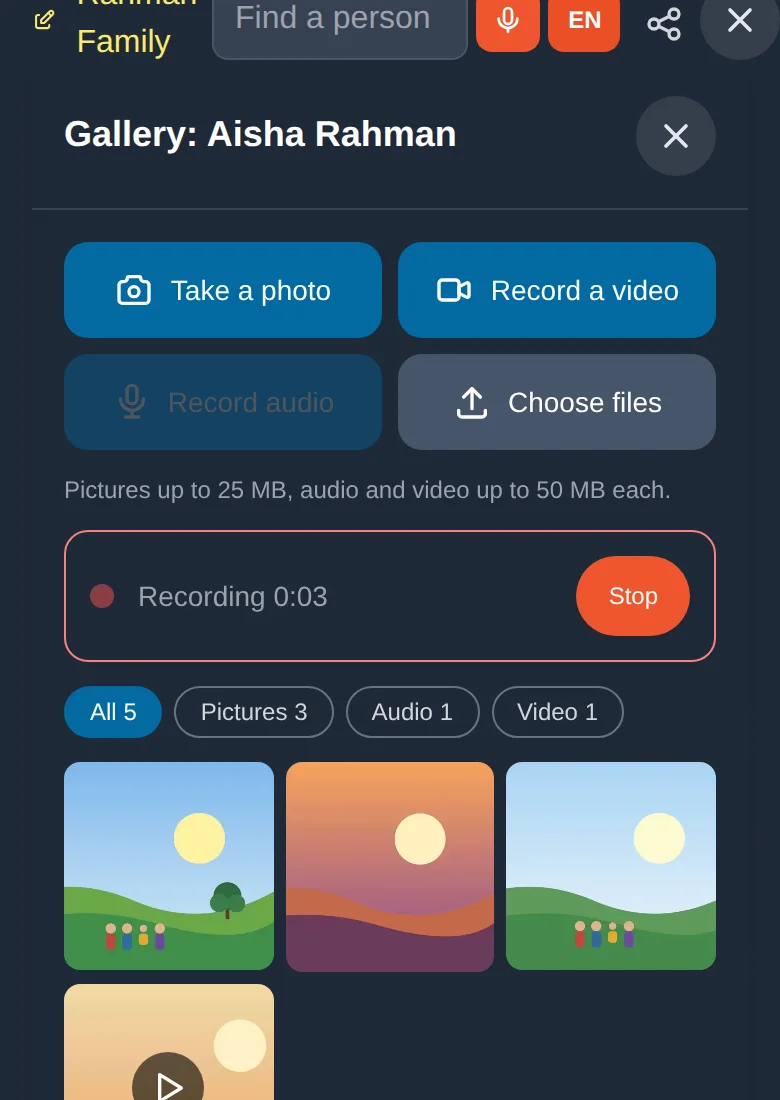
Record audio. Tap Record audio. The first time, your browser asks to use the microphone: allow it. A red dot and a timer show it is recording. Tap Stop.
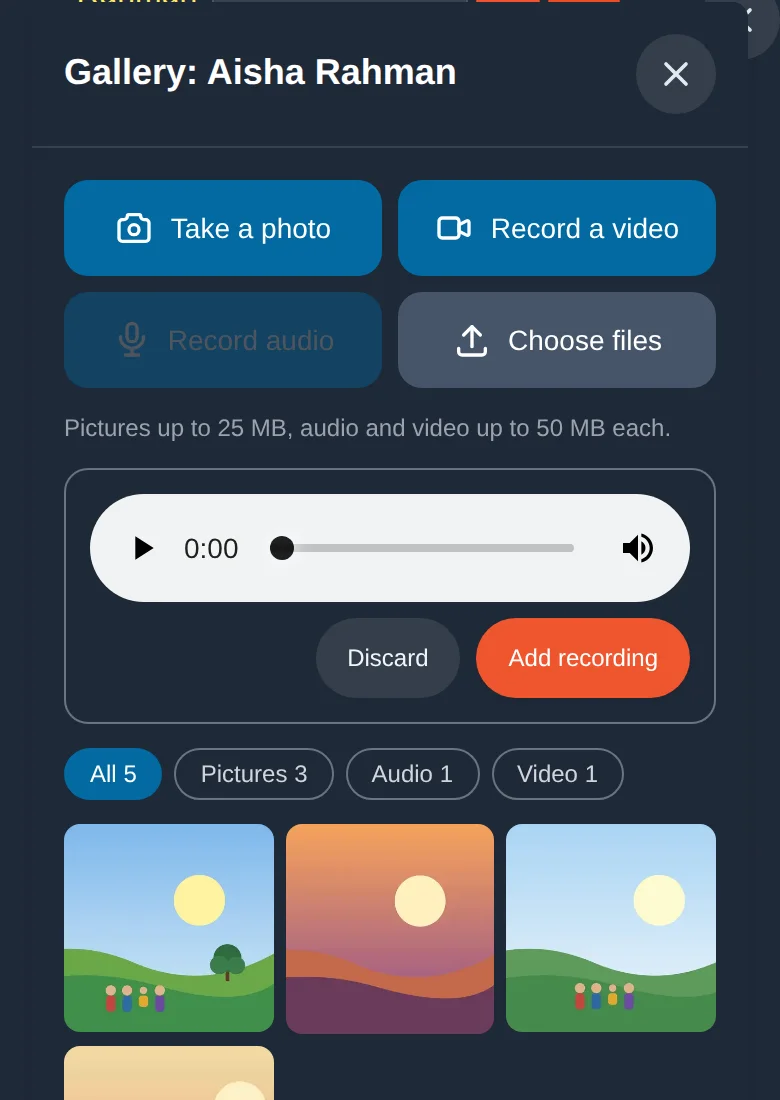
A player appears so you can listen. Tap Add recording to keep it, or Discard to throw it away. A recording stops by itself at 10 minutes.
Choose files. Tap Choose files and pick pictures, audio or video already on your phone or computer. You can pick several at once, and a progress bar shows each upload.
| Kind | Accepted types | Largest size |
|---|---|---|
| Pictures | JPEG, PNG, WebP, GIF | 25 MB |
| Audio | MP3, M4A, AAC, WAV, OGG, WebM | 50 MB |
| Video | MP4, MOV, WebM | 50 MB |
A long video from a modern phone can be larger than 50 MB. Record shorter clips, or lower the video quality in your camera settings, and add them in parts.
Captions and dates
Tap a picture, video or audio row to open it full size.
Under it, type a Caption (for example "Hari Raya, all together") and a Date (a year, year-month or full date: 1998, 1998-02 or 1998-02-01).
Tap Save. To remove the item instead, tap Delete and confirm.
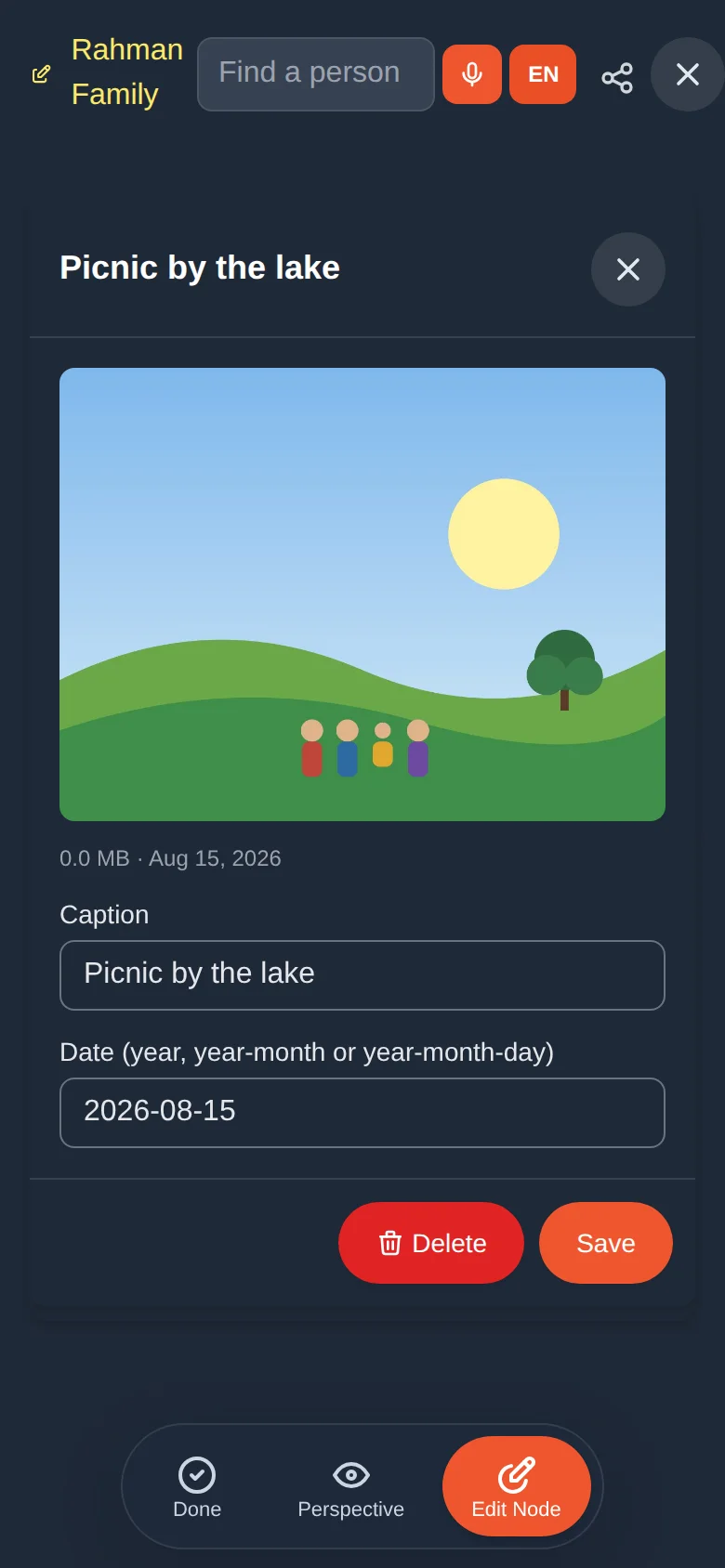
Use the date the picture or recording was made (even just the year). Memories are sorted by it, so a photo from 1975 lands in 1975.
Memories: everything in one place
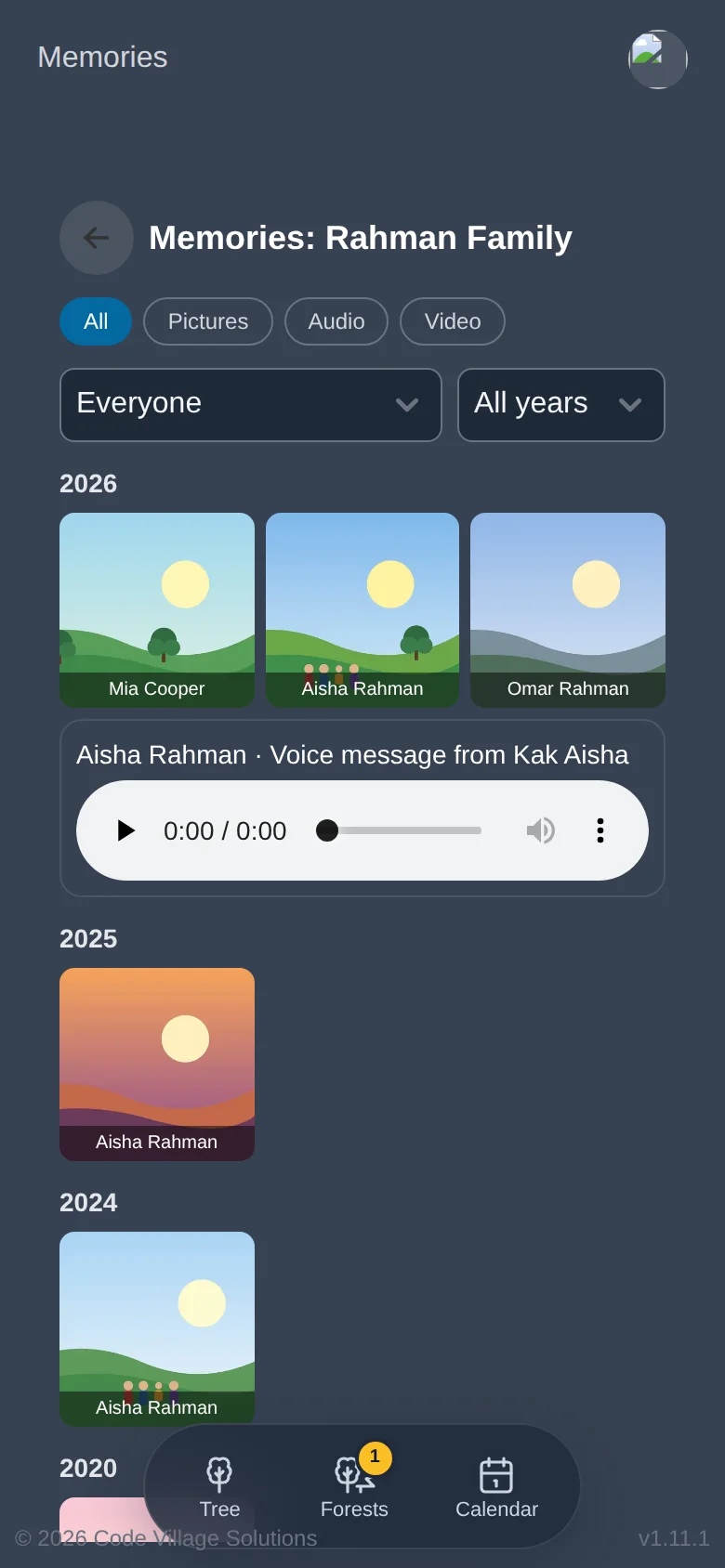
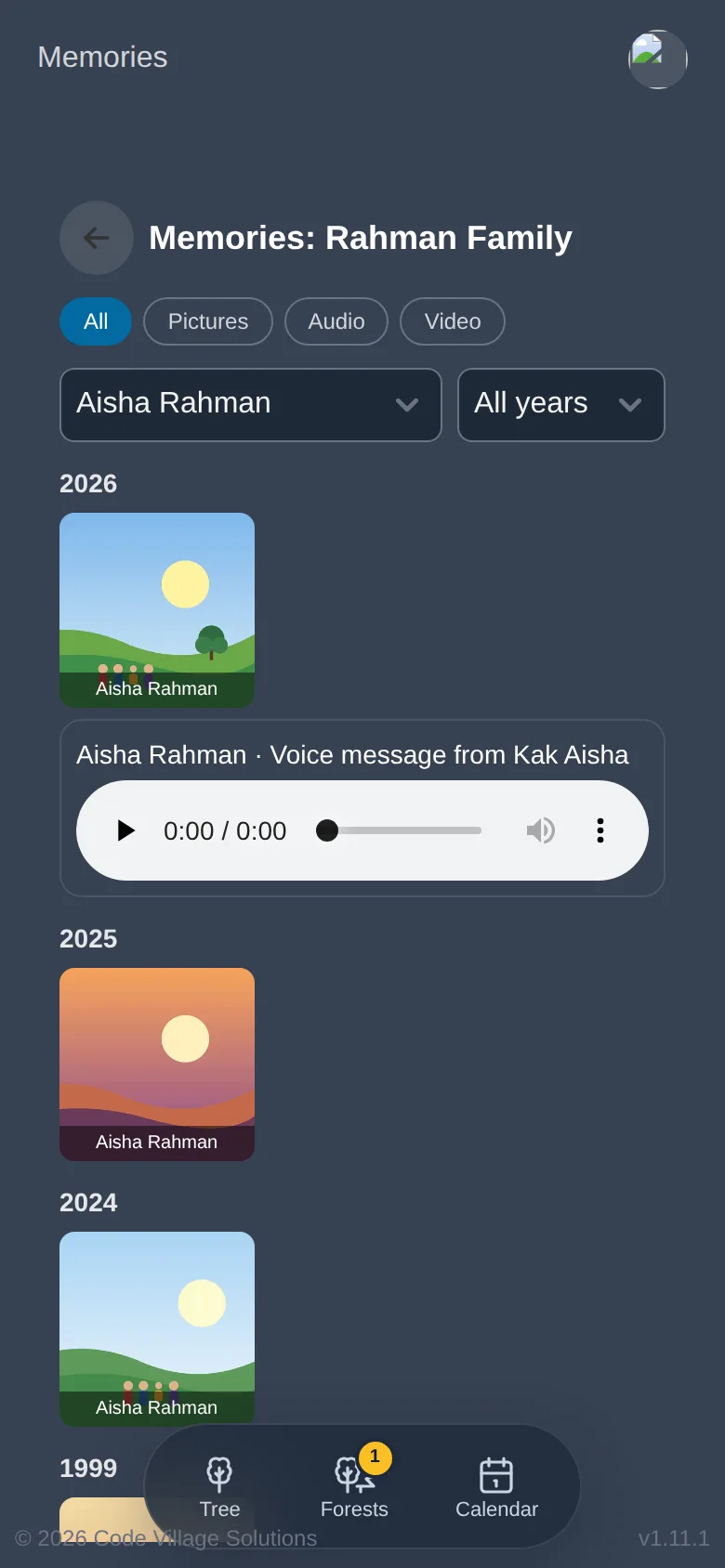
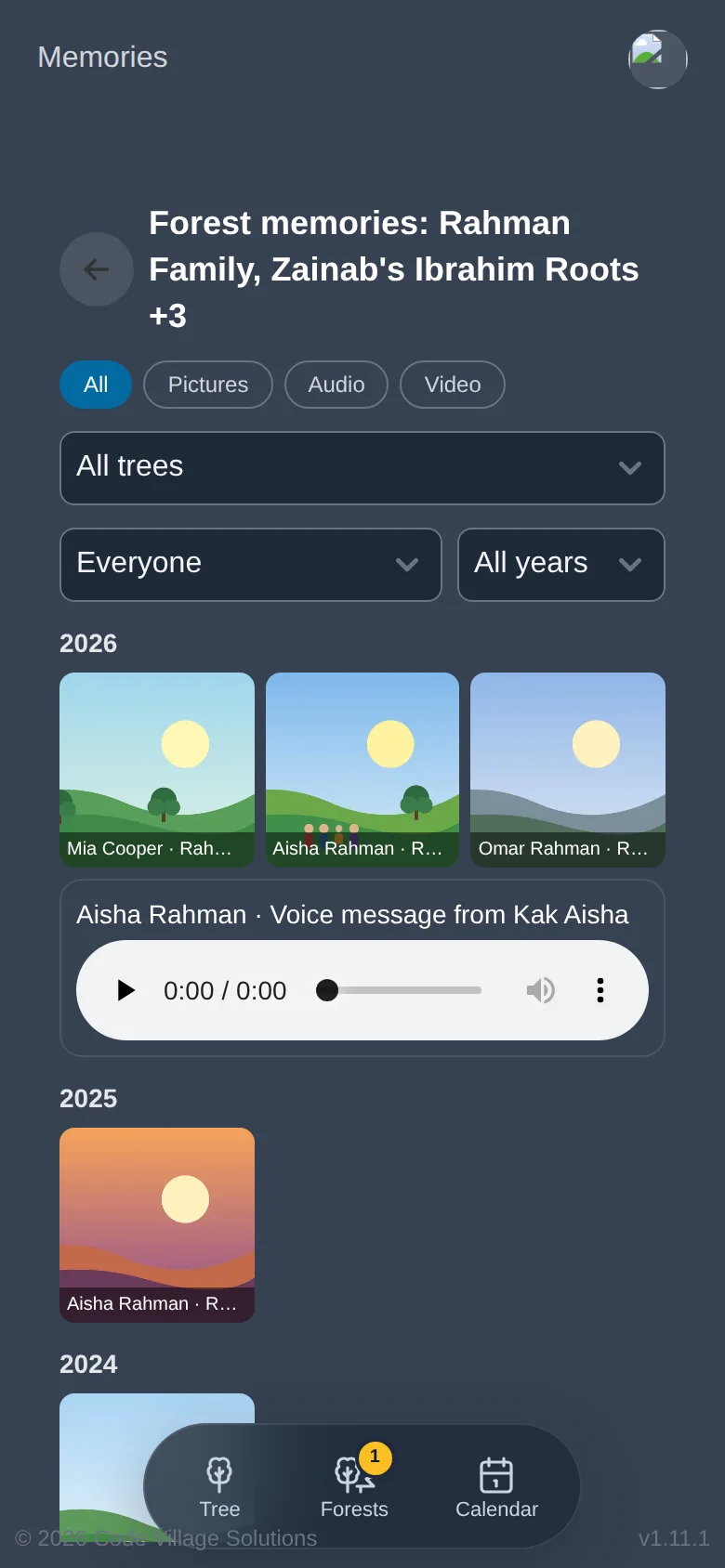
The Memories page shows all the pictures, recordings and videos of everyone in a tree, newest first and grouped by year.
On your list of trees, tap the picture button on the tree's card.
Use the filters: All, Pictures, Audio, Video; the person list; and the year list.
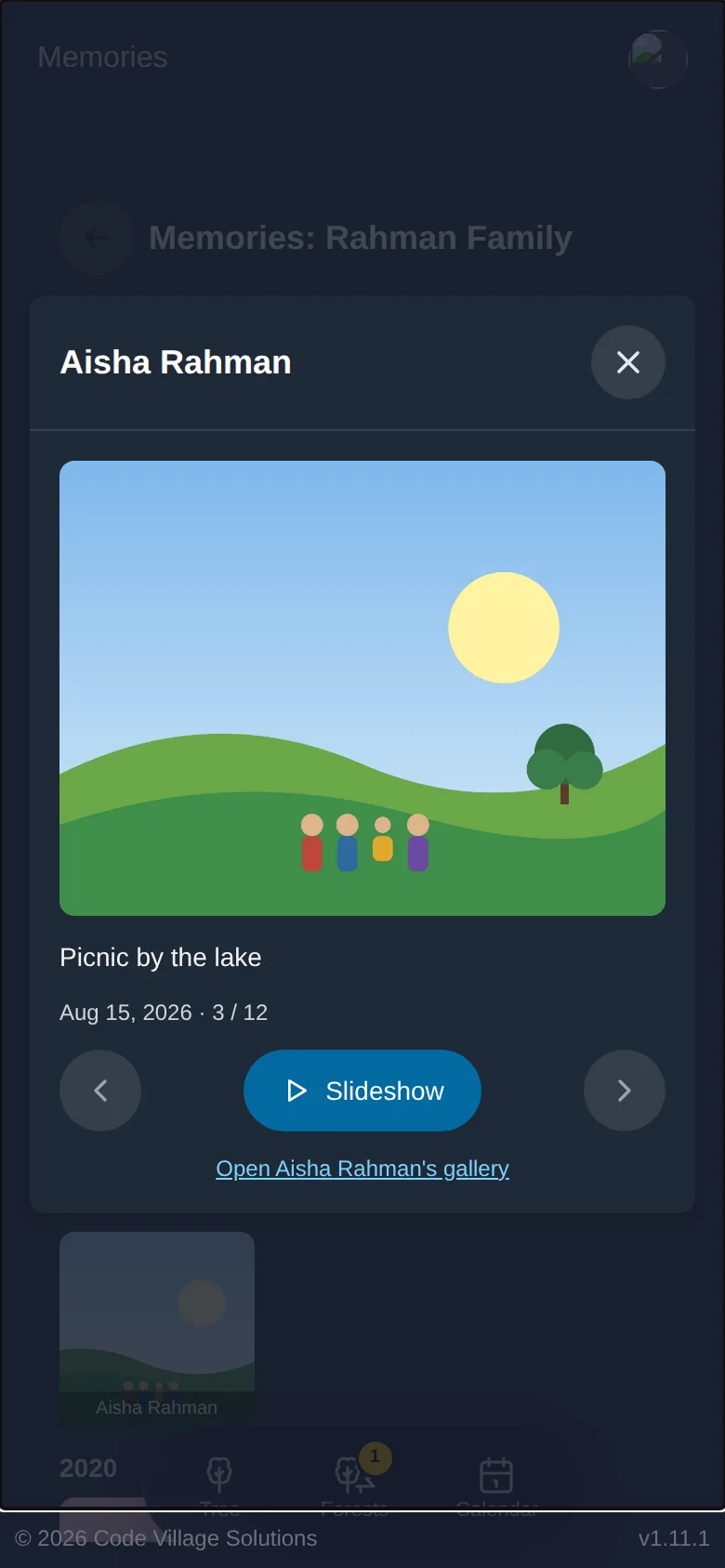
Tap a picture to open it. Use the arrows to move to the previous or next item, or tap Slideshow to play the pictures one after another (it stops on a video or recording).
Tap Open … gallery under an item to jump to that person's gallery.
If your tree is part of a forest (lesson 10), the Forests page has a Memories button too. It combines the galleries of all connected trees, plus pictures that relatives in other families chose to share with you.
Your storage
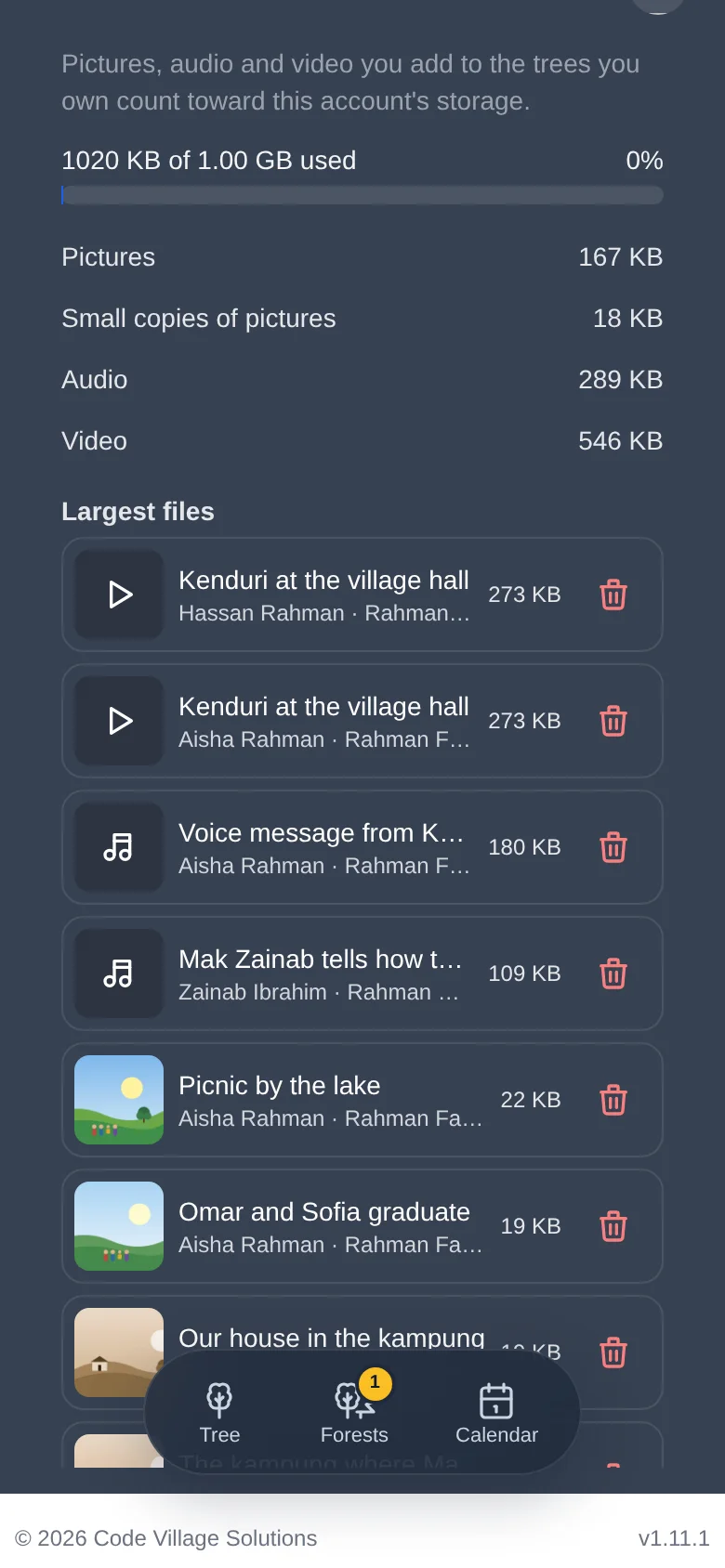
Every account has 1 GB for pictures, audio and video. The pictures in a tree count towards its owner's storage, whoever uploaded them. Open Profile and settings → Storage to see the bar and a breakdown: pictures, small copies of pictures, audio and video.
Tap Show my largest files.
You see your 100 biggest files, with the person and tree each belongs to.
Tap the red bin beside a file to delete it (Asal Ku asks first) and free up space.
New uploads are refused with a "storage is full" message until you delete something. Nothing already saved is lost.
Asal Ku warns you first, with the number of items and their size (lesson 5). Undo brings them back during the same editing session.
Try it yourself
- Open a person in your Practice Tree and add one picture with Choose files.
- Record a ten-second audio message and keep it.
- Give both a caption and a year.
- Open the tree's Memories from the list and use the filter buttons.
- Look at Profile and settings → Storage.
Remember
- A person's gallery is reached through a menu on a phone, or a button on a computer.
- Pictures up to 25 MB, audio and video up to 50 MB each, 1 GB in total.
- Memories shows the whole tree's gallery; Storage shows what you are using.