 Asal Ku Training
Start here › Lesson 12
Your profile and settings
Change the language, set up fingerprint sign-in, choose what you show other families, manage storage and tips, and know what works offline.
In this lesson you will learn
- Where the settings are, and what each section does
- How to change the language of the whole app
- How to set up, and clean up, fingerprint or face sign-in
- How to set your default sharing choices and who can find your trees
- What happens when you have no internet
- For administrators: how to back up and move all data
Open Profile and settings
Tap your round picture at the top right, then Profile and settings. The page shows your name and email, and a list of sections. Tap a section to open it; tap again to close it.
Language
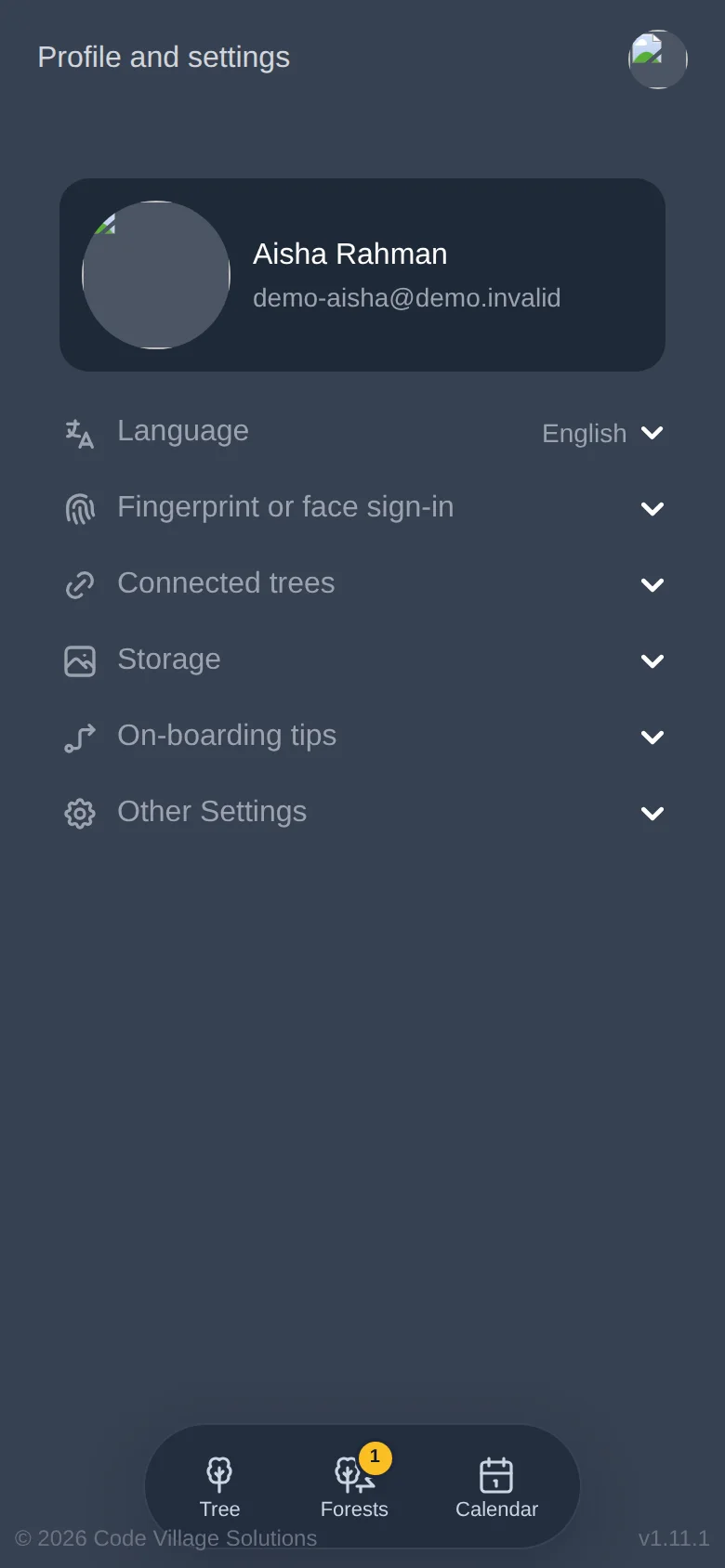
Open the Language section. The current language is shown on its right.
Choose from the list: English, Bahasa Melayu, Northern Malay, 简体中文, தமிழ், ไทย, Bahasa Indonesia or Tagalog.
Everything switches at once: menus, messages and buttons. The microphone's speaking language is a separate choice (lesson 6).
Fingerprint or face sign-in
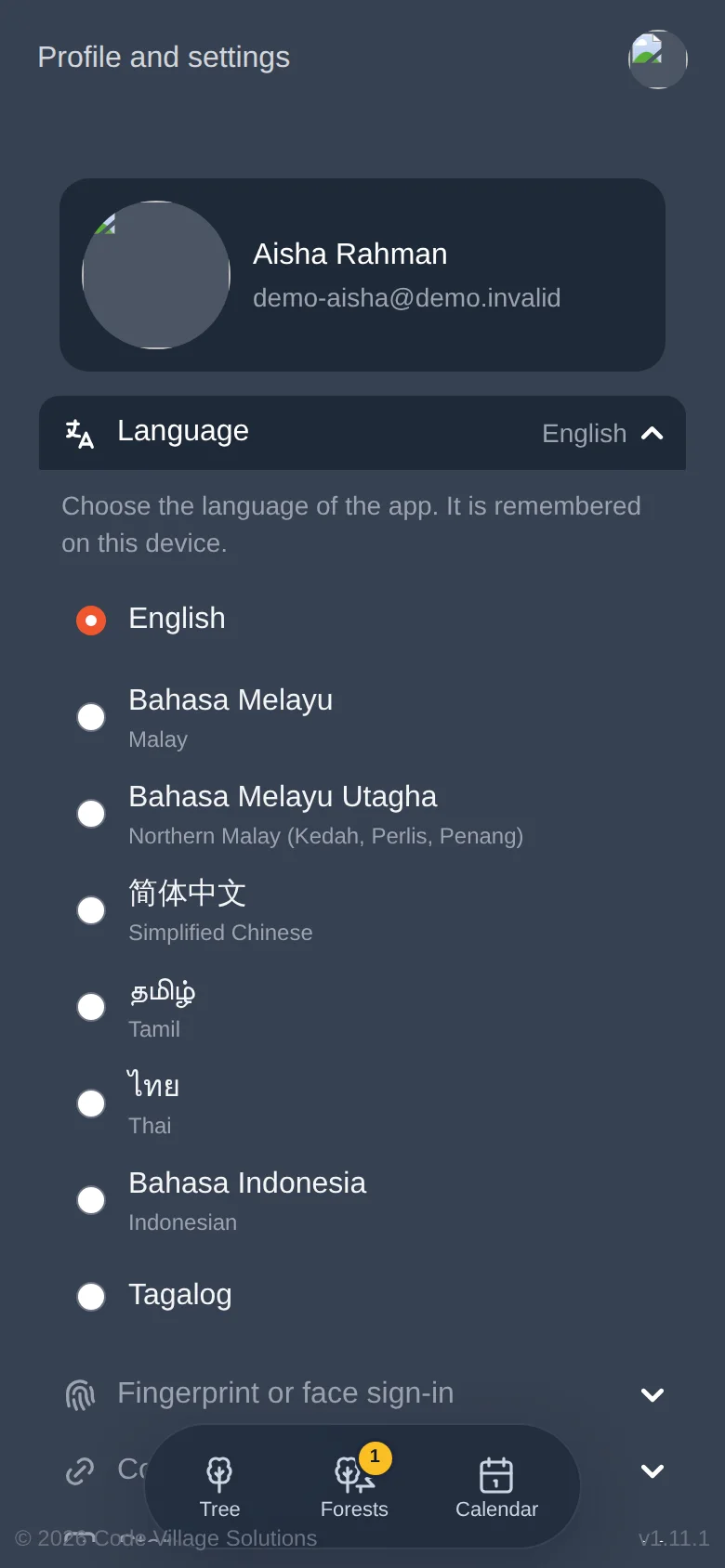
This section lets you manage the saved sign-ins on this device.
- If none is set up, you can add one.
- If more than one has been saved on this device, you can remove the extra ones. This also removes the extra "Use saved passkey?" question when you sign in.
- Your fingerprint or face never leaves your phone. Asal Ku only stores a code that lets your phone prove it is you.
Connected trees
Settings for forests (lesson 10):
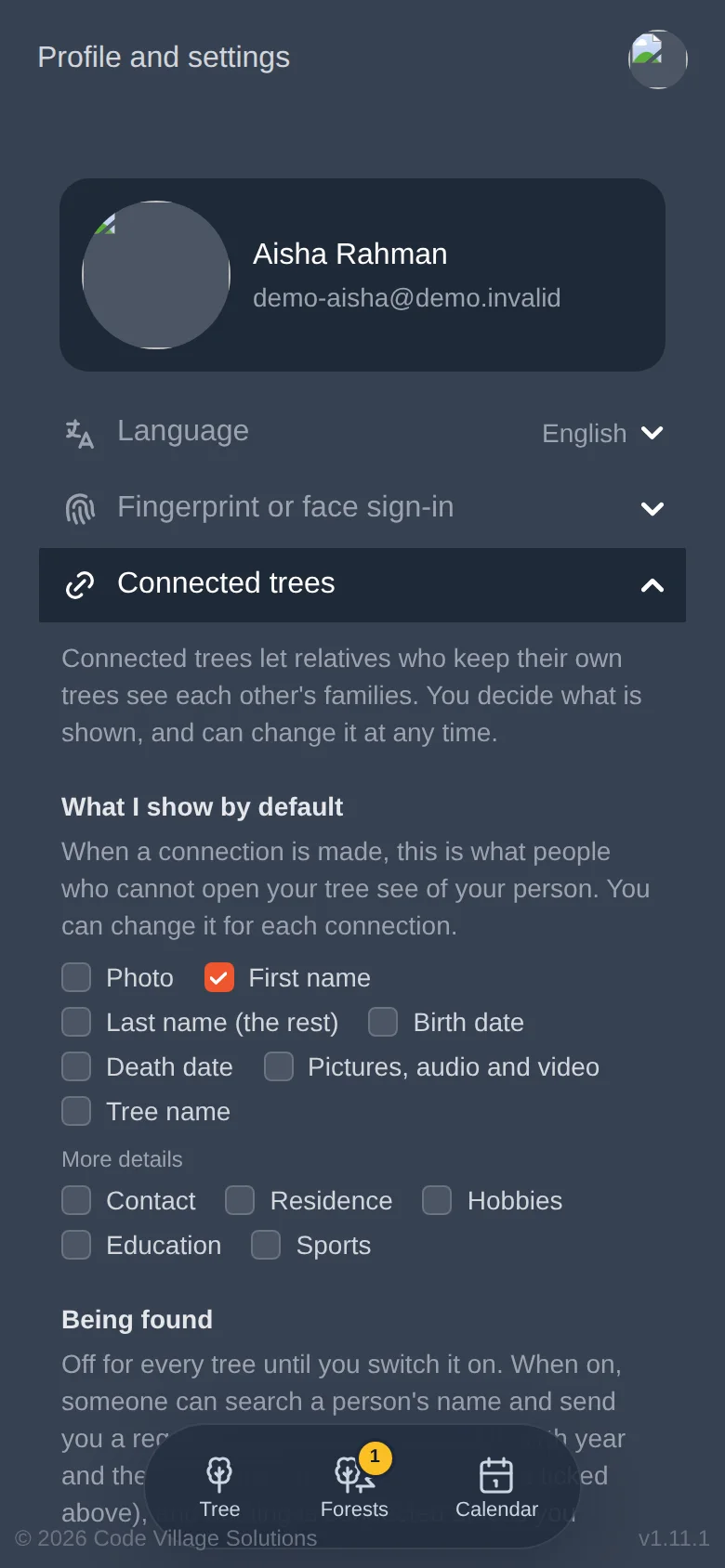
- What I show by default. The tick boxes that are pre-selected when you connect a person to another tree. You can still change them for each connection.
- Being found. One switch for each tree you own, off by default. Switch one on only if you want relatives to be able to search for that tree and send you a connection request.
Storage
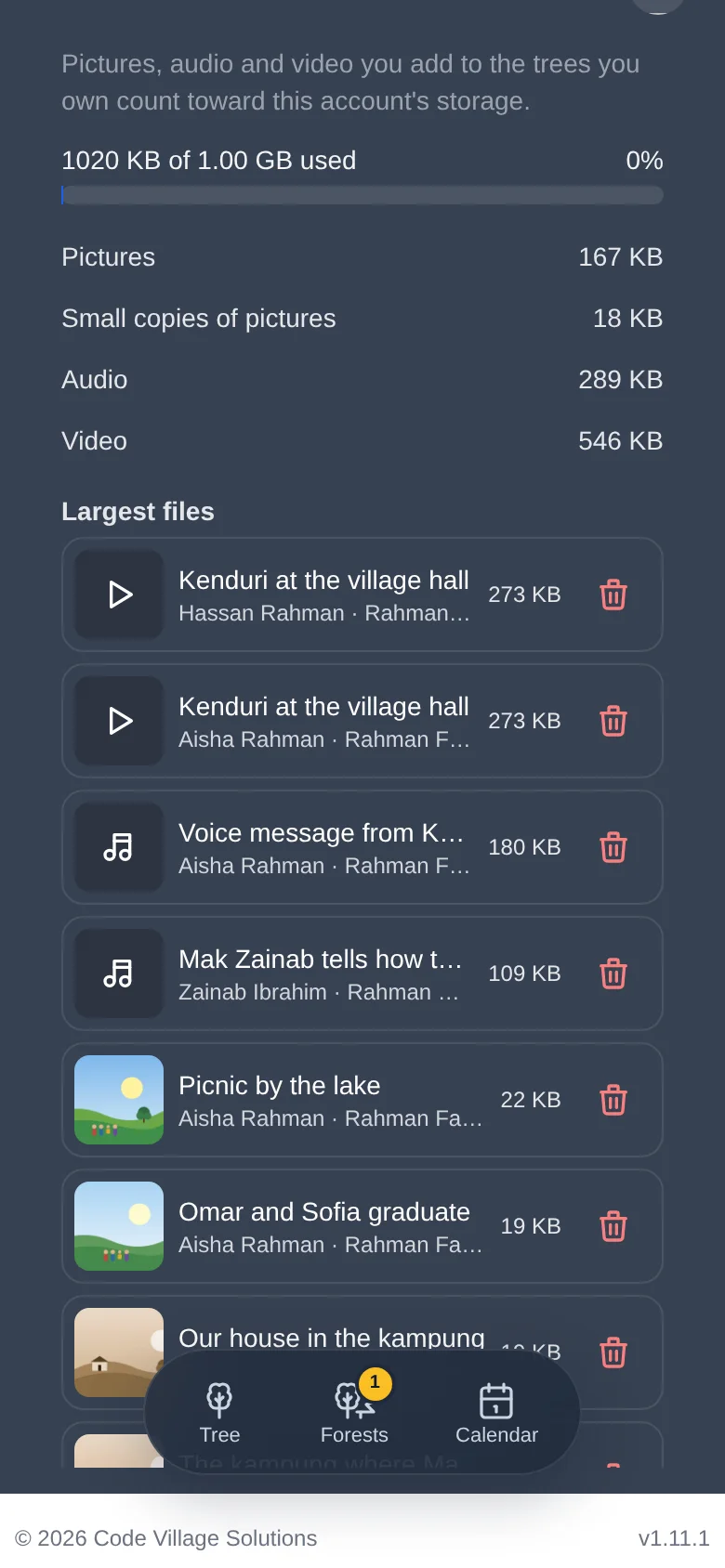
Shows how much of your 1 GB is used, a breakdown by pictures, small copies, audio and video, and a list of your largest files (lesson 8).
On-boarding tips
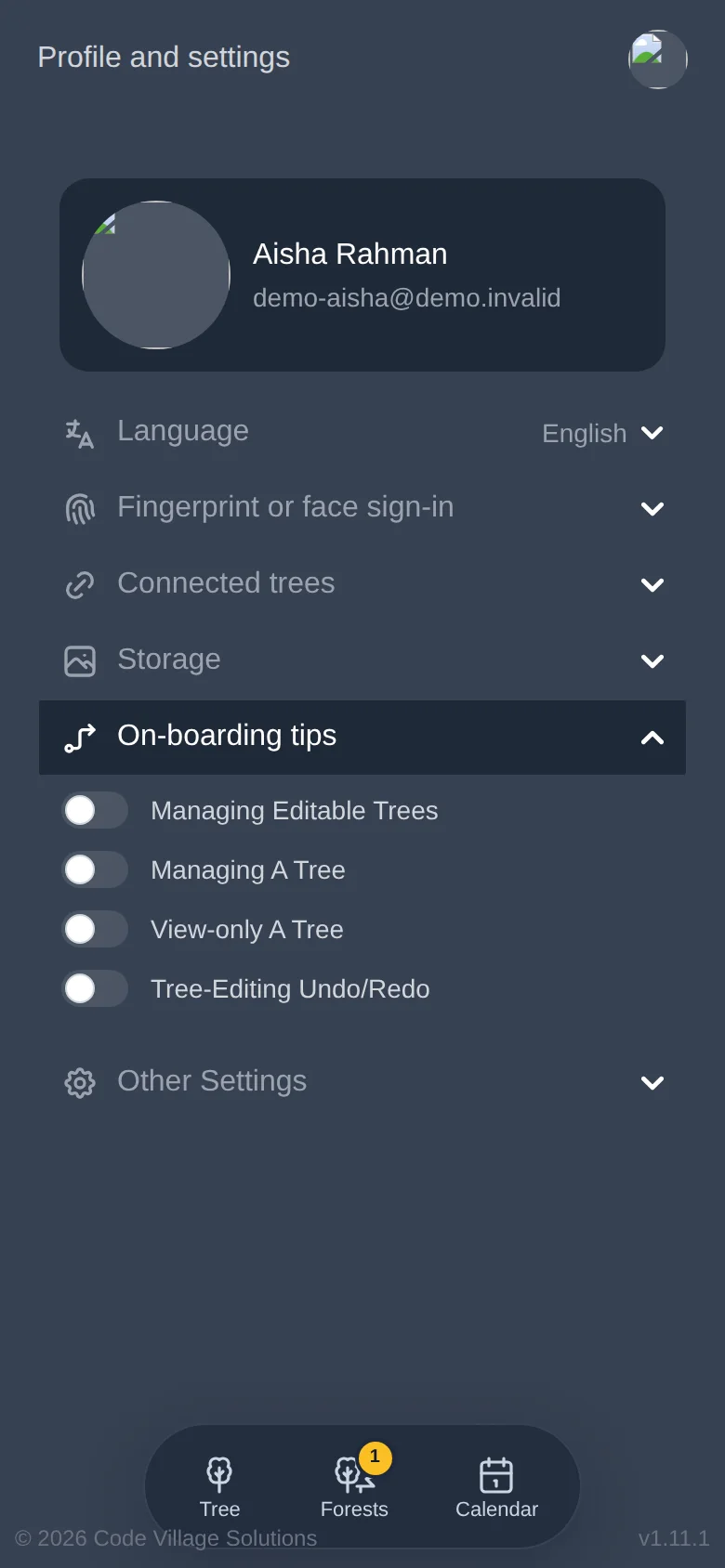
The yellow tips that explain buttons appear once for each page. Here you can switch each group on or off, for example to see the tips for managing a tree again, or to turn them all off once you know your way around.
Light and dark mode, and signing out
Both are in the account menu at the top right (lesson 2). Signing out removes your access on that device. Trees are not affected.
When there is no internet
Asal Ku keeps the trees you have opened on your device. If your connection drops, a yellow message at the top says "You are offline. Showing the trees saved on this device; editing is not available." You can still look at trees you opened earlier. Editing, uploading and sharing wait until the connection is back.
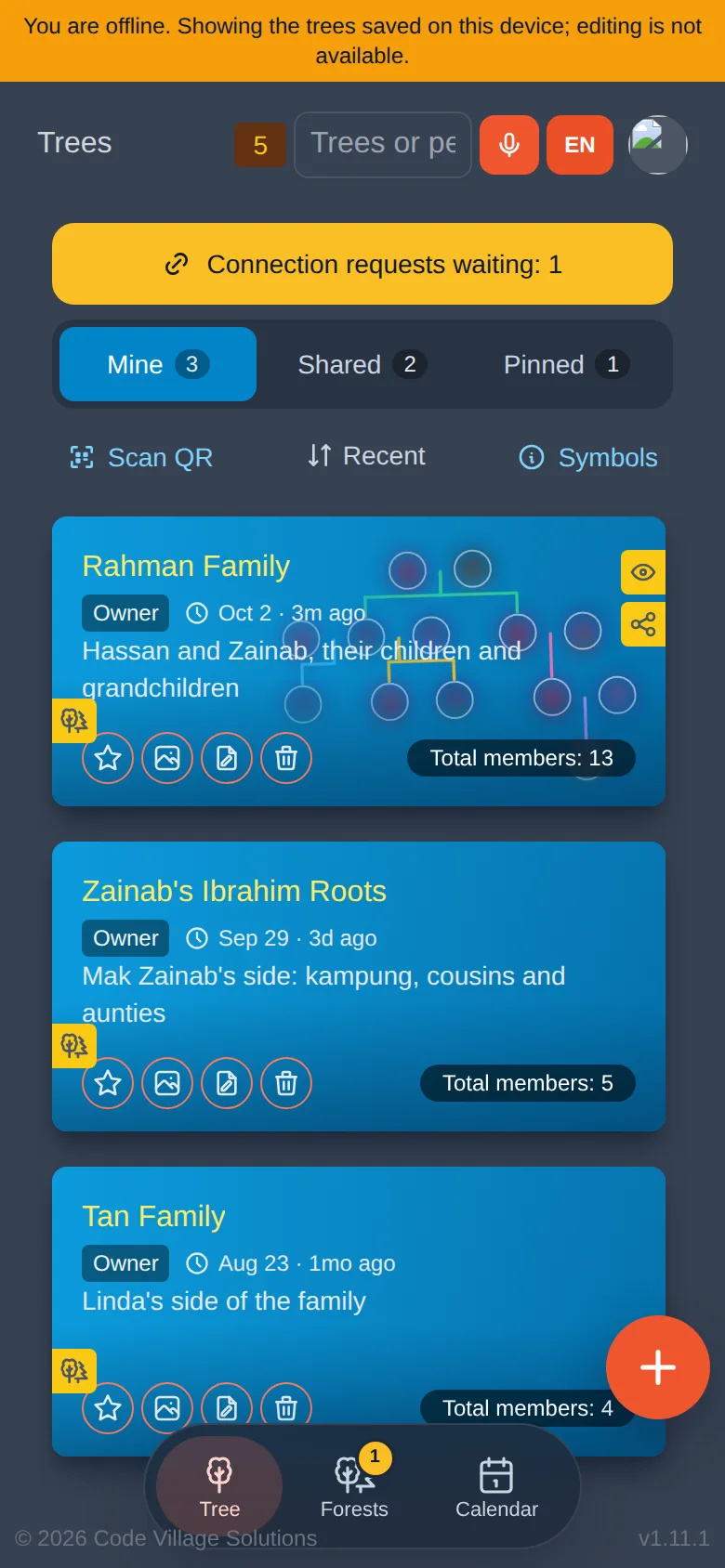
Open the trees you want to read while you still have a connection. They will be there when you do not.
For administrators: Data transfer
If you do not see Data transfer in your settings, it is not for you, and that is normal.
Administrators can move everything from one installation of Asal Ku to another, or back it up.
- Download a backup creates one .zip with the whole database and all photos. Keep it somewhere safe.
- Replace everything from a backup takes a backup .zip, or an old database dump (.sql), and replaces all data, including users. You must type the word REPLACE to confirm. A safety copy is made first and put back automatically if anything goes wrong.
- Add images adds a .zip of photos without changing anything else.
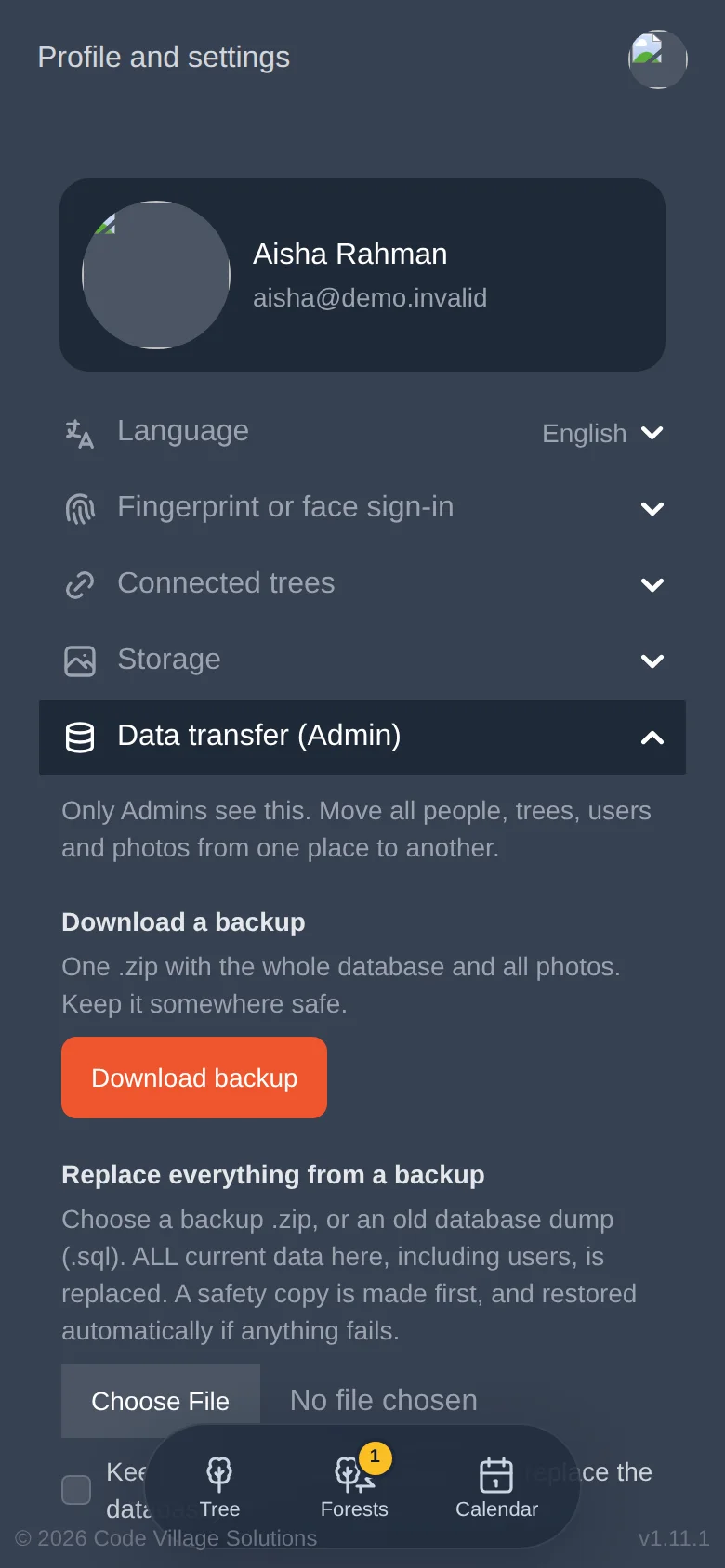
Everything currently in the installation is replaced. Download a backup first, even though a safety copy is made.
Try it yourself
- Change the language to another one you can read, look around, then change it back.
- Open the Connected trees section and look at the default choices.
- Turn the on-boarding tips for one page back on, and visit the page.
Remember
- Everything personal is in Profile and settings, behind your round picture.
- The language changes the whole app at once.
- Opened trees can be read offline; editing needs a connection.