 Asal Ku Training
Start here › Lesson 5
Building your tree
Add parents, partners, children and brothers or sisters, link people who are already in the tree, and remove them again.
In this lesson you will learn
- How to start editing and how to finish
- How to add a parent, a spouse, a child and a brother or sister
- How to link two people who are already in the tree
- How to say whether a child is a birth, foster, adopted or step child
- How to remove a link, or delete a person
If the tree was shared with you for viewing only, the Edit Node button is not available. Ask the owner to share it with you "to a Manager" (lesson 9).
Start editing
Open your tree (lesson 4).
Tap the orange Edit Node button in the bottom bar. A tip says to tap the person you want to edit. The bottom bar changes to Undo, Done, Redo.
Tap the person you want to start with.
On a phone a menu rises from the bottom with every action for that person, grouped as This person, Parents, Children, Spouse.
On a computer, small green buttons appear around the person (see below).
Choose what you want to do. The sections below explain each one.
When you have finished, tap Done.
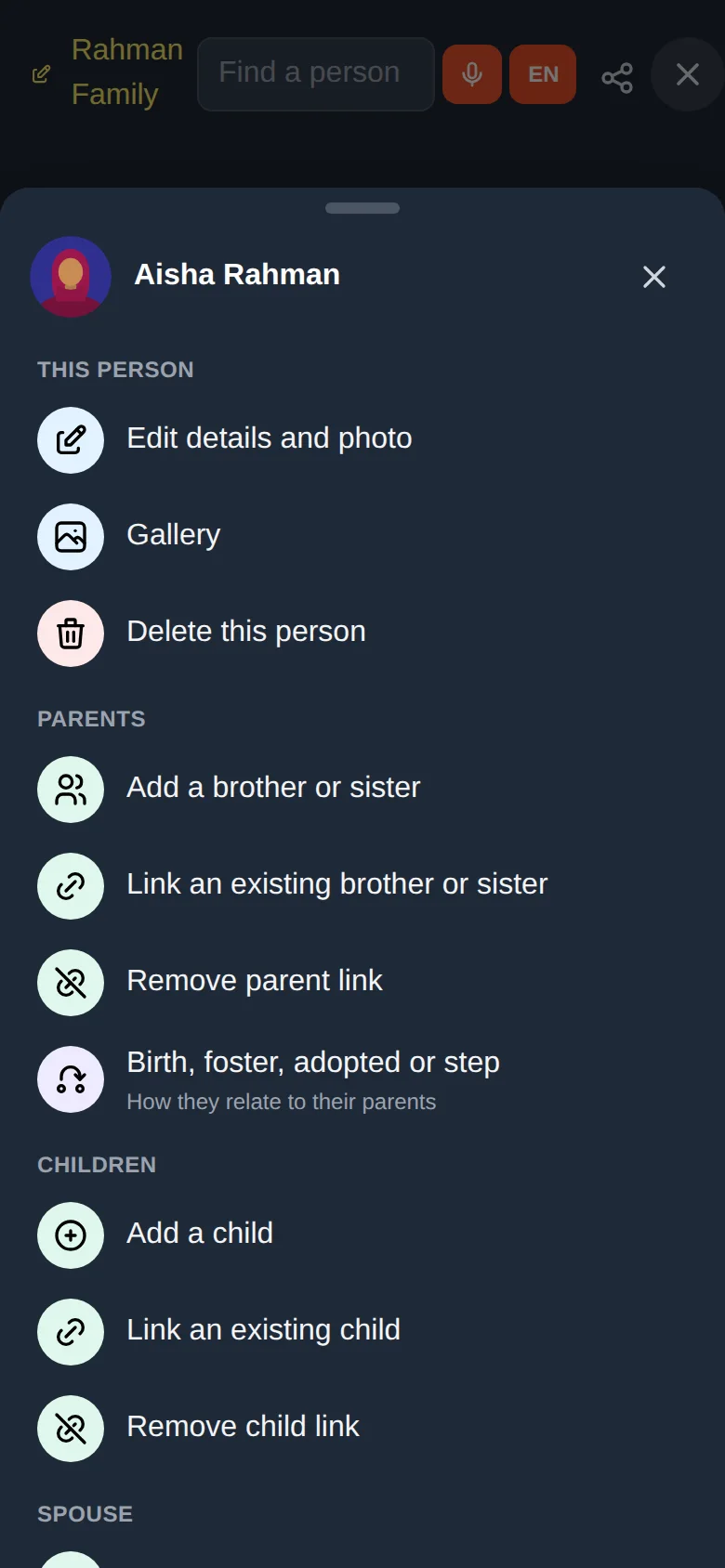
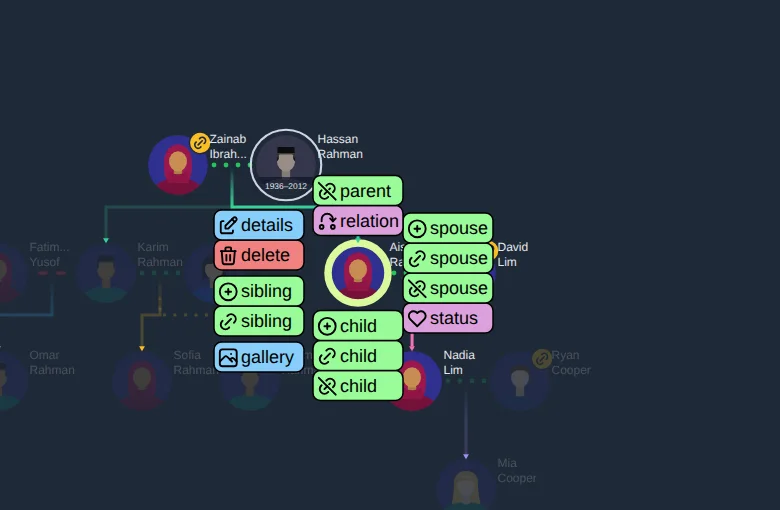
A tree grows outwards from one person. Start with yourself, add your parents, then their parents, then your partner and children. You can add the people in any order.
Add a parent
Select the person (the child) in edit mode.
Choose Add a parent (the ⊕ button above the person on a computer).
Fill in the form: full name, gender, birth and death dates if known, and a photo or avatar.
If the person already has one parent, the form asks about their relationship to that parent (married, divorced or not specified) and the gender is set for you.
Tap Submit.
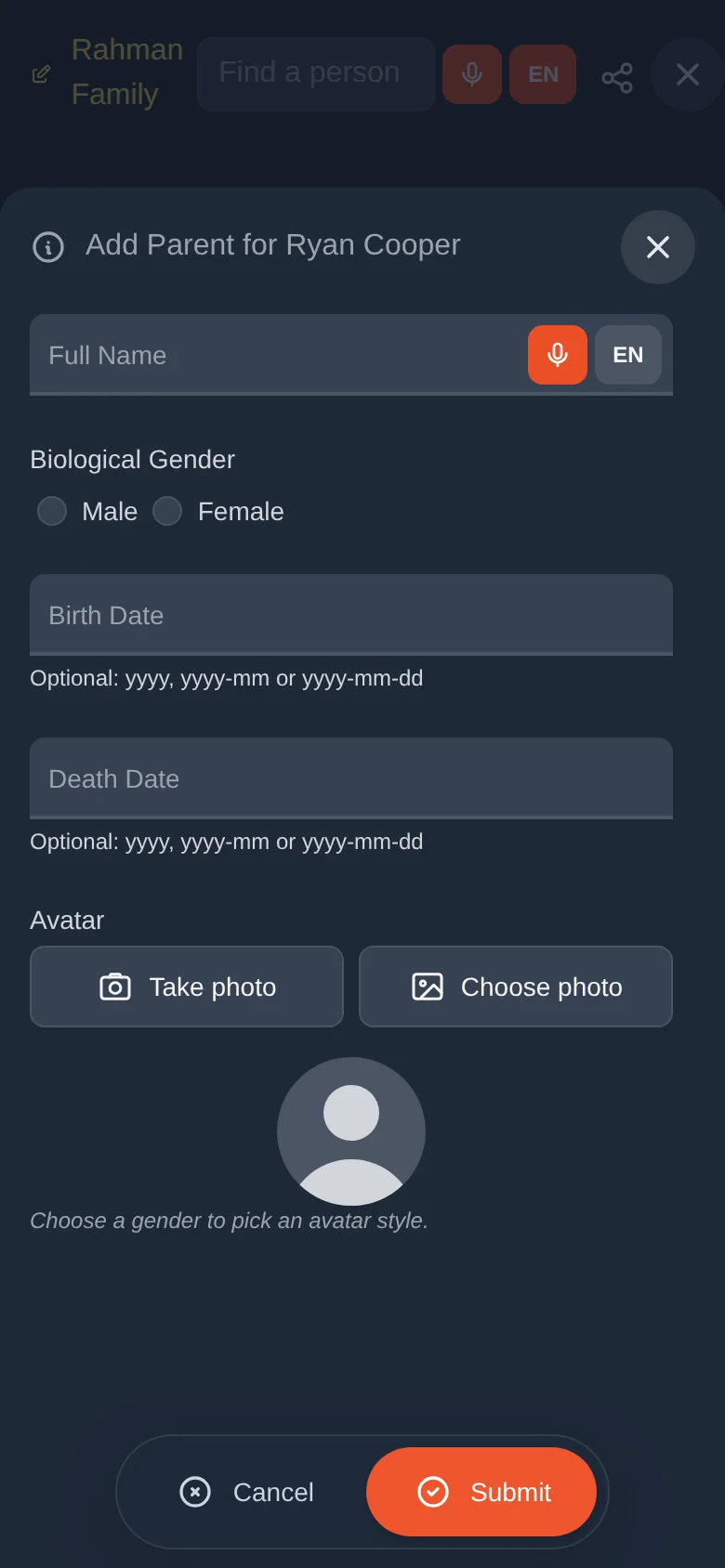
A person can have at most two parents. When two exist, the add-parent button disappears.
Add a spouse or partner
Select the person in edit mode and choose Add a spouse.
Enter the partner's name, gender and dates.
Under Spouse Relationship Status choose Married, Divorced or Not Specified. If you know it, type the Marriage Date (a year, a year and month, or a full date). The calendar uses this date for anniversaries.
If the person already has children with someone else, a list asks which existing children belong to this new couple. Tick them.
Tap Submit.
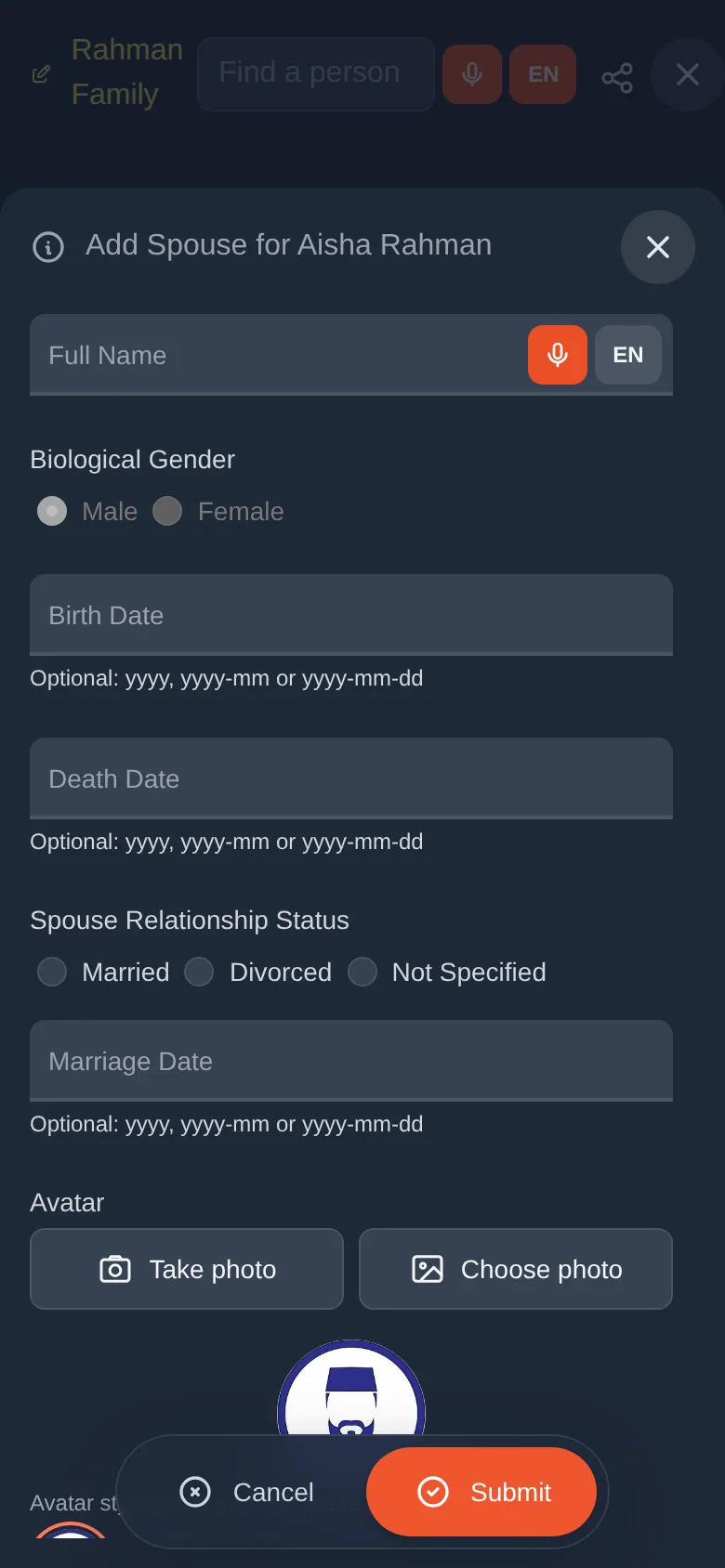
A person can have several spouses over a lifetime. They are all drawn.
Add a child
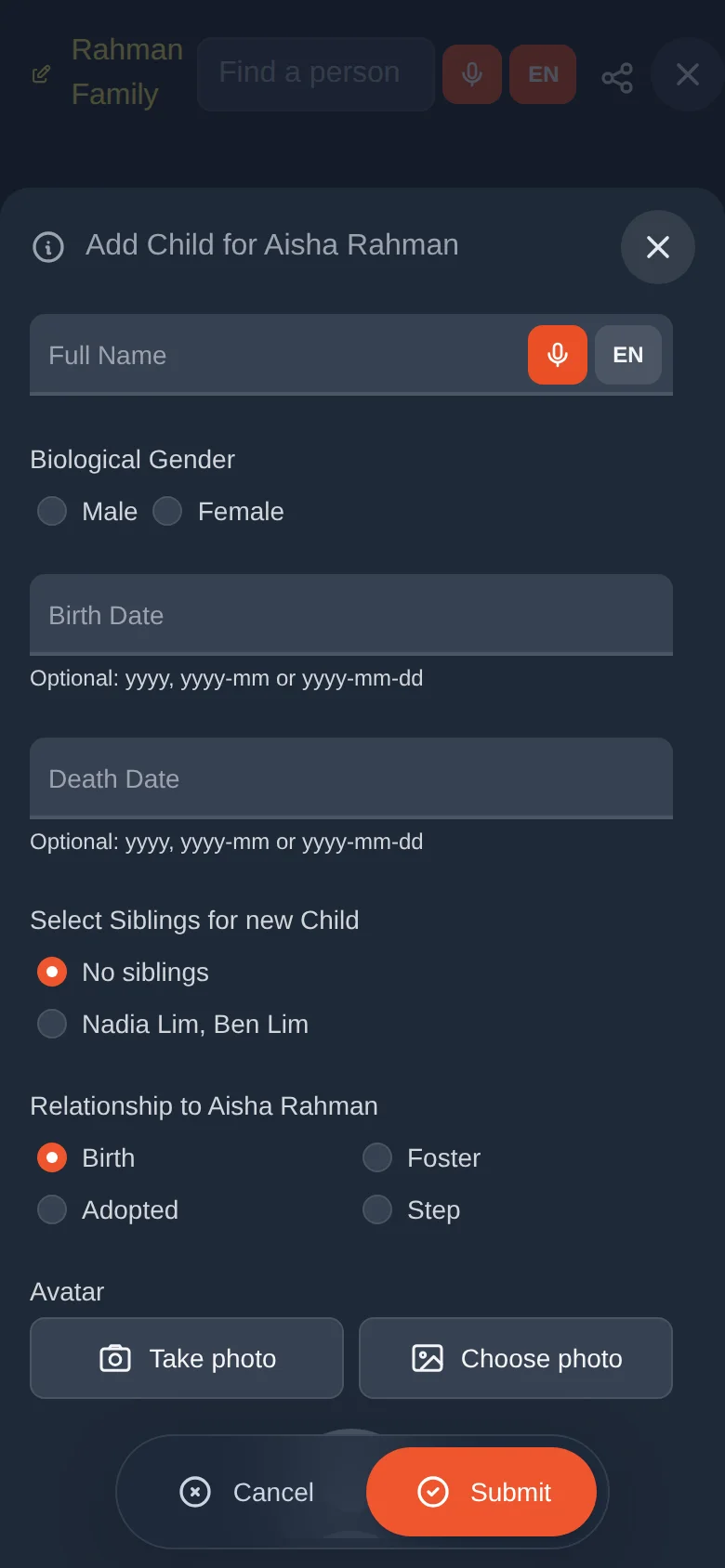
Select a parent in edit mode and choose Add a child.
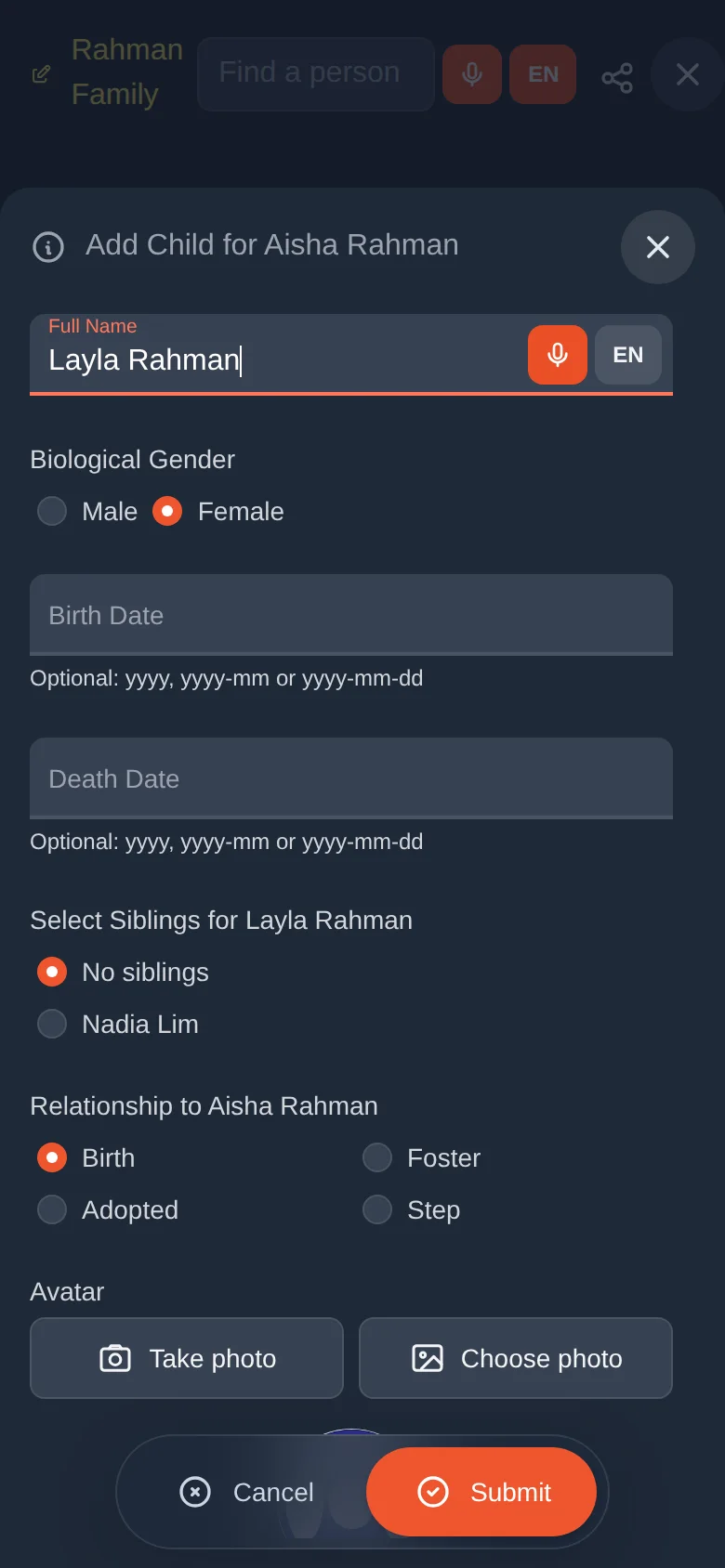
Fill in the name, gender, dates and avatar.
If the parent has more than one partner, the form asks "Select Siblings for new Child". Choose the family the child belongs to: the children of one partner, or No siblings for a first child with no other parent recorded yet.
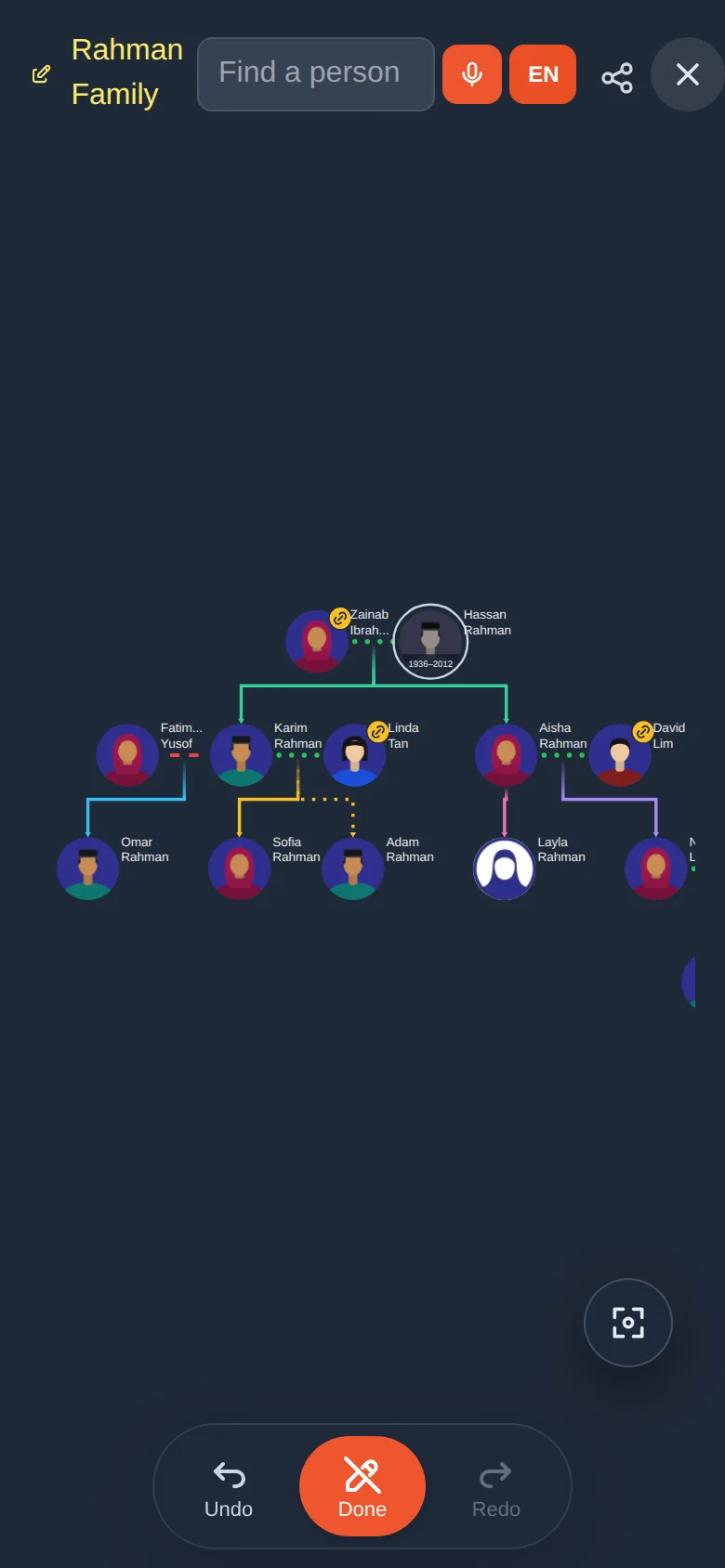
Under Relationship to the parent choose Birth, Foster, Adopted or Step. This changes the line style in the tree.
Tap Submit.
Add a brother or sister
A brother or sister is simply a child of the same parents. Select the person and choose Add a brother or sister (the + sibling button on a computer).
- The person has one parent in the tree: the form opens straight away with that parent filled in.
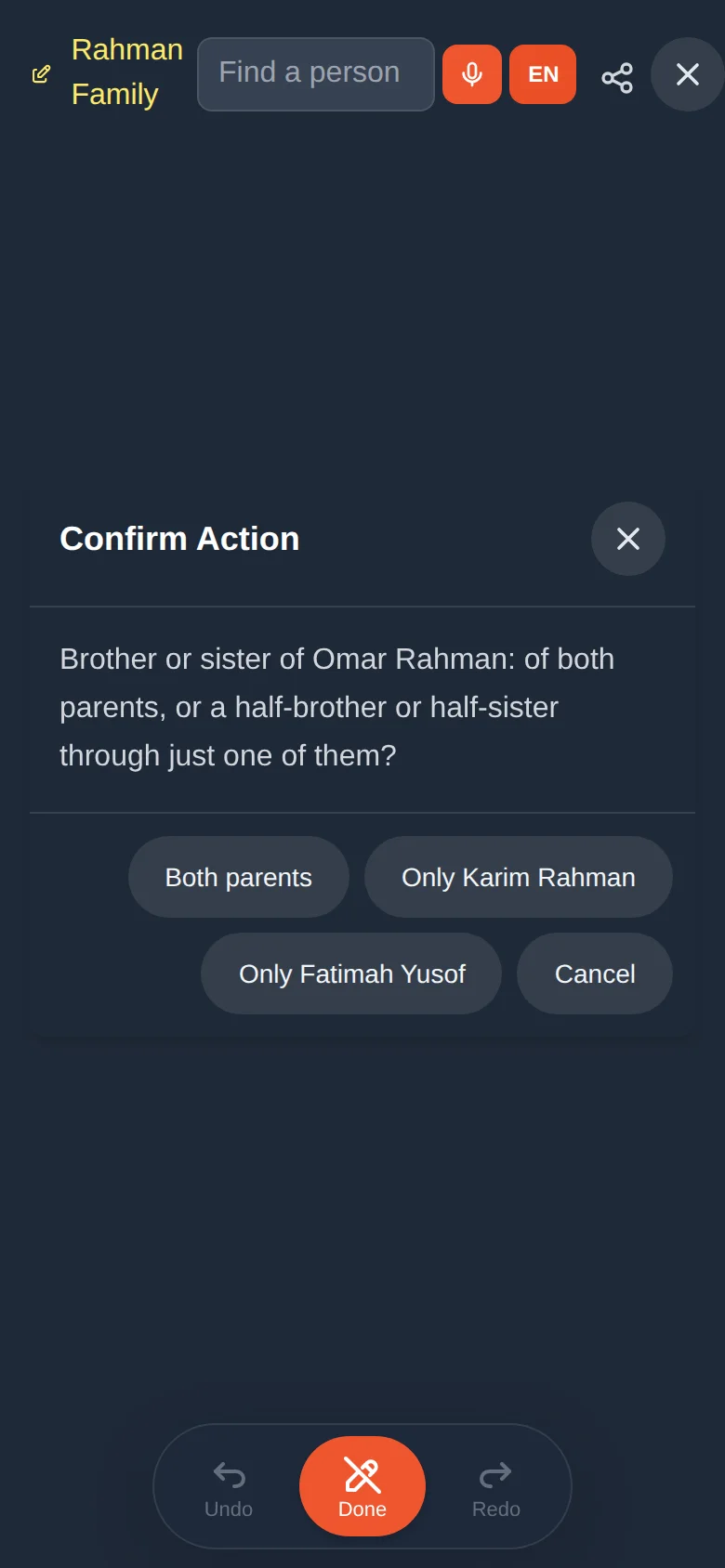
- The person has two parents: Asal Ku asks whether the new person is a brother or sister of both parents, or a half-brother or half-sister through only one of them. Choose accordingly, then fill in the form as for a child.
- The person has no parents yet: there is nobody to be a sibling of. Asal Ku offers to Add a parent first, or to put in an Unknown father or Unknown mother whom you can rename later. After that, choose Add a brother or sister again.
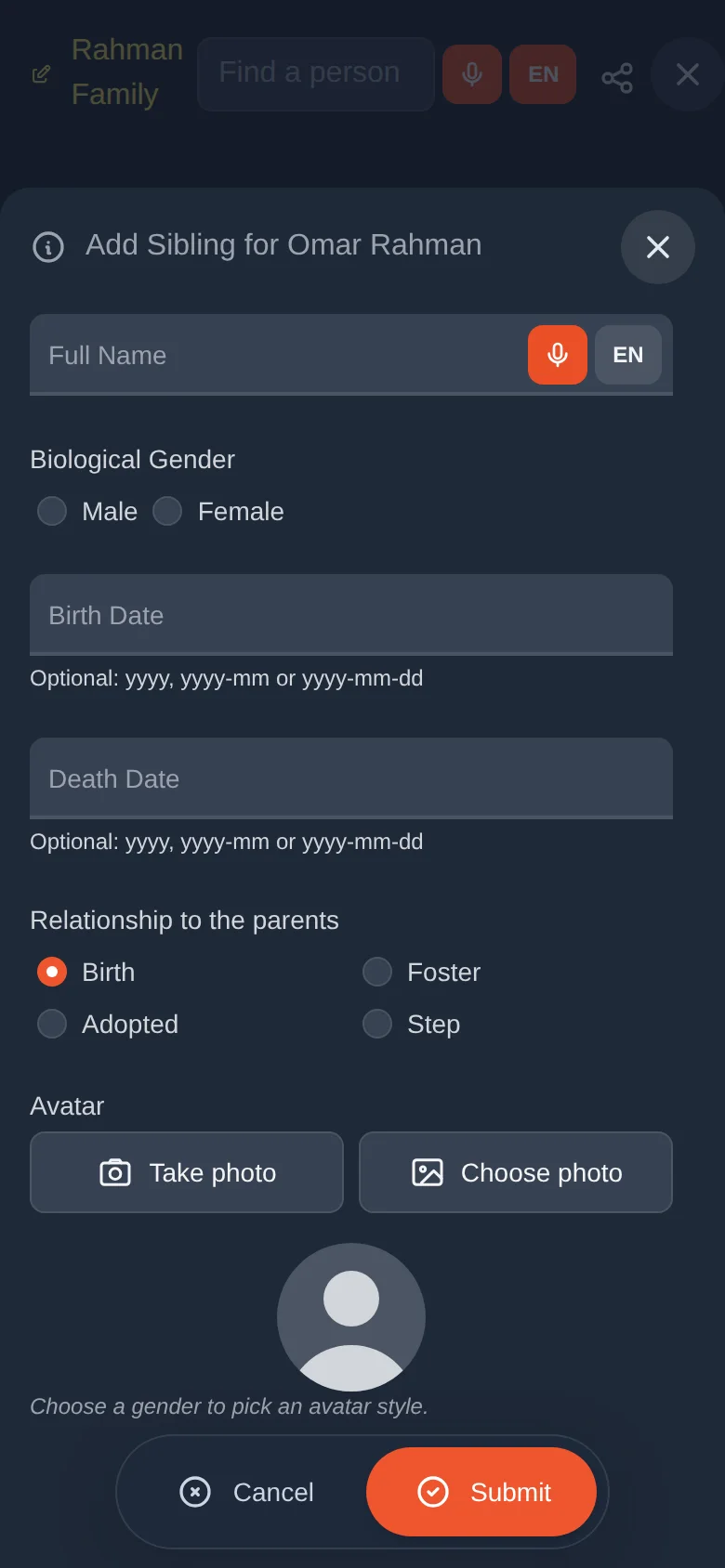
Link people who are already in the tree
Sometimes both people are already in the tree and only the link is missing, for example two cousins who were added separately, or a person who was added with no parents. Use the link actions instead of adding someone again, so nobody appears twice.
| Menu item | Use it to… |
|---|---|
| Link an existing parent | Give a person a parent (or a couple) who is already in the tree. |
| Link an existing child | Make someone already in the tree the child of the selected person. |
| Link an existing spouse | Join two people as a couple. |
| Link an existing brother or sister | Make someone already in the tree a brother or sister of the selected person, through their parent. |
Link a parent
Choose Link an existing parent. A list shows the people and couples who could be this person's parents. Tick one and tap Submit.
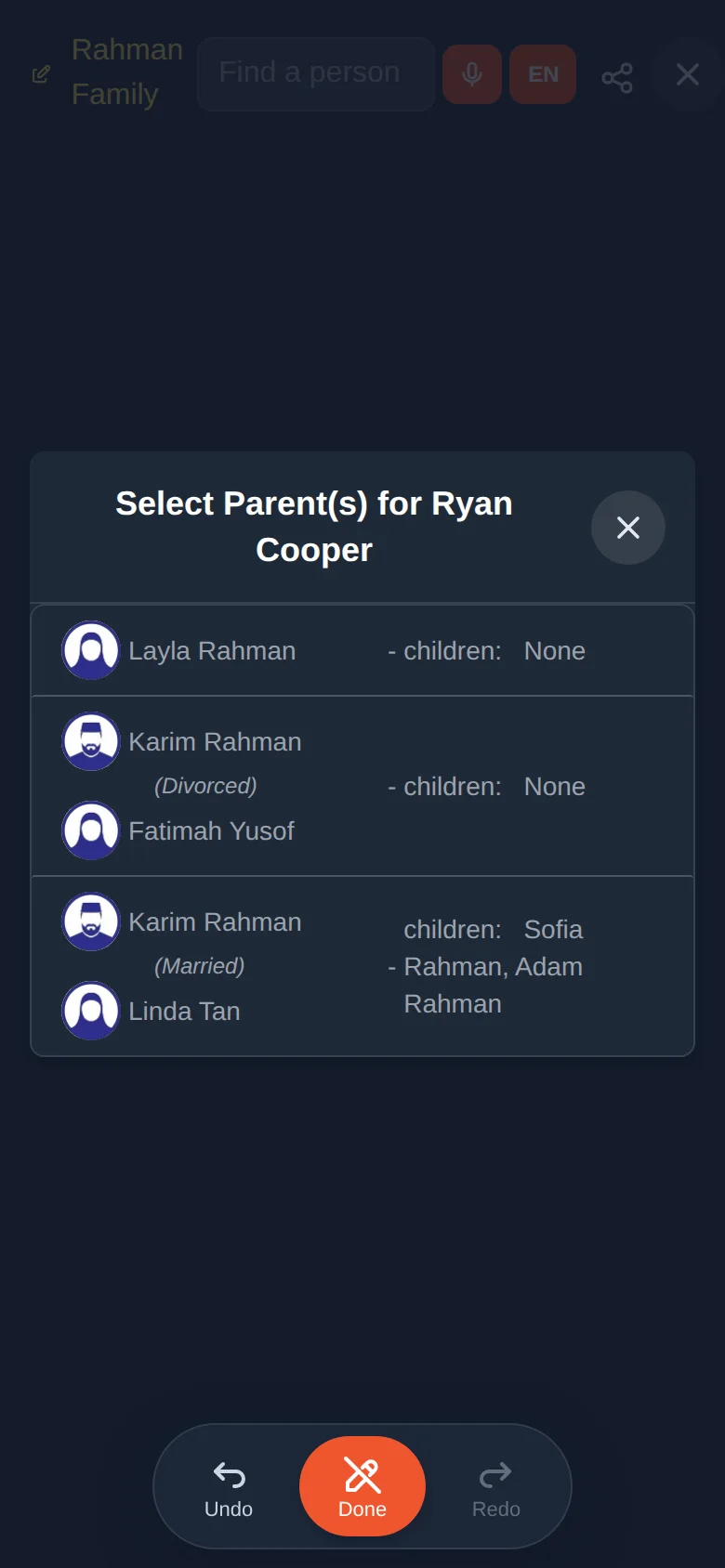
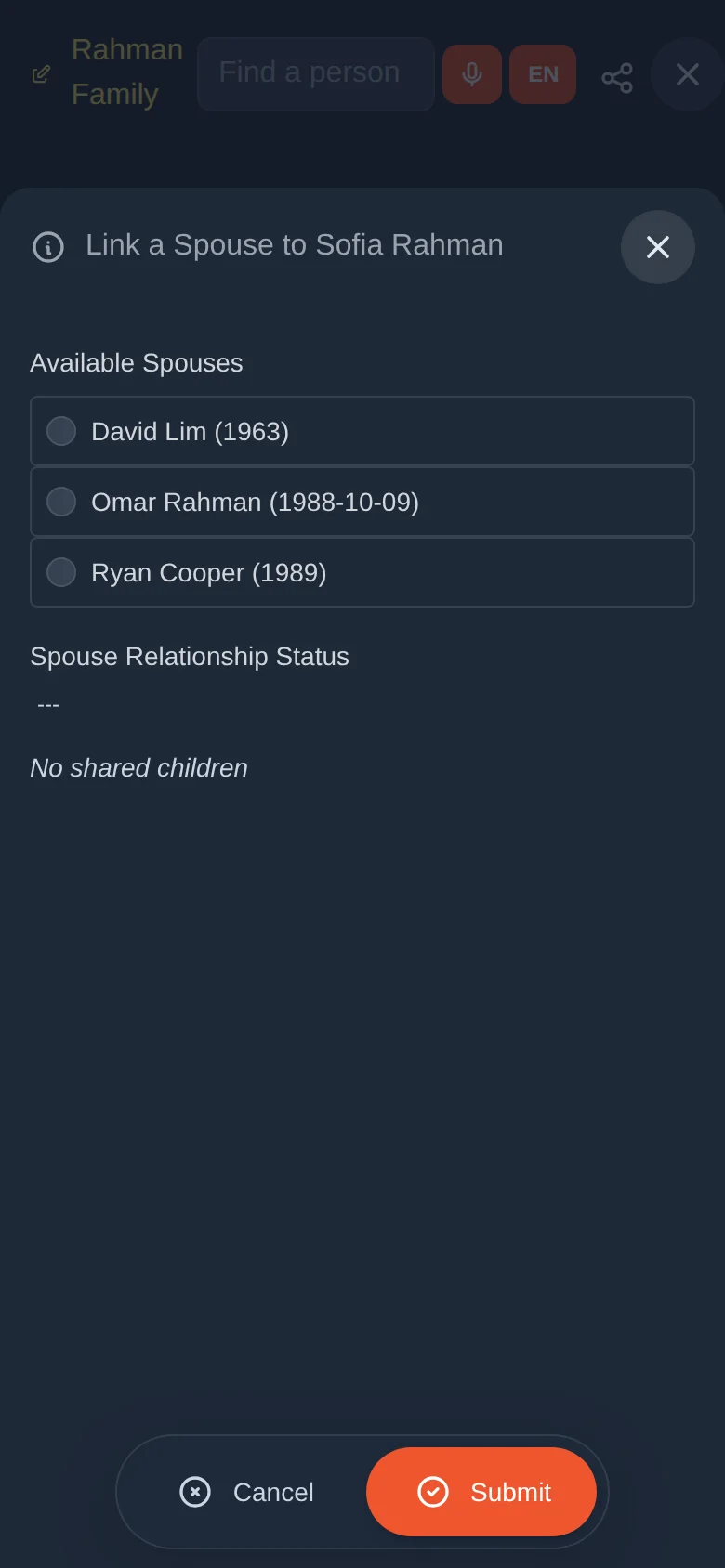
Link a spouse
Choose Link an existing spouse. Pick the partner from Available Spouses, choose the relationship status (married, divorced or not specified), and tick any shared children if there are any.
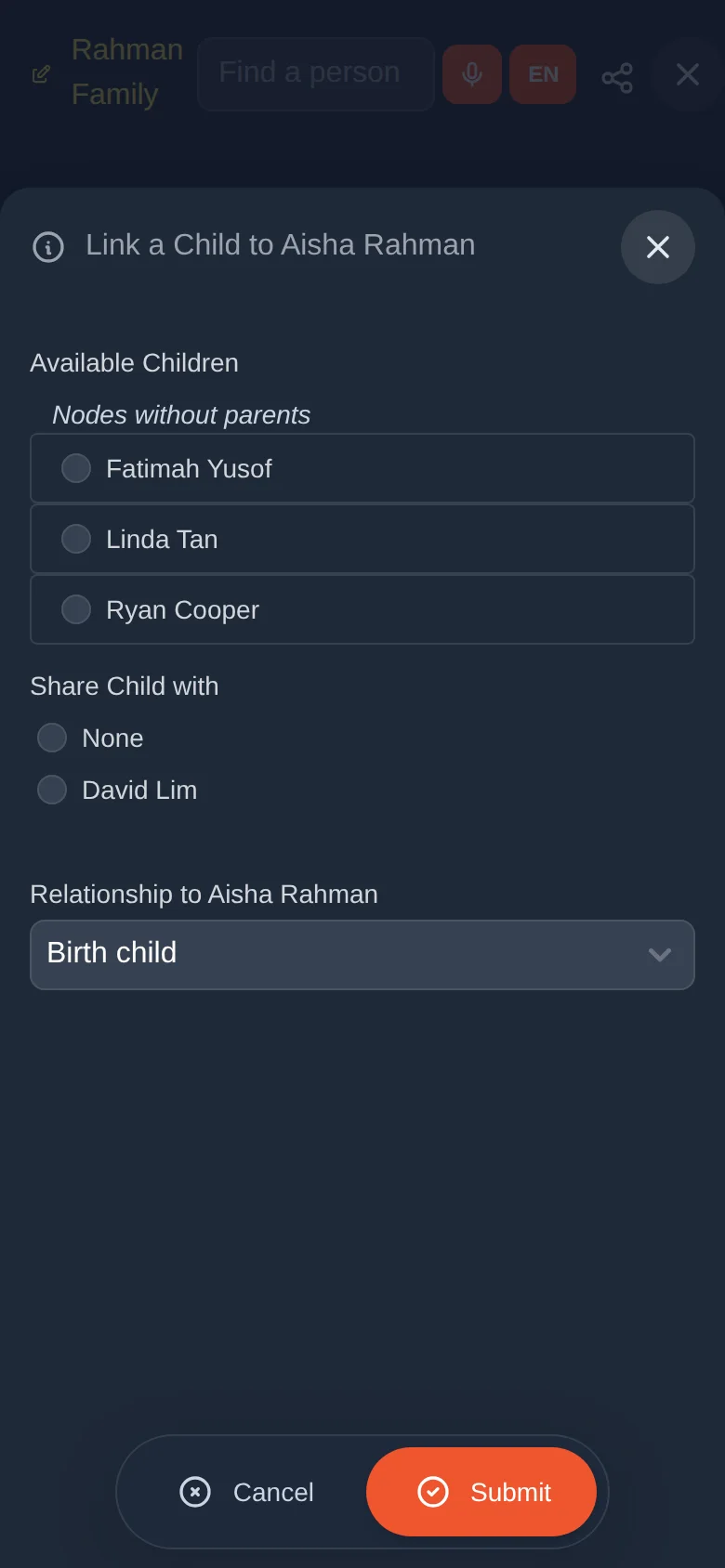
Link a child
Choose Link an existing child. The list Available Children shows people who have no parents recorded yet. Tick one. Under Share Child with choose the parent's partner if the child also belongs to them, or None. Finally choose the relationship (Birth child, Foster, Adopted or Step child).
Link a brother or sister
This works through a parent of the person. Choose Link an existing brother or sister (the link sibling button on a computer). The panel is titled Link a Brother or Sister to …. Tick the person from the list. Under Share Child with, choose the parent's partner if the new brother or sister is a full brother or sister, or None for a half brother or sister. This button only appears when someone could be linked.
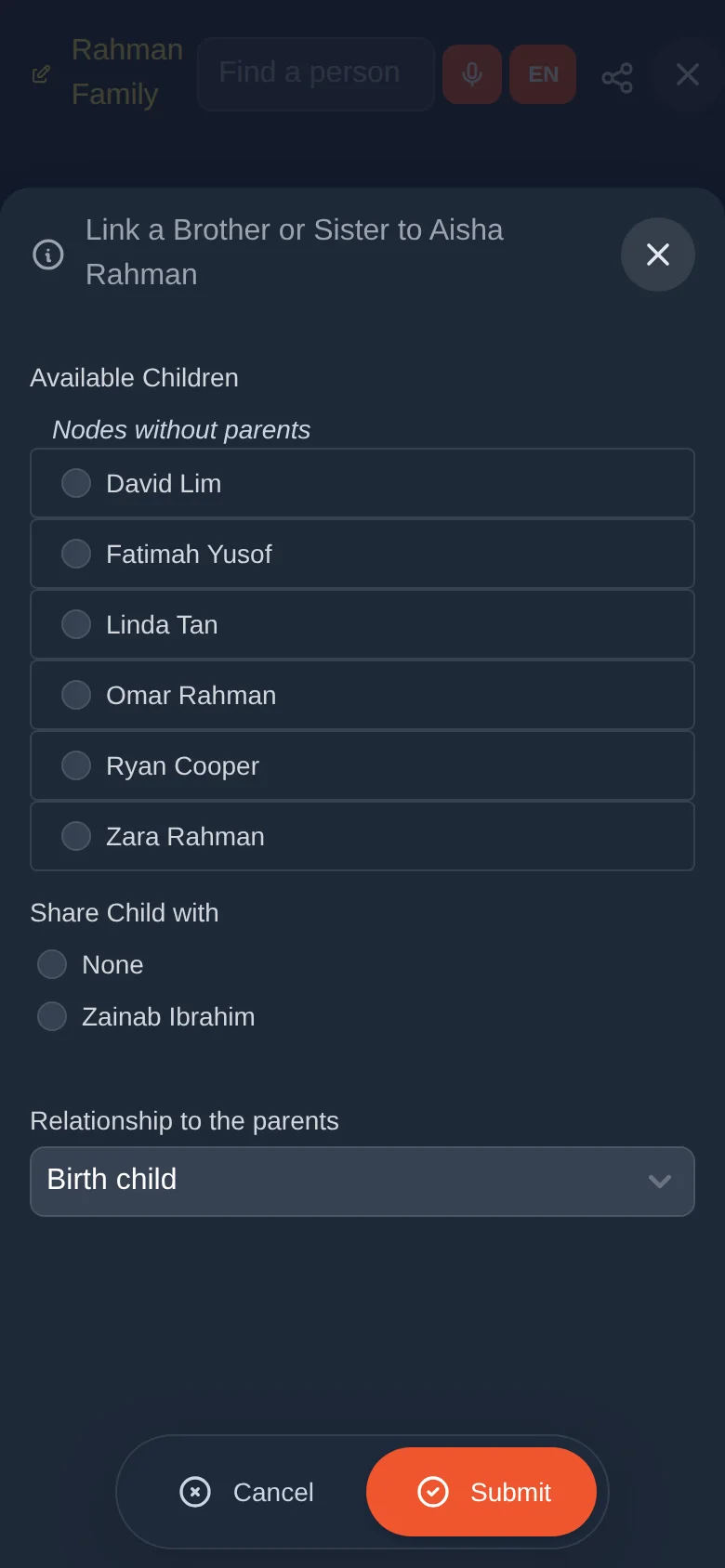
The lists show only people who could really be linked. For example, a person cannot be linked as their own ancestor.
Birth, foster, adopted or step
To change how a person belongs to their parents, select the person and choose Birth, foster, adopted or step (under Parents).
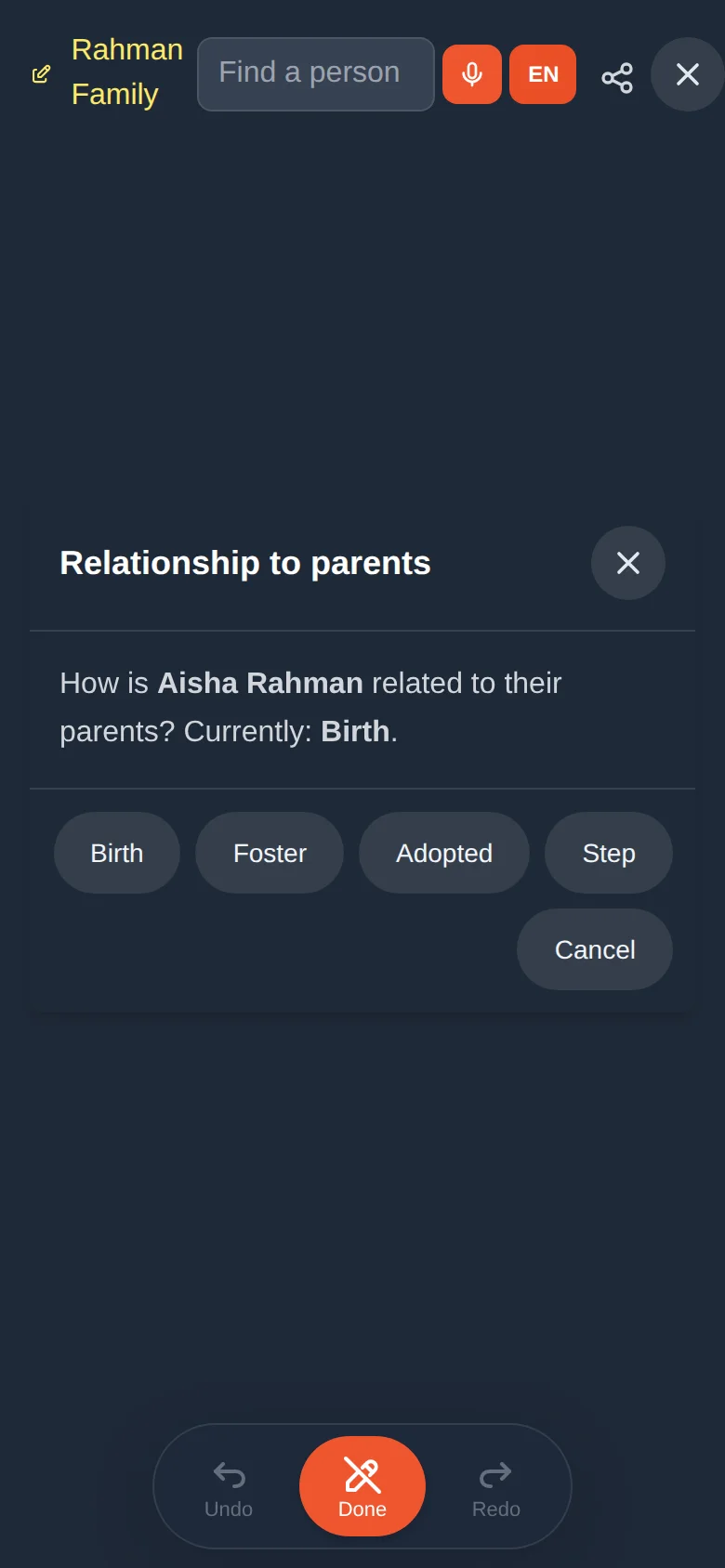
The choice changes the line style in the tree (lesson 4) and decides which date checks apply (lesson 7): age rules between parent and child are only applied to birth children.
Change a marriage: status and date
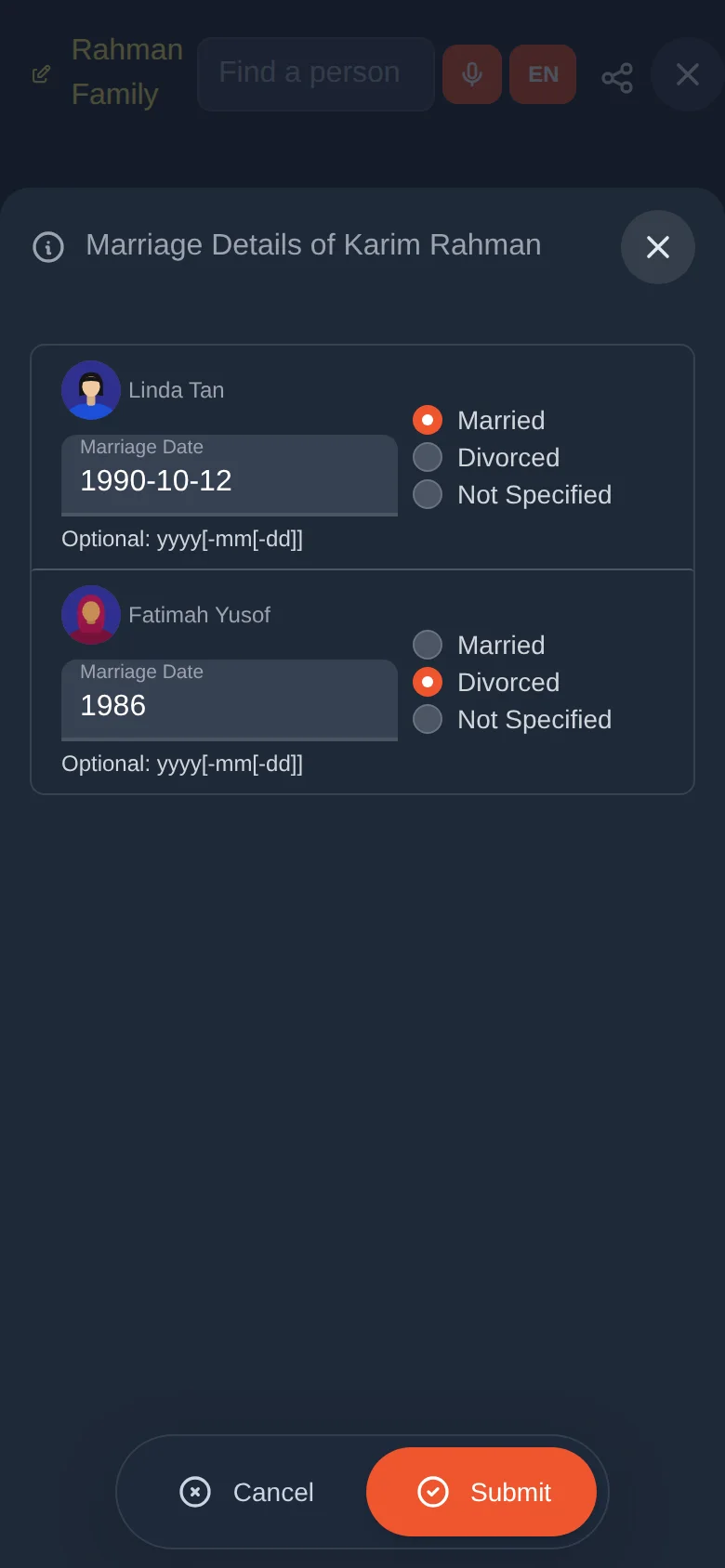
Select one of the couple and choose Marriage status (the status button beside the spouse buttons on a computer). The Marriage Details window lists each spouse with a status (Married, Divorced, Not Specified) and a marriage date. Change what you need and tap Submit.
Remove a link, or delete a person
| Menu item | What happens |
|---|---|
| Remove parent link | The person is no longer shown as a child of that parent. Nobody is deleted, and it happens at once. If you did it by mistake, press Undo. |
| Remove child link | Asks which child to unlink, then removes only that link. |
| Remove spouse link | Asks which spouse to unlink, then separates only that couple. |
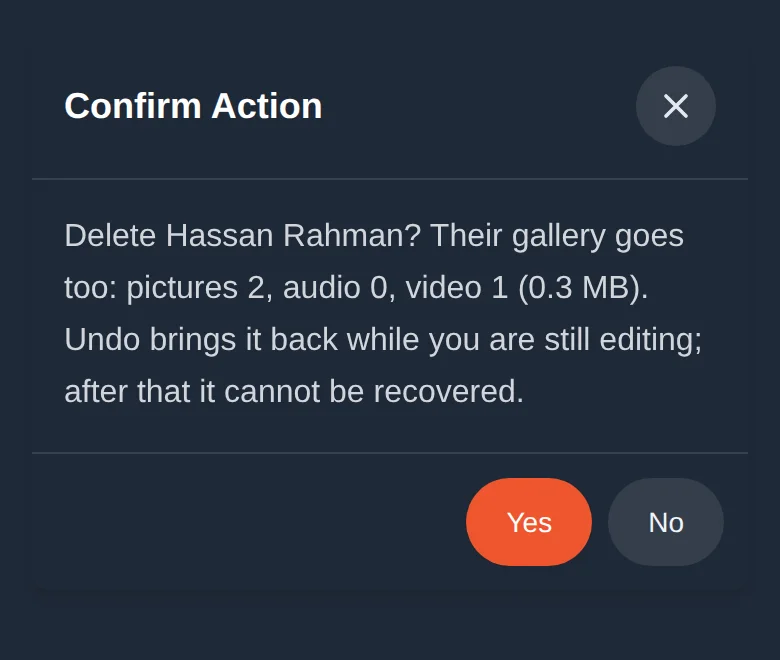
| Delete this person | The person is removed from the tree. Asal Ku asks first. |
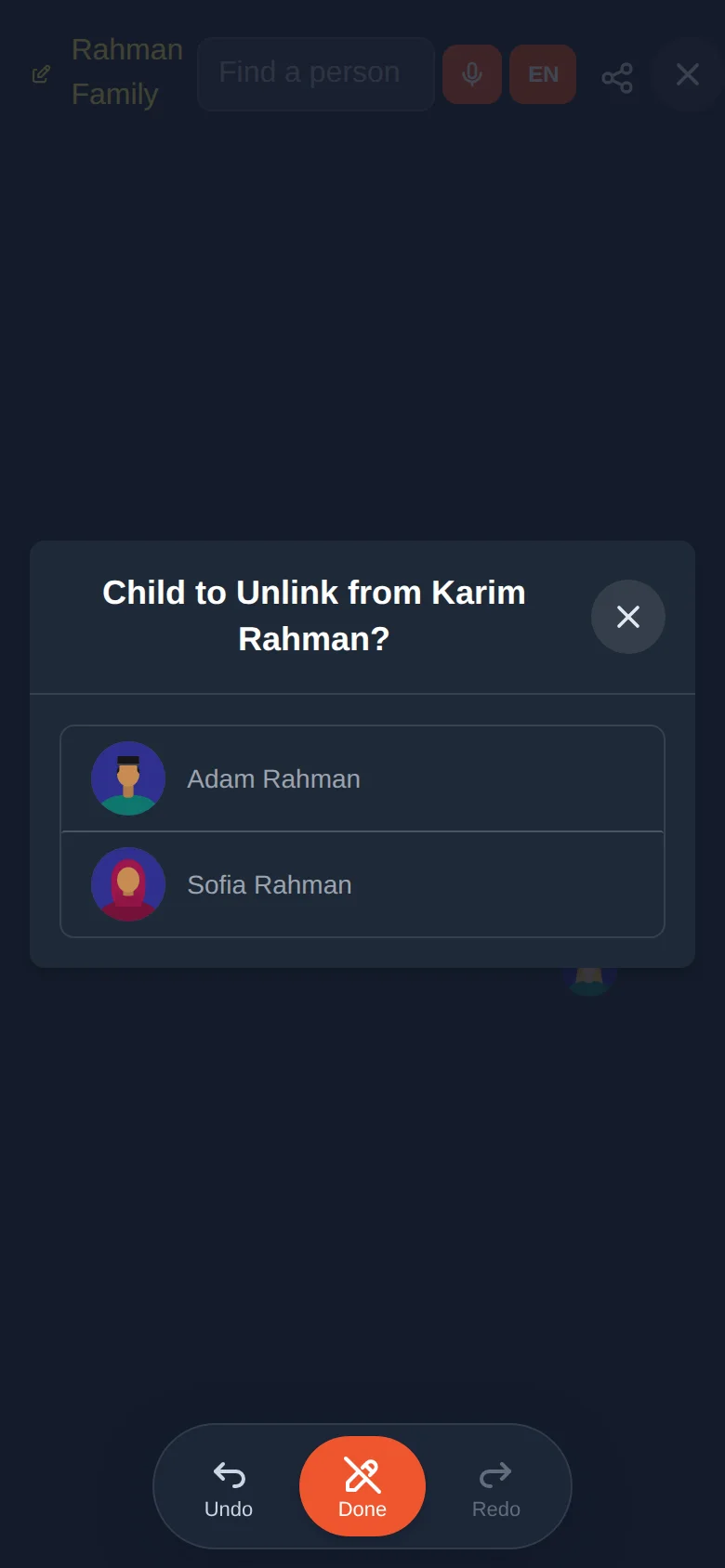
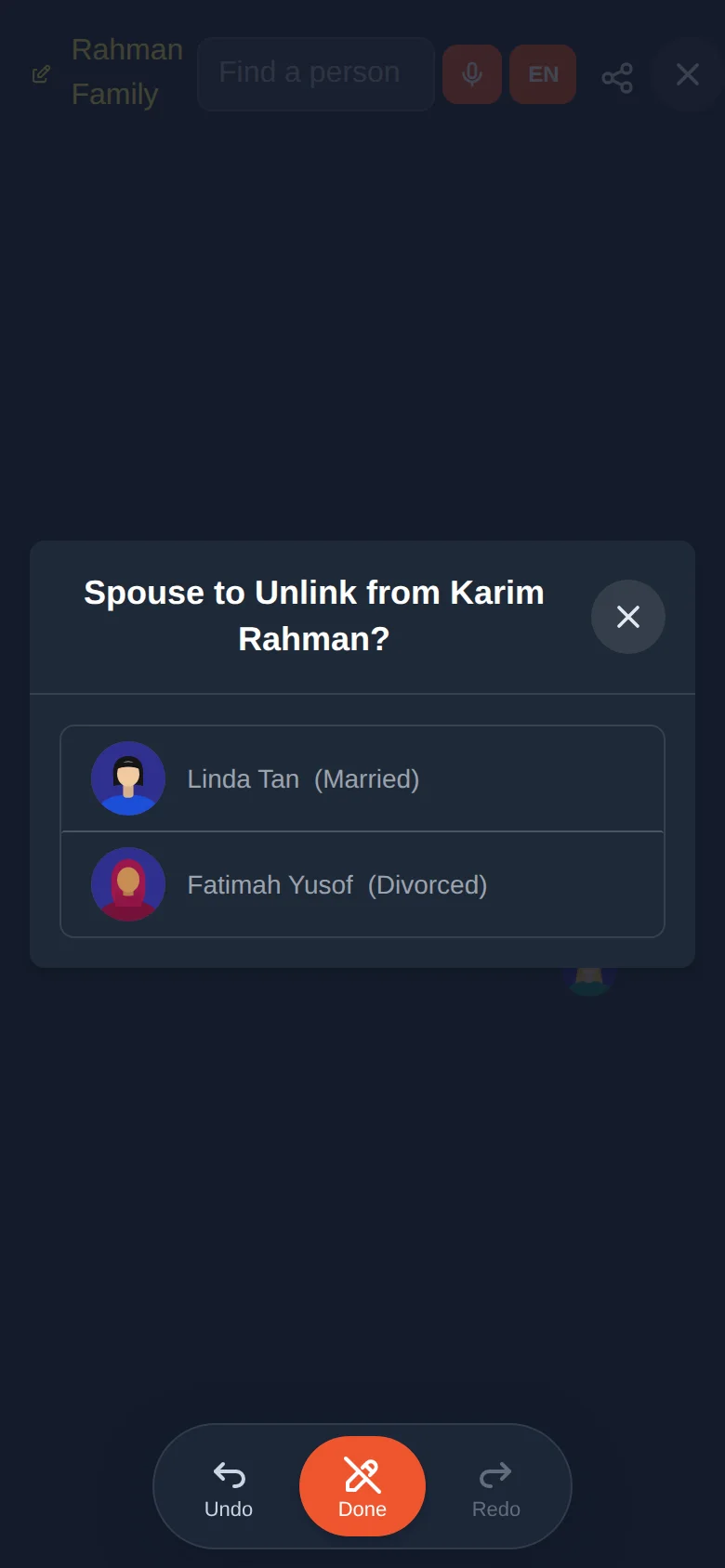
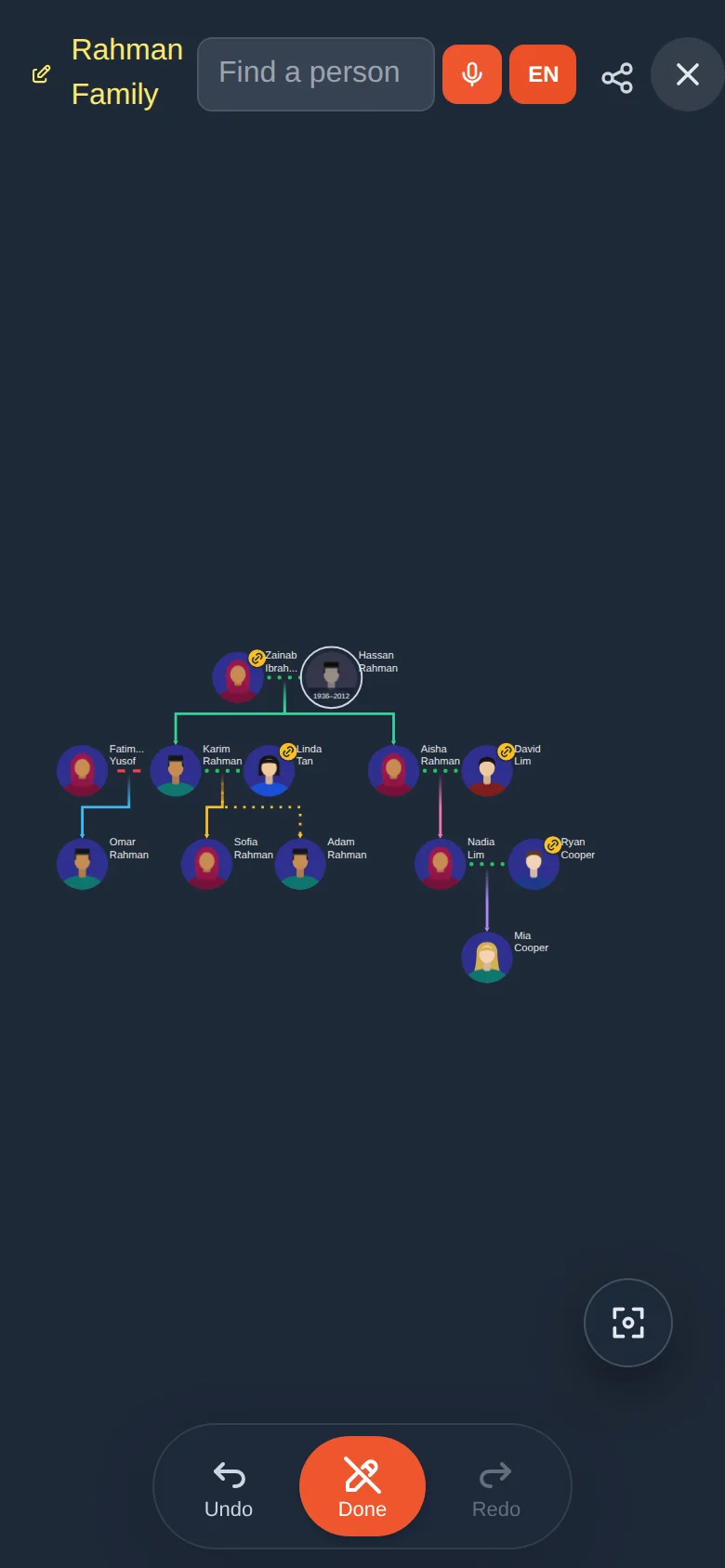
If the person has pictures, audio or video, the confirmation tells you how many and how large they are, because they go with the person. Undo brings everything back as long as you are still in the same editing session. After you press Done it cannot be recovered.
Try it yourself
- In your Practice Tree, press Edit Node and select yourself.
- Add a parent, then add a second parent. Notice the add-parent button disappears.
- Add a spouse and a child, choosing Birth.
- Add a brother or sister for your child. Add a second child as Adopted and see the dotted line.
- Press Done.
Remember
- Edit Node, tap a person, choose an action, Submit, then Done.
- Two parents at most. A sibling is a child of the same parents.
- Use Link when both people already exist; use Add for a new person.
- Removing a link deletes nobody; deleting a person is confirmed first.