 Asal Ku Training
Start here › Lesson 6
Details, dates and photos of a person
Edit a person's name, dates, photo and extra details, and use your voice instead of typing.
In this lesson you will learn
- How to open a person's details to change them
- How to type dates correctly, including when you only know the year
- How to add a photo, or choose an avatar when there is no photo
- How to fill in extra details such as residence, school and hobbies
- How to dictate with your voice
Open the details form
Open the tree, press Edit Node and select the person.
Choose Edit details and photo (the blue details button on a computer).
The Edit Node form opens. Change what you need, then tap Submit. To leave without saving, tap Cancel. If you changed anything, Asal Ku asks whether to discard the changes.
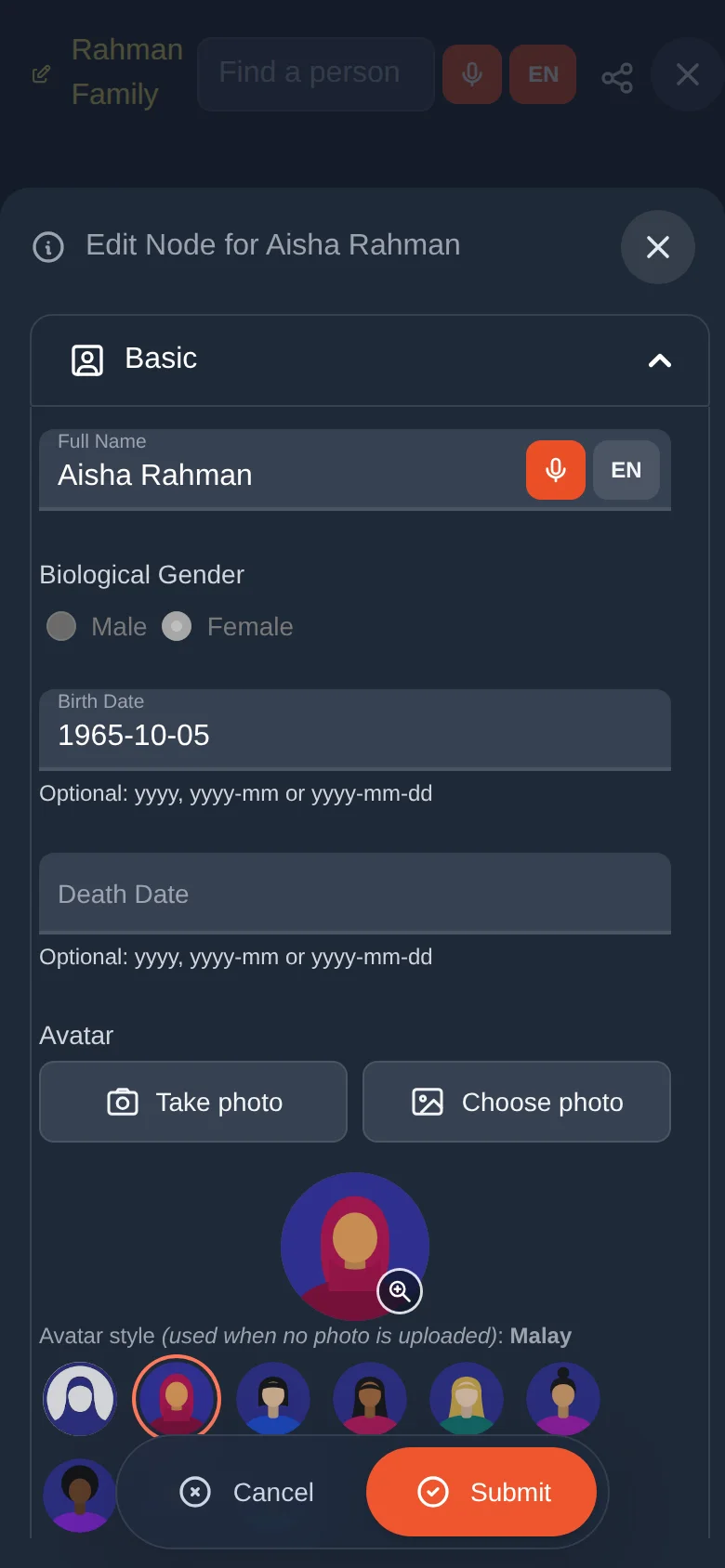
Name and gender
Type the full name as the family uses it. The first word is treated as the first name and the rest as the last name when you choose what to share with other families (lesson 10).
Choose Male or Female. This is used to draw the tree.
Dates: a year is enough
Birth and death dates accept three shapes. Use whichever you know.
| You know… | Type | Example |
|---|---|---|
| Only the year | yyyy | 1965 |
| Year and month | yyyy-mm | 1965-10 |
| The full date | yyyy-mm-dd | 1965-10-05 |
With a full birth date Asal Ku shows the birthday on the Calendar (lesson 11) and its date checks become more exact. A year alone is still perfectly fine.
Leave the Death Date empty for people who are alive. A person with a death date is shown with their years in the tree, and appears on the calendar as a remembrance day.
Asal Ku checks dates when you save. For example, a child cannot be born before the parent. Lesson 7 explains this.
Photo or avatar
Under Avatar you have three choices:
- Take photo: opens the camera on a phone.
- Choose photo: picks a picture from your phone or computer.
- A picture avatar: a row of ready-made portraits. Tap one. It is used when there is no photo.
Photos are shown as a small, sharp copy in the tree so it stays quick. Tap a person's portrait in their information card to see the original full size.
The portrait is one picture. For more pictures, recordings and videos use the person's Gallery (lesson 8).
Extra details
Under the Basic section you may see further sections you can open, for details such as a mobile number, residence (town, region, country), hobbies, education (school, college or university) and sports. Only fill in what you know. These details show in the person's information card.
When you connect your tree to another family's (lesson 10) you choose which of these groups the other family may see. Nothing is shared unless you tick it.
Speaking instead of typing
Beside every name and description box there are two small buttons: an orange microphone and a grey language button such as EN.
Tap the language button and choose the language you will speak. Your choice is remembered.
Tap the microphone and say the name clearly. Your browser may ask permission to use the microphone the first time. Allow it.
The words appear in the box. Names are capitalised for you, and other guesses are offered if it misheard. Fix anything by typing.
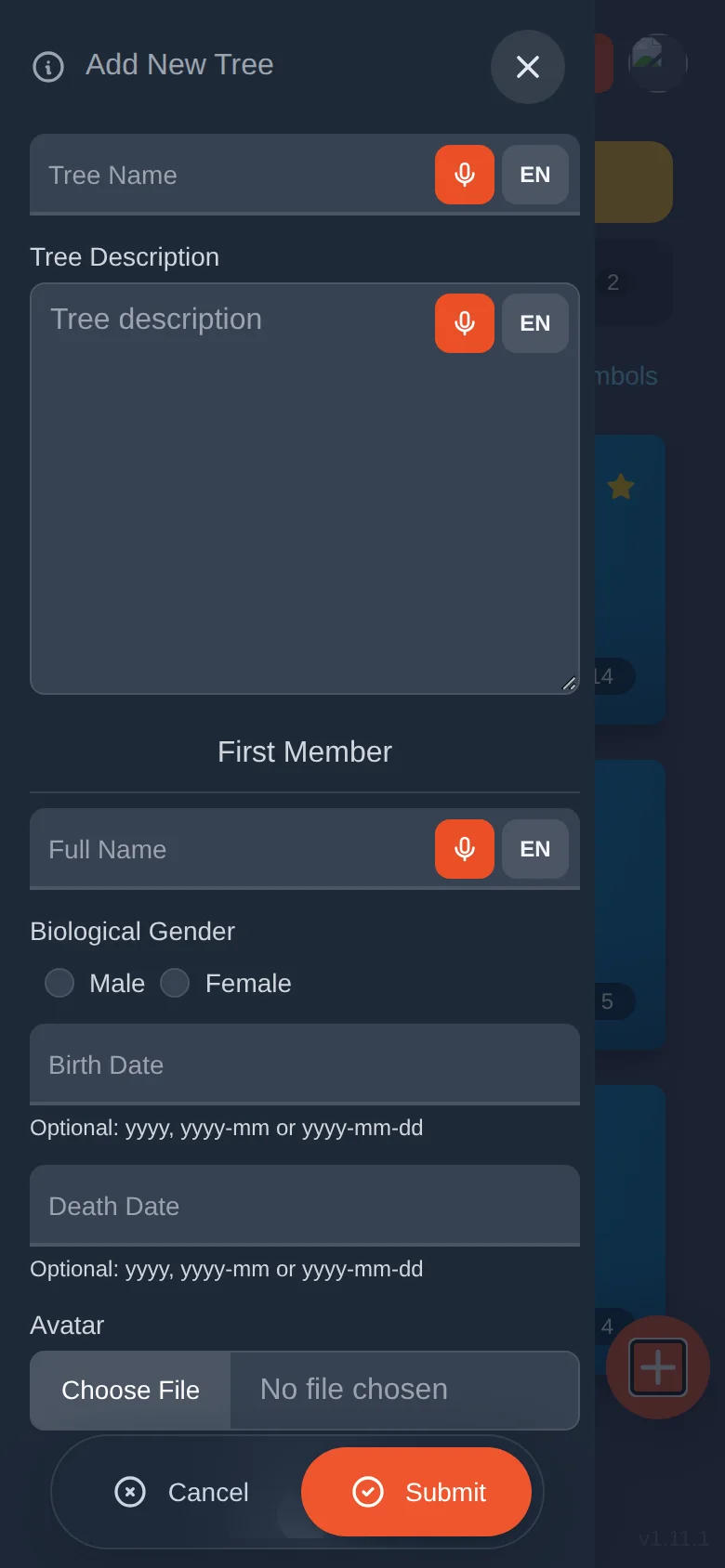
You can speak a Malay name into one box and English notes into another. Just change the language button before each one.
Try it yourself
- Open someone in your Practice Tree and choose Edit details and photo.
- Type a birth date as only a year. Save. Edit again and make it a full date.
- Choose a picture avatar, then try Choose photo with a picture from your phone.
- Use the microphone to add a nickname in the name box. (Cancel if you do not want to keep it.)
Remember
- Dates can be yyyy, yyyy-mm or yyyy-mm-dd.
- A full birth date unlocks birthdays on the calendar.
- Photo or avatar: either one is fine.
- The microphone and language button are next to every text box.